

📂 The "Logo_Final_Final_v2.png" Problem
You need to send a contract. You go to the HubSpot File Manager to grab the "2026 Pricing PDF."
You search for "Pricing."
You see:
- Pricing_2024.pdf
- Pricing_2026_DRAFT.pdf
- Pricing_2026_Final.pdf
- Pricing_2026_Final_v2.pdf
Which one is it?
If you pick the wrong one, you lose money. If you pick the old logo, you damage the brand.
This is the "Digital Junk Drawer."
Over years of use, your HubSpot File Manager collects thousands of images, PDFs, and videos. Without governance, it becomes a liability.
- SEO Risk: Giant, uncompressed images slow down your site.
- Brand Risk: Teams use outdated assets.
- Productivity Risk: Marketers waste hours searching for the "right" file.
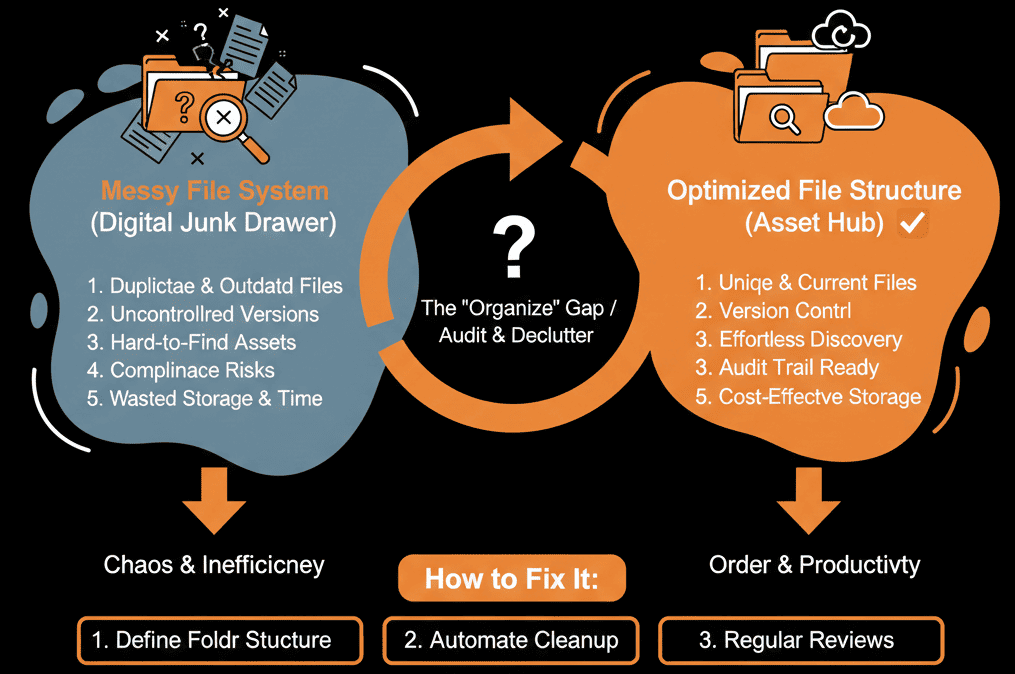
Here is the diagnostic to decluttering your assets and building a clean library.
🩺 Diagnostic 1: The "Root Folder" Dump
The Symptom: You open the File Manager, and everything is in the main dashboard. No folders. Just 5,000 files in a list.
The Fix: Taxonomy Structure.
You cannot survive without folders.
The Structure:
- 01 - Brand Assets (Logos, Fonts, Brand Guide).
- 02 - Website Images (Backgrounds, Icons).
- 03 - Content Offers (PDFs, Ebooks).
- 04 - Campaigns (Folder per Year > Folder per Campaign).
The Rule: Nothing lives in "Root."
🩺 Diagnostic 2: The "Duplicate" Nightmare
The Symptom: You have 5 versions of the same image.
The Fix: The "Replace" Feature.
Never upload a new version with a new name (Image_v2.jpg) if you can avoid it.
Use "Replace": Click on the file > "Replace."
The Magic: HubSpot keeps the same URL. Every landing page, email, and blog post using that image automatically updates to the new version. No broken links. No manual updates.
🩺 Diagnostic 3: The "SEO" Heavyweight
The Symptom: Your website load speed is failing Core Web Vitals.
The Root Cause: You uploaded a 5MB "Print-Quality" image to a blog post.
The Fix: Compression Audit.
Filter your File Manager by "Size."
Identify anything over 200KB (for images) or 2MB (for PDFs).
Action: Download, Compress (using TinyPNG or similar), and Re-upload using "Replace."
Advanced: Convert PNGs to WebP for faster loading.
🩺 Diagnostic 4: The "Alt Text" Void
The Symptom: Your images aren't ranking in Google Images. Accessibility scores are low.
The Root Cause: You uploaded files named IMG_0923.jpg and left the Alt Text blank.
The Fix: Naming Convention.
Rename: hubspot-migration-guide.jpg (Keywords in filename).
Alt Text: Add descriptive text for screen readers. This is critical for SEO.
⚠️ The "Archive" Protocol
Don't just delete files. You might break a live email from 2 years ago.
Check Usage: Click "File Details" to see where the file is used.
If Used: Do not delete. Move to a folder named z_Archive_DoNotDelete.
If Unused: Delete.
A Clean Kitchen Cooks Better Food.
Your File Manager is the kitchen of your marketing team. If the knives are lost and the ingredients are expired, you can't cook a Michelin-star meal.
Governance requires discipline.
- "No uploads to Root."
- "Always use Replace."
- "Always compress."
Not sure if your images are hurting your SEO?
Clean Up the Junk. Get Your Free Health Check.
This is part of our Free HubSpot Health Check. We will run a "Site Speed & Asset Audit." We'll find the heavy files, the broken links, and the duplicate mess. We’ll help you structure a library that your team actually enjoys using.
Clean Up the Junk. Get Free Hubspot Audit