

💸 The $10,000 "Checkbox" Mistake
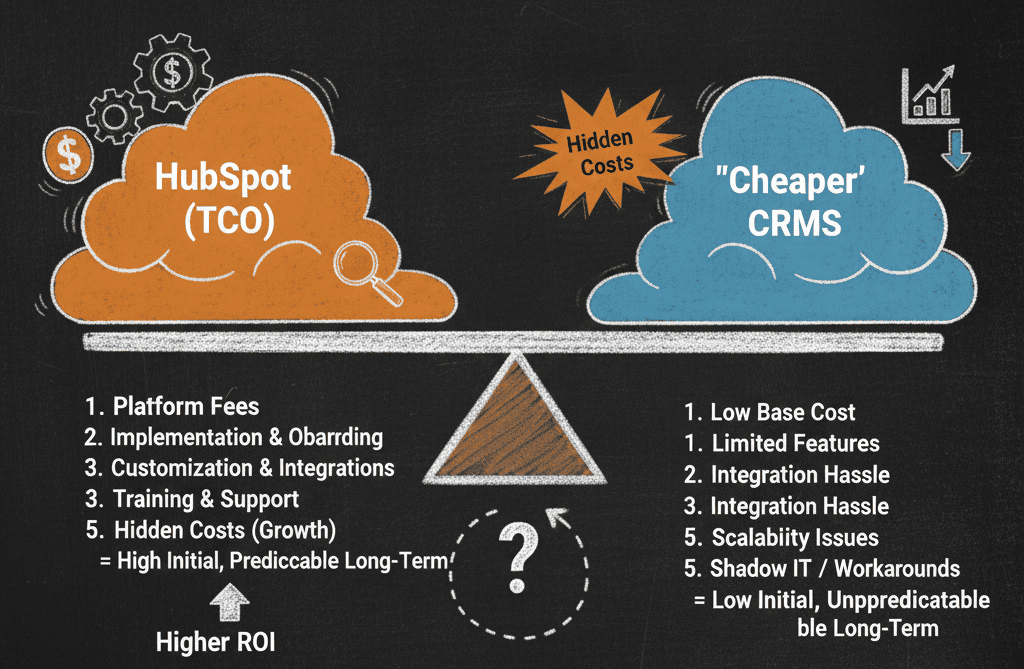
You open your HubSpot renewal invoice. The price has jumped by $10,000. Why? Because you crossed the "Contact Tier" limit.
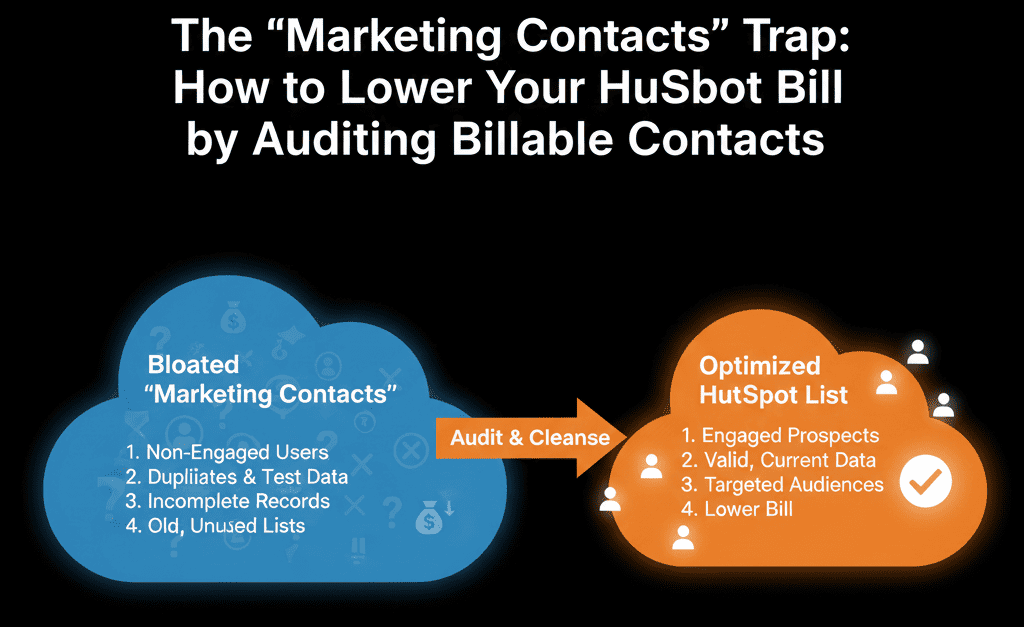
You have 50,000 contacts. HubSpot is charging you for 50,000 contacts. But here is the secret: You probably only market to 10,000 of them.
The rest are:
- Bounced emails.
- Unsubscribed users.
- Sales-only leads (who should never get a newsletter).
- Old "Zombie" leads from 2018.
- Partners/Vendors.
This is the "Marketing Contacts Trap."
HubSpot’s pricing model (since 2020) allows you to store 1,000,000 contacts for FREE... as long as you mark them as "Non-Marketing." You only pay for the ones you actively email.
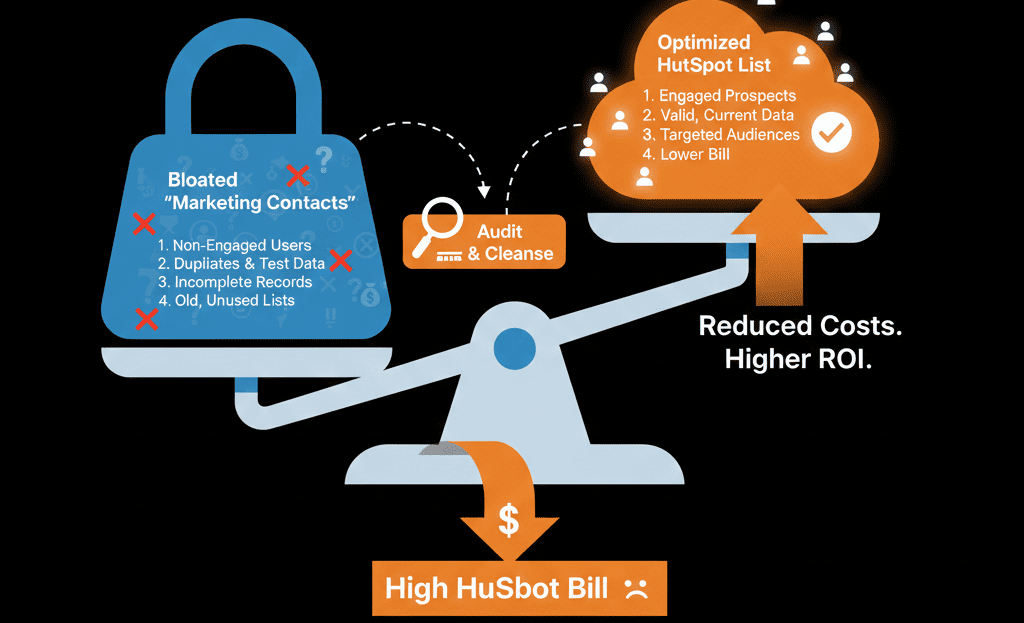
If you have defaulted everyone to "Marketing Contact = True," you are literally burning money. Here is the audit guide to finding the "freeloaders" in your database and slashing your bill.
🔍 Step 1: The "Unengaged" Audit
The Target: People who haven't opened an email in 12 months.
The Logic: If they haven't opened an email in a year, they aren't going to buy. Sending them more email hurts your "Sender Reputation" (Deliverability) AND costs you money.
The Fix:
- Create an Active List: Last Marketing Email Open Date > 52 weeks ago.
- Workflow: Set Marketing Contact Status to "Non-Marketing".
- Result: You stop paying for them. You keep the data (history), but you stop the billing.
🔍 Step 2: The "Bounce & Unsubscribe" Audit
The Target: Hard Bounces and Unsubscribes.
The Logic: You cannot email them anyway. Why pay for them?
The Fix:
- Create an Active List: Email Hard Bounce Reason is known OR Unsubscribed from all email = True.
- Workflow: Set Marketing Contact Status to "Non-Marketing".
- Result: Immediate savings. (Note: HubSpot often handles bounces automatically, but double-check your portal settings).
🔍 Step 3: The "Sales-Only" Audit
The Target: "Cold Outreach" lists or "Current Customers" who shouldn't get marketing fluff.
The Logic: Your Sales Reps are emailing them 1:1 (via Outlook/Gmail integration). This does not require "Marketing Contact" status. You only need "Marketing" status for bulk tools (Newsletters/Workflows).
The Fix:
- Create an Active List: Lifecycle Stage = "Evangelist" (Partners) OR "Lead Status" = "Do Not Contact."
- Workflow: Set Marketing Contact Status to "Non-Marketing".
⚙️ The Governance: "Default to False"
The trap usually happens at the Front Door. When you import a list or connect a form, HubSpot asks: "Set these contacts as Marketing Contacts?"
If you blindly click "Yes" every time, your bill explodes.
The New Rule:
- Forms: Set "Marketing Contact" to True (These are inbound leads).
- Integrations: Set "Marketing Contact" to False by default. (e.g., ZoomInfo imports).
The "Turn On" Workflow: Only turn them ON if they engage.
- Trigger: "Fills out Form" OR "Clicks Email."
- Action: Set as Marketing Contact.
Don't Delete. Just Downgrade.
The fear of "cleaning" is losing data. "What if they come back?"
With the Marketing Contacts model, you don't have to delete them. You just Downgrade them.
- They stay in the CRM.
- Sales can still see them.
- Sales can still call them.
You just stop paying the "Marketing Tax." It is Risk-Free Savings.
Not sure how to run the "Bulk Update" safely?
This is part of our Free HubSpot Health Check. We will run a "Licensing Audit." We'll identify your 10,000 "freeloader" contacts and give you the exact workflow to downgrade them before your next renewal date.
Lower Your Bill. Get Free Hubspot Audit