

💱 The "Exchange Rate" Headache
You are a US company (USD). You open an office in London (GBP).
Your UK rep closes a deal for £10,000.
Scenario A: They type "10,000" into HubSpot. The system assumes it is USD. Your forecast is wrong.
Scenario B: They manually convert it to USD ($13,000) and type that. Next week, the exchange rate changes. Your forecast is wrong again.
This is the "Global Math Tax."
If you force reps to convert currency, they will mess it up. If you don't convert it, your global "roll-up" report is impossible.
You need HubSpot Multi-Currency.
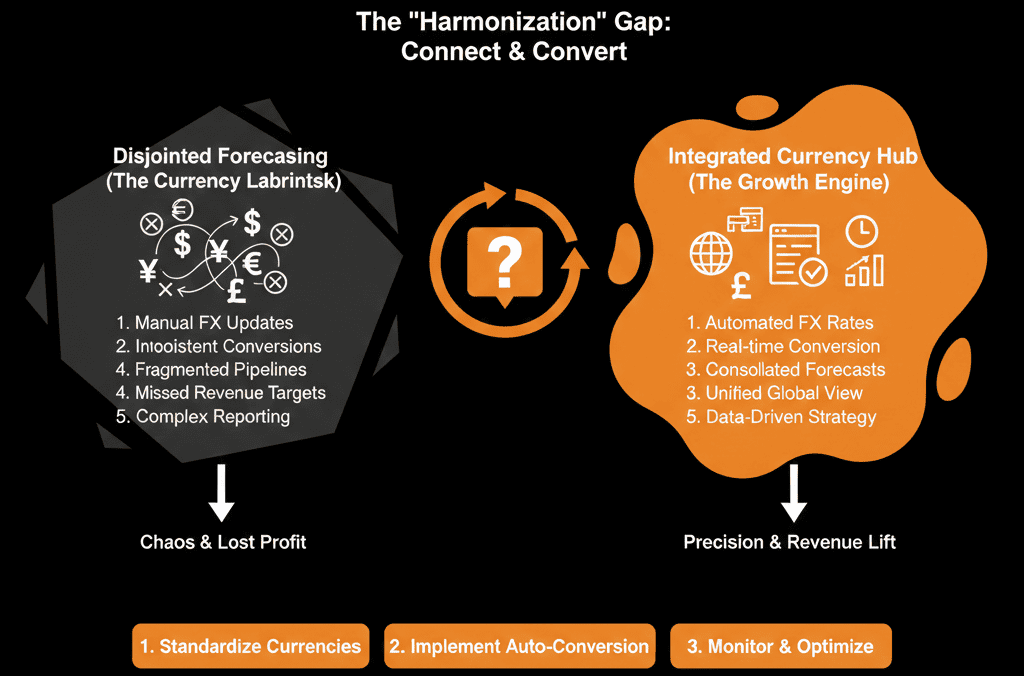
This feature allows you to sell locally (GBP) but report globally (USD) by adding multiple currencies and defining exchange rates against the company currency.
Here is the setup guide for global domination.
🌐 Step 1: The "Company Currency" (The Anchor)
Before you start, you must define your "Anchor."
This is the currency your CFO uses for Board Reports (usually USD or EUR).
Important: Once set, treat it as hard to change. Choose wisely.
HubSpot stores exchange rates relative to your company currency, and you can edit the company currency from the Currency settings.
🌐 Step 2: The "Local Currencies" (The Experience)
Add the currencies your reps actually use (GBP, AUD, CAD) and set the exchange rate that converts each currency to your company currency.
The "Auto-Update": You can schedule automatic exchange rate updates (monthly, quarterly, or annually).
Why this matters: the exchange rate values of closed deals will not be automatically updated moving forward, even if exchange rates update, which helps preserve historical reporting.
🌐 Step 3: The "Deal" Workflow
Your UK rep creates a deal.
They select Currency: GBP using the deal’s Currency property.
They type Amount: 10,000.
The Result: The quote goes out in GBP. The client pays in GBP. The rep gets commissioned on £10,000.
The Backend: HubSpot calculates the company-currency value using the relevant exchange rate (so leadership can roll up reporting in USD).
🌐 Step 4: The "Reporting" Toggle
This is where the magic happens for the VP of Sales.
Open your "Global Forecast" dashboard.
Click the "Currency" toggle at the bottom.
View 1 (Local): See the UK pipeline in GBP and the US pipeline in USD. (Good for Managers).
View 2 (Company): See everything converted to USD. (Good for the CEO).
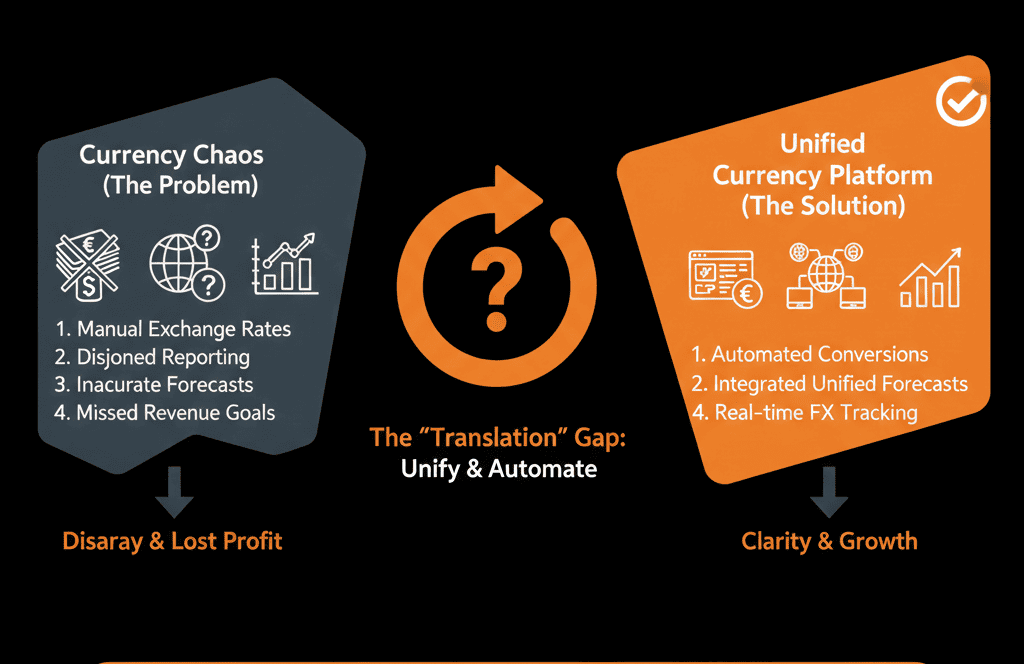
⚠️ The "Product Library" Complexity
If you sell Products (SKUs), you need a price for each currency.
SKU: Enterprise License.
USD Price: $1,000.
GBP Price: £850. (Note: This is usually a strategic price, not a direct conversion).
For flat-rate pricing, HubSpot lets you enter product prices in each of your currencies (after configuring currencies in account settings).
Think Globally. Report Locally.
Your reps shouldn't have to be Forex traders.
Your CFO shouldn't have to be a data cleanser.
Multi-Currency setup is the infrastructure of scale. It allows you to expand into new markets without breaking your core reporting.
Not sure how to handle "Fixed" vs. "Floating" exchange rates?
Scale Globally. Get Your Free Health Check.
This is part of our Free HubSpot Health Check. We will audit your "Global Setup." We'll configure your currencies, check your historical data for conversion errors, and build the "Consolidated Dashboard" that makes international expansion easy.
Scale Globally. Get Free Hubspot Audit.