

🛑 The "Garbage" at the Gate
You run a report on "Deal Amount." The total is zero.
You check the records.
One rep typed: 100,000 (with a comma).
Another typed: $100k (text).
Another typed: TBD (text).
Because the field was set to "Single Line Text," they typed whatever they wanted. Now, your reporting engine can't do math.
This is the "Garbage In" problem.
Most "messy portals" happen because the Admin was too nice. They gave users too much freedom.
You need Validation Rules.
Available in HubSpot, these are "Guardrails" that physically prevent a user from saving a record if the data doesn't match a specific format.
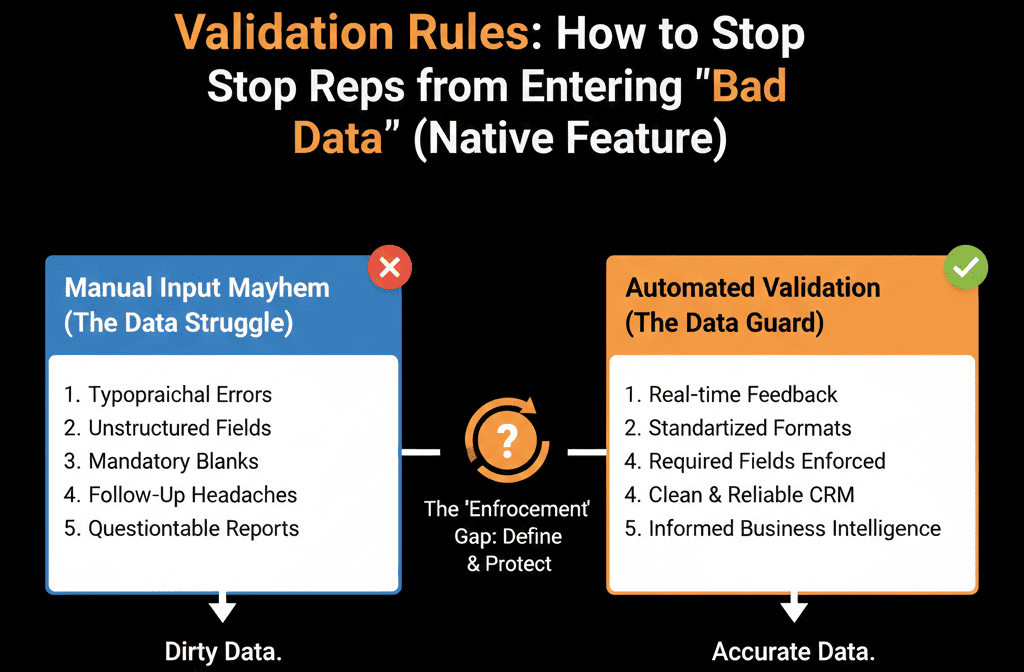
It’s not just about "suggesting" format. It’s about Enforcing it.
Here is how to set up the rules that keep your data pristine.
🛡️ Rule 1: The "Number" Lock
The Problem: Reps enter text into currency fields.
The Fix: Property Type = Number.
This is basic, but critical. Never use "Single Line Text" for: Revenue, Employee Count, or Year.
Validation: HubSpot automatically blocks non-numeric characters.
Result: They cannot type "100k." They must type "100000."
🛡️ Rule 2: The "Character Limit" (Postal Codes)
The Problem: Reps enter "California" into the "Zip Code" field. Or they enter a 10-digit extended zip when your integration only wants 5.
The Fix: Minimum/Maximum Character Limits.
Go to Settings > Properties.
Edit Zip Code.
Validation Rules:
- Minimum Limit: 5
- Maximum Limit: 5 (or 10).
- Restrict to Numeric: Yes.
Result: If they type "9021," it errors. If they type "90210," it saves.
🛡️ Rule 3: The "Domain" Blocker (Free Email)
The Problem: B2B leads using Gmail/Yahoo addresses.
The Fix: Block Specific Domains.
You can set validation on the Form level or the Property level.
Rule: "Email domain must not contain 'gmail.com'."
Result: The user sees a red error: "Please use your business email address."
🛡️ Rule 4: The "Special Character" Ban (Names)
The Problem: A rep copies/pastes a name from LinkedIn, and it brings weird formatting or emojis. John 🚀 Smith.
The Fix: Restrict Special Characters.
Rule: "Must not contain emojis."
Result: Clean names for email personalization.
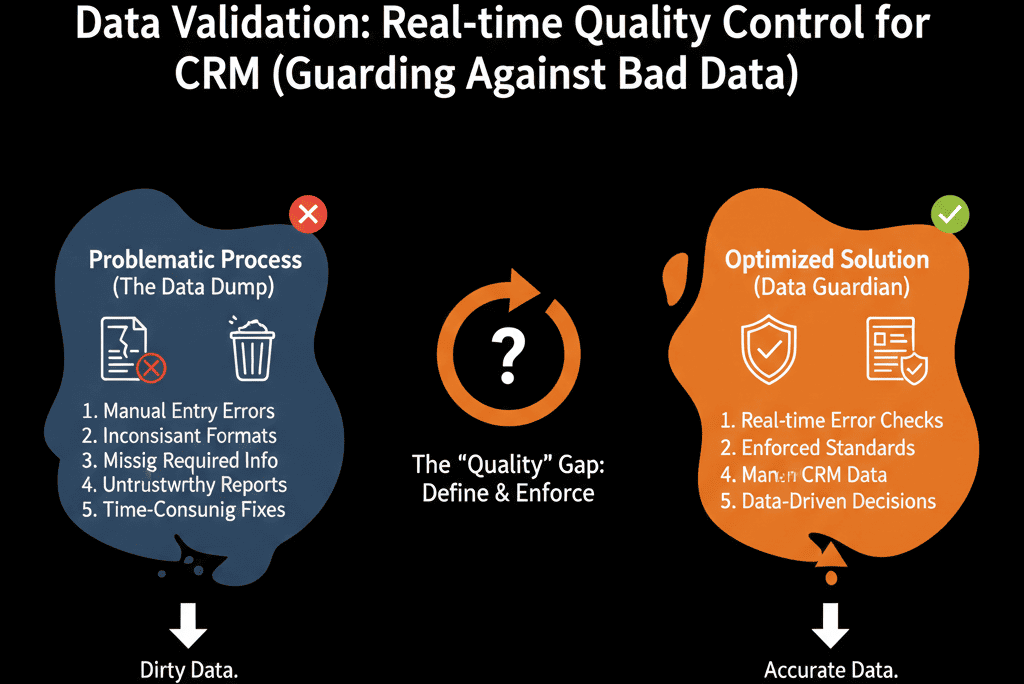
🚦 The "Pipeline" Gate (Required Fields)
Validation isn't just about format; it's about timing.
You shouldn't be able to move a deal to "Contract Sent" if the Contract Amount is $0.
The "Conditional Stage" Validation:
Go to Settings > Objects > Deals > Pipelines.
Click "Update Stage Properties."
Check the Box: "Required."
Result: If the rep drags the deal to "Contract," a pop-up appears. They must fill in the Amount. If they don't, the deal snaps back.
Discipline Creates Freedom.
Reps complain about validation rules. "It slows me down!"
But "slow" data entry is better than "useless" reporting.
If the data is wrong, the commission check is wrong.
If the data is wrong, the territory assignment is wrong.
Validation Rules protect the rep from themselves.
Not sure which fields to lock down?
Stop the Garbage. Get Your Free Health Check.
This is part of our Free HubSpot Health Check. We will audit your "Property Settings." We'll find the "Text Fields" that should be "Dropdowns," and the "Optional Fields" that should be "Required." We’ll build the guardrails that keep your data clean forever.
Stop the Garbage. Get Free Hubspot Audit.