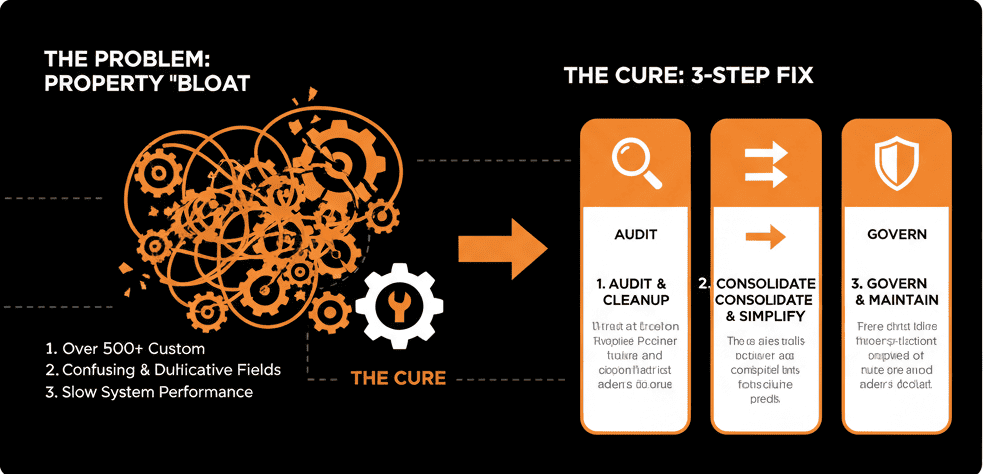
🗄️ The Portal "Junk Drawer" That's Costing You a Fortune
You've seen it. You've felt it.
You open a contact record to make a simple update, and you're met with an endless, scrolling nightmare of 700 custom properties.
- Lead_Source
- Lead Source - NEW
- Lead Source (Import 2021)
- TEST_Property_DO_NOT_USE
- Johns_Amazing_Property
Your sales reps have no idea which field to fill out. Your marketing team can't build a reliable report. Your "self-driven" system has become a digital junk drawer—a "messy" portal where data goes to die.
This is "property bloat." It is the silent, technical killer of your HubSpot portal.
As a VP of Sales or RevOps leader, this isn't just a "cleanup" issue. This is the root cause of every major strategic problem you have:
- Your reports are broken because no one is using the same field.
- Your sales team hates the CRM because it's a clunky, 10-click process to log a call.
- Your automation is failing because workflows are triggering off of the wrong properties.
- Your team has zero trust in the data, forcing them into "shadow" spreadsheets.
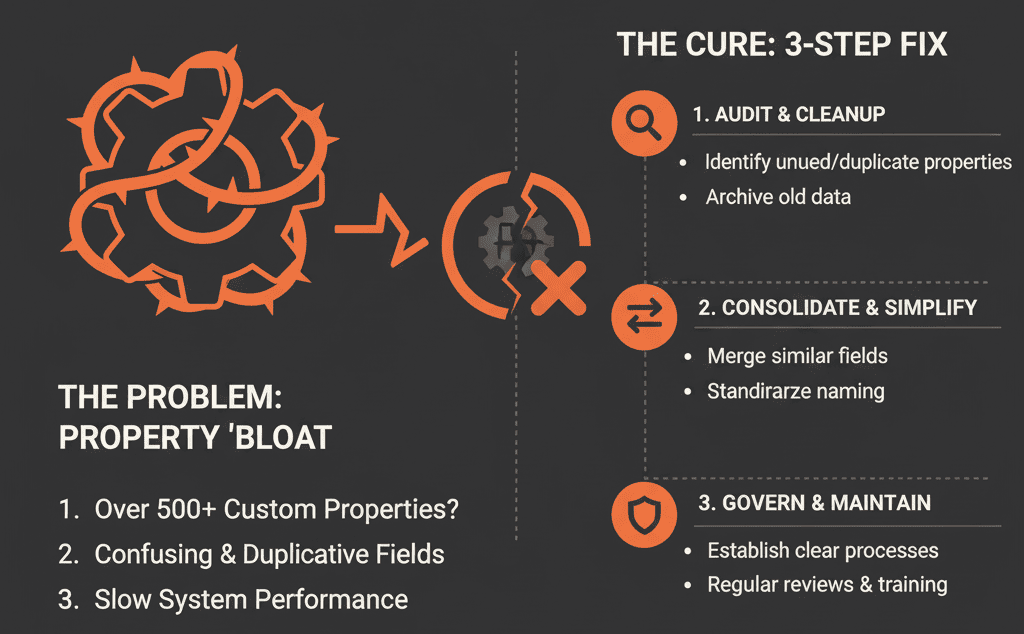
You can't build a revenue machine on a foundation of "property spaghetti." Before you can fix your reports, you must fix your data model. This 5-step guide is the "Configuration Plan" to do it.
🔬 Step 1: Diagnose the "Why" (The Property Audit)
Before you delete a single field, you must diagnose how you got here. Property bloat is a symptom of a deeper, strategic failure: a lack of governance.
Your goal is to find the "rot."
Action: Go to Settings > Properties. Start scrolling.
- Look for Duplicates: Industry, Industry (new), ICP_Industry — a sign of multiple admins and bad imports.
- Look for "Junk" Names: test, temp, copy_of_—a sign of testing in the live portal.
- Look for Field Type Mismatches: Budget (text) vs Budget_v2 (number) — breaks reporting.
This audit isn't for action yet. It's for understanding the behavior that created the mess (e.g., "no one has ownership," "everyone is an admin," "we do too many 'dirty' imports").
⚖️ Step 2: Define Your "Golden" Data Model (The 50-Property Rule)
You do not need 700 properties. A high-performance B2B company can run on 50–75 "Golden" properties.
Action: Get your VPs of Sales, Marketing, and Service in a room. On a whiteboard, define the only data points you actually need to run the business.
Example "Golden" Contact Properties: Lifecycle Stage, Lead Status, ICP Grade, Primary Reason for Disqualification.
Example "Golden" Deal Properties: Deal Stage, Amount, Close Date, Product Line, Technical Fit Confirmed.
These 50–75 properties are your new "single source of truth." Everything else is noise.
🧹 Step 3: The "Triage & Archive" (The Cleanup)
Now that you have your "Golden" list, you can execute the cleanup. Warning: Do not "Delete" properties. Always "Archive" them. Archiving removes them from view but preserves their historical data, just in case.
Action: Go back to Settings > Properties. For every single property not on your "Golden" list, ask two questions:
- ""Is this property currently used in any Lists, Reports, or Workflows?" (HubSpot tells you this in the "Used in" column).
- "Is this property populated in 0% of records?" (You can see this by clicking the property).
Your Triage Plan:
- If "Used in" = 0 AND "Populated" = 0%: Pure junk → Archive immediately.
- If "Used in" = 0 AND "Populated" > 0%: This is historical data from an old system. It's not being used, but the data exists. Archive it. (e.g., Old_CRM_ID).
- If "Used in" > 0: This is the "danger zone." You can't archive this yet. It's a "live" (but bad) property. This is your "To-Do" list for Step 4.
🛠️ Step 4: Re-Architect Your "Live" Systems (The Hard Part)
This is the "technical debt" phase. You have a list of 50 "bad" properties that are still being used in active reports and workflows. You must migrate off of them and onto your new "Golden" properties.
Action: Take your first "bad" property (e.g., Lead_Source).
- Find your "Golden" property: You already defined Lead Source (the real one) in Step 2.
- Migrate the Data: Run a workflow to copy all the data from the "bad" Lead_Source field into the "Golden" Lead Source field.
- Update the "Source of Truth": Go to all your forms, your integrations, and your import templates. Update them to only populate the "Golden" Lead Source field from now on.
- Update Your Assets: This is the grunt work. Go into every List, Report, and Workflow that uses the "bad" Lead_Source and update it to use the "Golden" Lead Source instead.
- Archive the "Bad" Property: Once its "Used in" count is 0, you can safely archive the old Lead_Source field.
Repeat this process for all 50 "bad" properties. Yes, it's tedious. Yes, it's complex. It is also the only way to fix your portal.
🔒 Step 5: Implement "Self-Driven" Governance (The Lock Down)
Your portal is now clean. Your 700 properties are down to 75 "Golden" ones. Your reports work. Your sales team is happy.
Action: Lock It Down.
- Limit Admin Access: Go to Settings > Users & Teams. Remove "Super Admin" rights from everyone except 1-2 designated "Portal Owners" (e.g., your RevOps leader).
- Edit Property Permissions: Your VPs of Sales and Marketing do not need to Edit property settings. Remove this permission from their roles.
Action: Create a "Data Dictionary".
- Create a simple internal spreadsheet. List your 75 "Golden" properties.
- Column 1: Property Name (Lead Status)
- Column 2: Property Type (Dropdown)
- Column 3: Definition (What does this mean?)
- Column 4: Owner (Who is responsible for this data? e.g., Sales Rep)
Action: Enforce the "Configuration Plan".
From now on, no one can create a new property. If a rep needs a new field, they must submit a "request" to the RevOps "Portal Owner," who will check it against the Data Dictionary. This is the "self-driven" system that prevents property bloat for good.