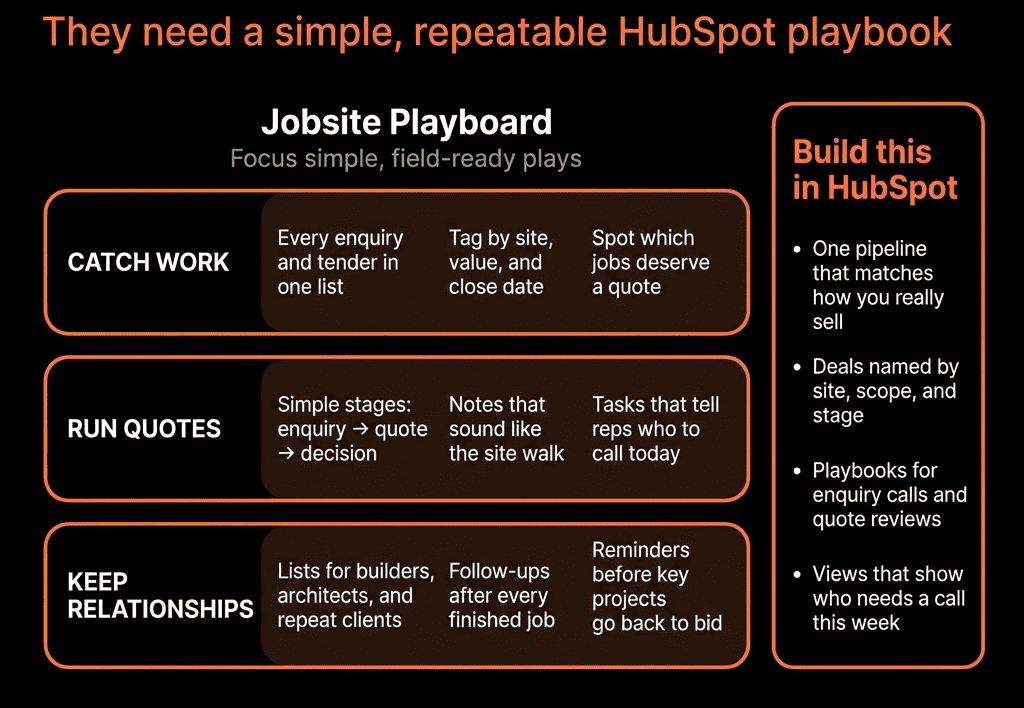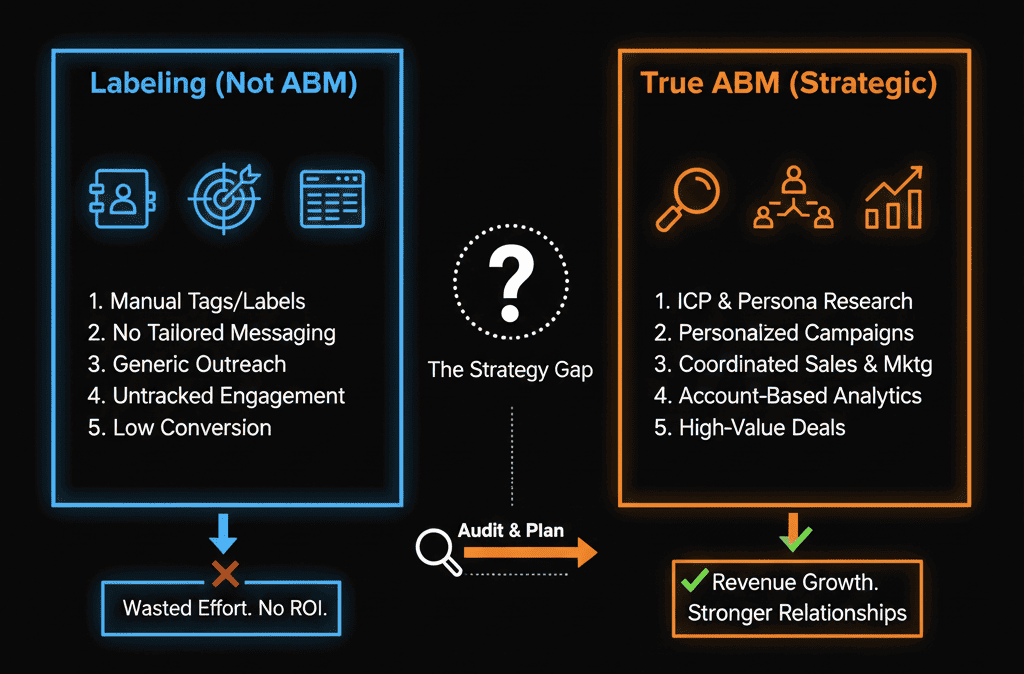


If Leads Live in Phones and Notebooks, You’re Leaking Work
For trade contractors (HVAC, electrical, plumbing, roofing, concrete, etc.):
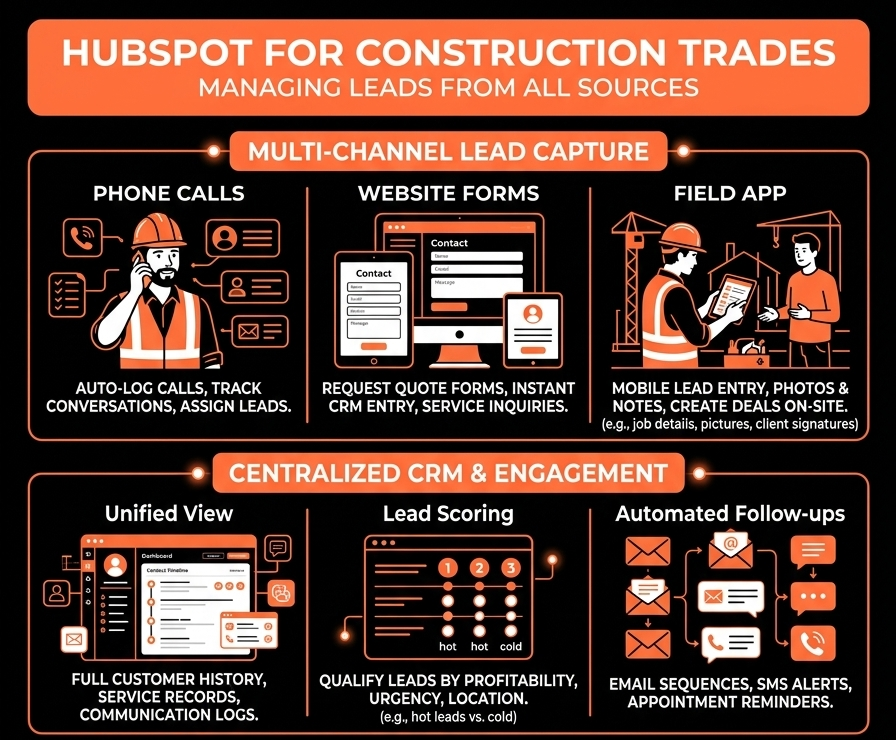
- Calls come into the office.
- Forms come from the website or ads.
- Foremen and techs hear about work in the field.
But:
- Leads get written on paper.
- Some get forgotten after a busy day.
- Owners have no clean view of upcoming work or close rates.
HubSpot can be your simple front office system for all leads, without slowing crews down.
Here’s how we structure it.
Step 1 – Decide What Counts as a “Lead” in Your World
You’ll see:
- One-off residential jobs.
- Larger commercial/projects.
- Service/maintenance requests.
- Builder/GC relationships.
Agree on:
- Which types of inbound go into HubSpot (hint: almost all).
- Basic fields you need every time:
- Name.
- Phone.
- Address/area.
- Type of work.
- Urgency.
This becomes the minimum intake standard for calls, forms, and field leads.
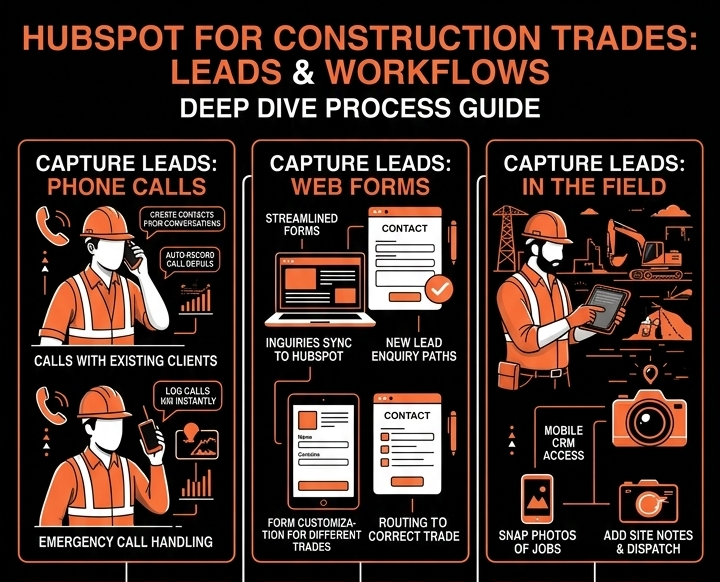
Step 2 – Standardize Intake from Phone Calls (Office/Admin)
For office/admin answering phones:
Build a simple HubSpot form or internal Playbook for “New Lead”.
Fields:
- Contact details.
- Job type (e.g., Service call / Replacement / New build / Tenant fit-out).
- Residential vs Commercial.
- Location / suburb.
- How they heard about you.
- Description & urgency.
Admin fills this in while on the call:
- Creates/updates Contact and Company (if commercial).
- Creates a Deal for bigger jobs or at least a Task for small jobs.
Use a workflow to:
- Assign to correct sales/estimator based on service area or trade.
- Set lead status = New.
- Create a follow-up task with due date (same day / next day).
Now no more leads die on sticky notes.
Step 3 – Capture Website and Ad Leads with HubSpot Forms
Replace or wrap your website forms with HubSpot forms:
- “Request a quote” / “Book a site visit” / “Emergency service” etc.
Use hidden fields or UTMs to tag:
- Campaign.
- Lead source (Google Ads, Facebook, Organic, etc.).
For each submission:
- Create/associate Contact (and Company, if B2B).
- Optionally create a Deal for larger job types.
Trigger the same routing and task creation rules as phone leads.
Benefits:
- All online leads land in the same system as phone and field leads.
- You can see which channels drive real work.
Step 4 – Give Field Teams a Simple Way to Log Leads
Your foremen/techs often hear:
- “Can you quote on another building?”
- “We’ve got some other issues while you’re here.”
- Or see opportunities at neighboring sites.
Options:
Mobile-friendly internal form
- A HubSpot form bookmarked on their phone:
- Minimal fields: name, phone, address, brief note, photo upload link if needed.
- Tech’s name auto-tagged.
Text/WhatsApp → Admin intake
- If techs aren’t comfortable with forms, agree a process:
- They send a quick message to the office.
- Admin logs it via the same “New Lead” form/Playbook as phone calls.
Either way, every field-found lead gets into HubSpot the same day.
Step 5 – Use a Simple Pipeline That Matches How You Work
Create a Deals pipeline for jobs/projects (even if small):
Example:
- New lead / inquiry.
- Contacted / Qualification.
- Site visit / Inspection scheduled.
- Quote/Estimate in progress.
- Quote sent.
- Won – Job scheduled.
- Lost / Not proceeding.
For pure service/maintenance you might:
- Use Tickets instead of Deals for very small, quick jobs.
- But still log larger ones as Deals for pipeline and revenue reporting.
Train everyone:
- When a job is big enough or important → create/move the Deal.
Keep it light—only a few required fields per stage.
Step 6 – Route and Prioritize Leads Automatically
Use contact-based or deal-based workflows to:
- Assign leads by:
- Postal code/area.
- Trade type/service line.
- Round-robin among estimators or sales reps.
Set Lead status (New, Contacted, Quote sent, Won, Lost, etc.).
Create tasks for:
- First contact.
- Site visits.
- Quote follow-up.
Add simple SLAs:
- If New lead not contacted in X hours:
- Notify owner/manager.
- Escalate if necessary.
Now response times and ownership are visible—not just “we’ll get to it”.
Step 7 – Give Reps and Estimators a “Day View”
Set up saved views:
“My new leads – today”
- Lead status = New, Owner = Me.
“My quotes in progress”
- Stage = Estimate in progress / Quote sent.
“My jobs won – to be scheduled”
- Stage = Won, Start date not set.
Pin these views and teach:
- Start in “New leads – today”.
- Then “Quotes in progress” for follow-ups.
Use Tasks in HubSpot for reminders.
If it’s easy to see what to do next, reps and estimators will use it.
Step 8 – Track Simple but Useful Metrics
Dashboards that actually matter to trade businesses:
- Leads by source (Phone, Website, Ads, Field).
Speed-to-first-contact (especially for web/leads from ads).
Conversion: Lead → Quote → Won, by:
- Service type (plumbing/HVAC/electrical, etc.).
- Area/region.
- Source.
Revenue (or job value) by month, service type, and rep.
Lost deals by reason (Price, Timing, Chose another contractor, DIY, etc.).
This lets owners answer:
- Which marketing is paying off?
- Which team members close best?
- Which jobs are worth bidding on?
Step 9 – Keep HubSpot and Job/Field Management Connected (Lightly)
Your job management / field service tool (ServiceTitan, Jobber, Housecall Pro, simPRO, etc.) will handle:
- Scheduling.
- Work orders.
- Invoicing.
Connect to HubSpot at a summary level:
From job system → HubSpot:
- Job status (Completed/Cancelled).
- Invoiced amount band.
- Last job date for each customer.
Use that to:
- Identify repeat vs one-off customers.
- Trigger follow-up or maintenance reminders.
- Spot good customers for reviews or referrals.
But don’t replicate the whole job system in HubSpot.
Step 10 – Roll Out Simply and Train Briefly
Success with trades = low friction.
Start with:
Office/admin team:
- Train on call intake and routing.
One or two champions among reps/estimators:
- Show them the views and how it helps them win work.
Only then field teams:
- A very short “Here’s the one page you use to send us leads” session.
Keep asking:
- Is this step helping someone in the field or office do their job faster/better?
- If not, simplify.
Want Help Making HubSpot Actually Work for Your Trade Business?
If your leads are still spread across phones, emails, and paper—but you own HubSpot—we can help you turn it into a simple, practical system.
Through our HubSpot Implementation Blueprints, Portal Health Check, and Managed RevOps Retainer, we:
- Design a trade-specific lead + job pipeline.
- Set up intake flows for phone, web, and field.
- Implement routing, SLAs, and reporting.
- Train office and field teams with minimal friction.