

“We’re Afraid to Touch Anything” Is a Symptom of HubSpot Clutter
Almost every messy HubSpot portal we audit shares the same pattern:
- Hundreds of lists with similar names.
- Endless saved views nobody uses.
- Dozens or hundreds of workflows, many unlabeled or owned by people who’ve left.
Teams end up saying:
“We know this is messy, but we’re scared to break something important.”
The goal of rationalizing lists, views, and workflows is not just “tidiness.”
It’s to:
- Make HubSpot faster and safer to work in.
- Reduce the risk of accidental breakage.
- Help your team understand how the system really works.
This article lays out a structured approach to clean up lists, views, and workflows in a cluttered HubSpot portal—without losing critical functionality.
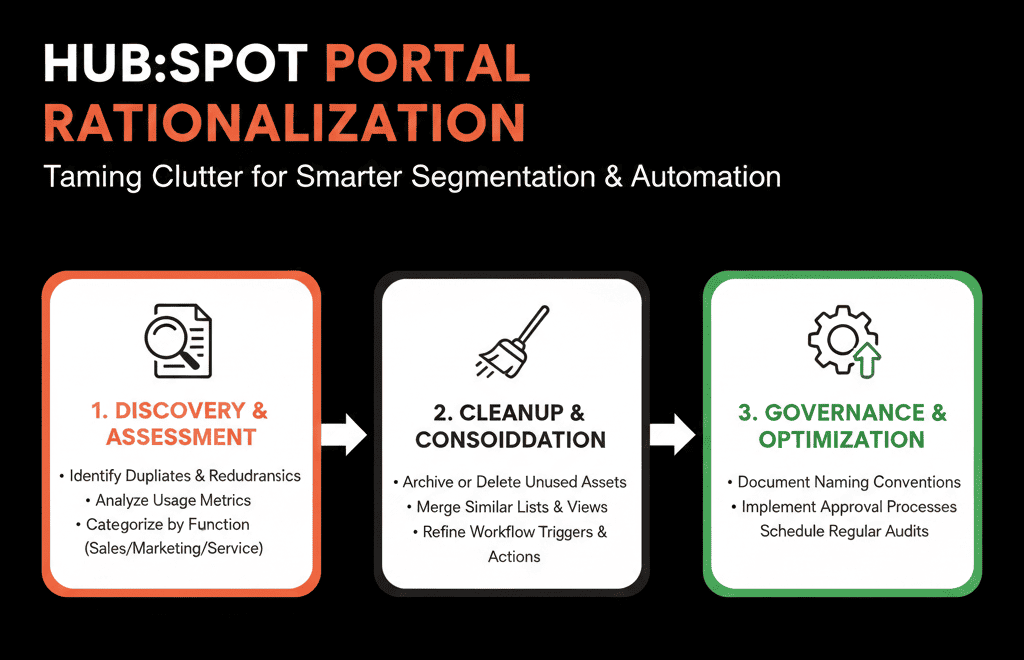
Step 1 – Accept That You Don’t Need to Clean Everything at Once
The fastest way to stall a HubSpot cleanup project is to aim for perfection.
Instead, we:
- Set a practical scope (e.g., Contacts and Deals only in phase 1).
- Focus on what impacts live campaigns, routing, and reporting.
- Treat low-risk clutter as “phase 2+.”
Think of this as rationalization, not “archive the entire internet.”
Step 2 – Audit Lists: From Junk Drawer to Organized Library
Lists are usually the loudest symptom of clutter.
2.1 Export list metadata
Export or review for all lists:
- Name
- Type (active/static)
- Created date
- Last updated date
- Last used in:
- Emails
- Workflows
- Ads
- Reports (where possible)
HubSpot shows some of this directly; export helps you manipulate it.
2.2 Classify lists into 4 buckets
We typically tag lists as:
Mission-critical
- Used in live workflows, key emails, or core reporting.
- Example: “MQL – ICP A (Active)”, “Demo Requests – Last 30 Days.”
Routine operational
- Used periodically by Marketing or Sales for segmentation.
- Not core architecture, but useful.
Legacy / one-off campaigns
- Used in old campaigns, no longer referenced.
- Example: “Event – Expo 2019 Attendees.”
Unknown / suspicious
- Unclear naming.
- No one on the team recognizes them.
- Not obviously tied to anything important.
2.3 Clean up in waves
Wave 1 – Rename and organize mission-critical lists
- Apply naming conventions (e.g., OPR – for operational, SEG – for core segments, ONE – for one-off).
Wave 2 – Protect what’s in use; tag what’s not
For lists not used in ~6–12 months and not tied to workflows/active campaigns:
- Prefix with z_Archive_YYYYMM
- Move to a dedicated “Archive” folder.
Wave 3 – After a safe window (e.g., 3–6 months)
- Delete archive lists that have not been referenced.
This approach reduces visual clutter quickly while giving you a rollback safety net.
Step 3 – Rationalize Views: Reduce Noise for Reps and Managers
Views are often overlooked in cleanups, but they affect daily usability.
3.1 Identify and review key view types
For Contacts, Companies, Deals, and Tickets:
- System/default views.
- Team views.
- Personal views (for key roles like Sales, SDRs, CS).
You’ll find:
- Old test views.
- Duplicated variations with minor filter changes.
- Views created by former employees.
3.2 Create a “view set” per role
We define a standard set of core views per role, for example:
Sales Reps:
- “My New Leads – Last 7 Days”
- “My Open Deals – This Quarter”
- “My Stalled Deals – No Activity 14+ Days”
SDRs:
- “Unworked MQLs”
- “Recycled Leads – Ready for Re-Engagement”
Sales Managers:
- “Team Pipeline – This Quarter”
- “Stalled Deals by Owner”
- “Recent Wins & Losses”
CS:
- “Customers – Onboarding”
- “Renewals – Next 90 Days”
3.3 De-clutter everything else
- Hide or delete irrelevant default views and outdated personal views.
- Keep shared, standardized views; use naming conventions like: TEAM – [Purpose], MGR – [Purpose]
Result:
- Reps log in and see a small set of useful views, not a wall of noise.
- New hires get up to speed faster.
- Admins know which views to adjust when processes change.
Step 4 – Triage Workflows: Map, Group, and De-Risk
Workflows can do real damage if not understood.
4.1 Inventory and categorize workflows
For all workflows:
Note:
- Name
- Type (contact, company, deal, ticket)
- Active/inactive status
- Owner
- Last edit date
- Number of enrollments last 30–90 days
Classify into:
Core architectural workflows
- Lifecycle management
- Lead routing and SLAs
- Data hygiene / property management
Campaign workflows
- Nurture sequences
- Event/webinar follow-up
- Program-specific automations
Utility workflows
- Notification alerts
- Property stamping
- Integration helpers
Legacy or suspicious workflows
- Old campaigns.
- No recent enrollments.
- Owner left the company.
- Logic no one recognizes.
4.2 Focus first on high-impact fields
Identify workflows that update:
- Lifecycle stage
- Lead status
- Deal stage
- Owner
- Lead source
- Key segmentation/ICP properties
Map:
- Which workflows touch each of these fields.
- Whether their logic overlaps or conflicts.
This gives you a risk map:
- Where multiple workflows may be fighting over the same property.
- Where outdated workflows might quietly be overwriting clean data.
4.3 Rationalize in layers
Layer 1 – Pause or fix obvious legacy workflows
- Inactive campaigns.
- Workflows with zero enrollments in the last 90–180 days.
- Only after confirming they’re not required.
Layer 2 – Consolidate core logic
- Merge multiple lead-intake workflows into one central intake.
- Merge scattered lifecycle rules into a single, well-documented workflow set.
- Centralize routing into fewer, more visible workflows.
Layer 3 – Standardize naming and ownership
- Name by purpose category: LIFECYCLE –, ROUTING –, NURTURE –, DATA –.
- Assign clear owners.
- Document what each workflow is supposed to do.
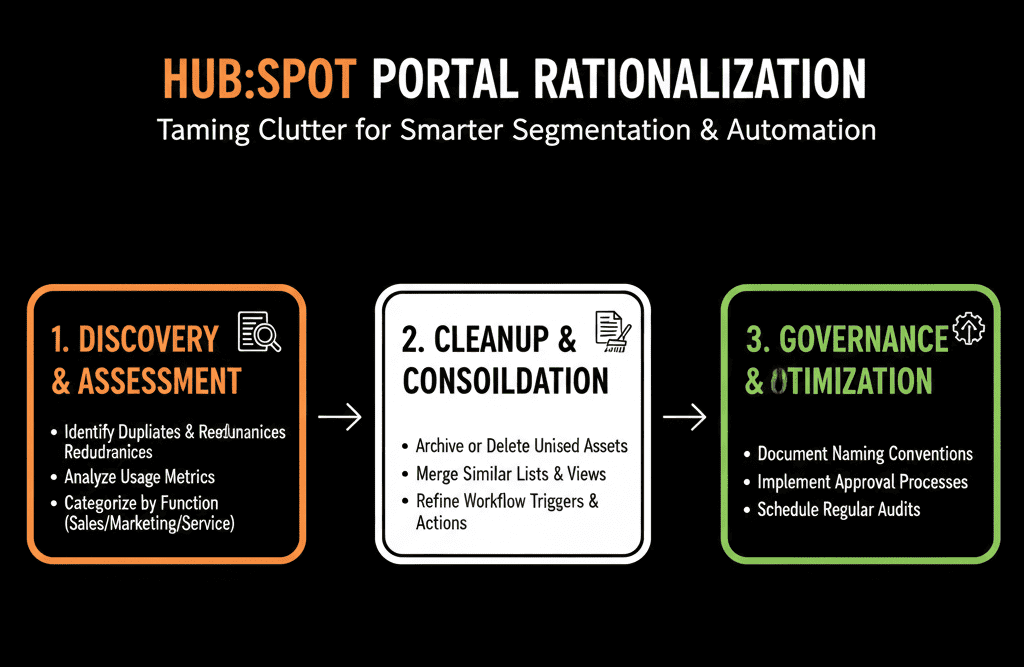
Step 5 – Introduce Naming Conventions and Folders
A big part of rationalization is making future clutter less likely.
We implement simple naming standards:
Lists:
- SEG – for key segments.
- OPR – for operational lists (e.g., suppression, SLA, routing).
- ONE – for one-off campaign lists.
- z_Archive – for items pending deletion.
Workflows:
- LIFECYCLE – [Purpose]
- ROUTING – [Audience/Brand/Region]
- NURTURE – [Offer]
- DATA – [Cleanup/Stamping]
- ALERT – [Trigger]
Views:
- TEAM – [Role – Purpose]
- MGR – [Scope – Purpose]
Structure HubSpot folders accordingly:
- Lists: Segments, Operations, Campaigns, Archive.
- Workflows: Core Architecture, Campaigns, Utilities, Archive.
This doesn’t take long but drastically improves navigability.
HubSpot supports organizing workflows by grouping them into folders, which is one of the quickest wins for “visual declutter” after naming conventions are in place. [web:1294]
Step 6 – Put Guardrails in Place to Prevent Re-Cluttering
Rationalization isn’t a one-time job; it’s an ongoing discipline.
We add guardrails:
- Limit who can create new workflows and lists: Marketing/RevOps roles with training and ownership, not every sales rep or marketer.
- Create a simple request process for new segmentation lists, automations, or complex views.
- RevOps reviews whether it should be a new asset or a tweak to an existing one.
- Add a quarterly or bi-annual HubSpot Health Check: number of lists, workflows, and views added; candidates for archiving/deletion; alignment on naming and structure.
This prevents you from returning to “we’re afraid to touch anything” in 12 months.
Step 7 – Communicate Changes So Teams Don’t Get Lost
Even good cleanup can frustrate people if they feel blindsided.
We recommend:
- Announcing the cleanup and why you’re doing it: faster portal, clearer views, less risk.
- Sharing a short guide: “Here are the new standard views you’ll use.” “Here’s where to find the lists you care about.” “Here’s who to contact if something you relied on is missing.”
- Offering office hours or a feedback channel: to catch edge cases and adjust naming/structure where needed.
Teams usually welcome cleanup if they see it’s systematic and reversible where necessary.
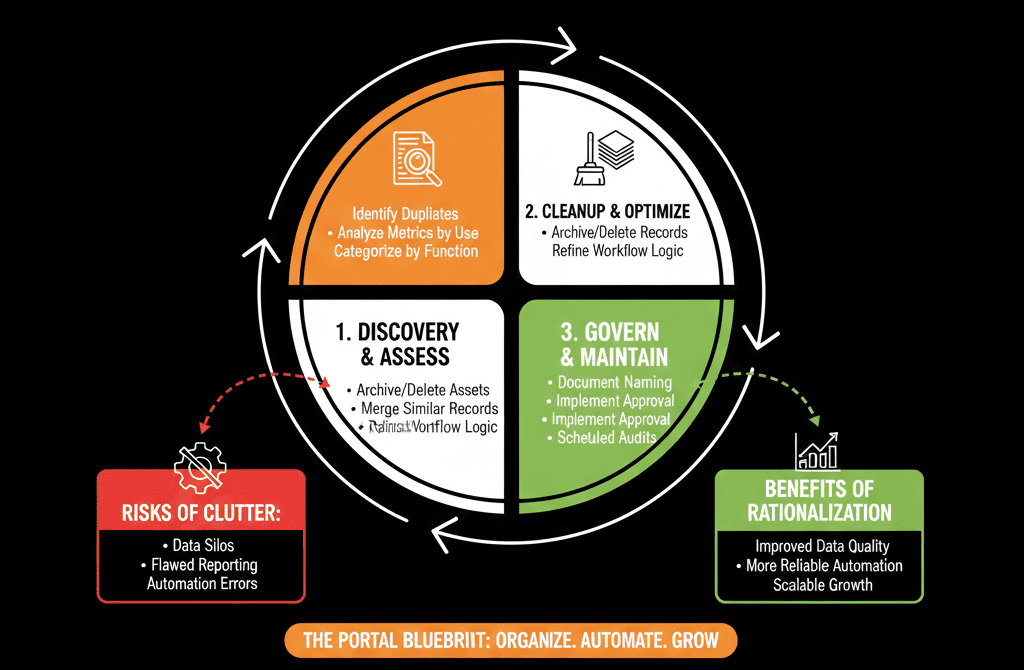
What You Can Do in the Next 30 Days
To start rationalizing lists, views, and workflows without overwhelming your team:
- Pick one area to tackle first (e.g., lists).
- Classify everything into: Mission-critical, Useful, Legacy/one-off, Unknown.
- Archive (prefix + folder) what’s clearly legacy.
- Standardize naming for critical lists and workflows.
- Create 3–5 standard team views for Contacts and Deals.
- Communicate what changed and invite feedback.
You’ll feel the difference immediately in how your portal looks and behaves.
Want a Structured Cleanup and Rationalization Plan for Your HubSpot Portal?
If your HubSpot instance feels like a maze of lists, views, and workflows—and you’re worried that one wrong change will break something important—you don’t have to clean it alone.
Our HubSpot Portal Health Check / HubSpot Audit is built to:
- Map and categorize your lists, views, and workflows.
- Identify what’s safe to archive, what must be protected, and what must be redesigned.
- Deliver a step-by-step rationalization roadmap that your team can implement safely.