

Custom Objects Can Save Your Migration—or Sink It
When teams hear about HubSpot custom objects during a migration, the reactions are usually:
- “Great, we’ll mirror our entire old data model.”
- “Let’s just recreate every table from Salesforce/Zoho.”
- “We’ll decide custom objects later—just get the data into HubSpot.”
Both extremes are risky.
If you over‑use custom objects, you end up with:
- A complex, consultant‑only system nobody understands.
- Critical data hidden from reps and standard reports.
If you ignore them when you actually need them, you get:
- Awkward hacks on Deals, Tickets, or Companies.
- Integrations that don’t fit cleanly into your real business model.
In this article, we’ll walk through when to use custom objects in HubSpot, how to design them during a migration, and what to watch out for so your data model stays powerful but understandable.
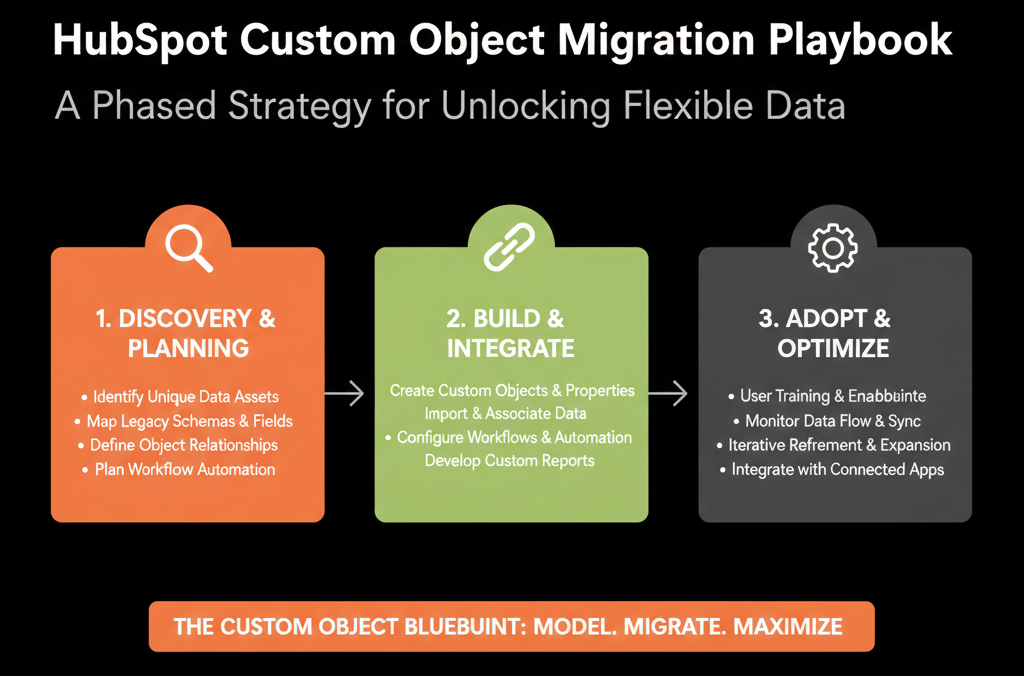
Step 1 – Decide If You Really Need Custom Objects (Litmus Tests)
Custom objects are for real entities in your business that:
- Don’t fit cleanly into Contacts, Companies, Deals, or Tickets.
- Have their own lifecycle and reporting needs.
- Need to associate flexibly with multiple other records.
Good candidates often include:
- Contracts or subscriptions.
- Projects, engagements, or programs.
- Locations, assets, or equipment.
- Policies, loans, or applications (in FS/fintech).
Simple litmus tests
Ask of any candidate entity from your old CRM/DB:
- Does this represent something we track over time (with stages/statuses)?
- Do we need to report on it directly (count, value, time in stage)?
- Does it naturally link to multiple contacts, companies, or deals?
If the answer is no to all three, it probably belongs as a set of properties or a secondary object (like Deals/Tickets), not a custom object.
Step 2 – Audit Your Old System Before You “Lift and Shift”
Before you create any custom objects in HubSpot, look at how your old system modeled things.
From your legacy CRM or database, list:
- All major tables/objects beyond Contacts, Accounts, Opportunities, Cases.
For each, note:
- What it represents in the real world (e.g., “Contract between us and client X”).
- How it relates to people and companies (1:1, 1:many, many:many).
- Whether teams report on it today (and how).
Categorize each as:
- Replace with standard HubSpot object
- E.g., “Opportunities” → Deals; “Cases” → Tickets.
- Potential custom object
- E.g., “Subscriptions”, “Projects”, “Policies”.
- Flatten into properties
- E.g., static attributes that don’t need their own lifecycle or associations.
This gives you a shortlist of genuine custom‑object candidates instead of dragging every table into HubSpot.
Step 3 – Design the Custom Object Around Use Cases, Not Just Data
A common mistake in migrations: designing custom objects to match the old database instead of current use cases.
For each candidate custom object, answer three questions:
Who will use it day‑to‑day?
Sales, CS, Finance, Ops, Support?
What questions should it answer?
Examples:
- “How many active subscriptions do we have per customer?”
- “What is renewal risk across contracts ending this quarter?”
- “How many active projects per account and stage?”
What lifecycle does it go through?
E.g., Draft → Active → Pending Renewal → Renewed/Cancelled.
Now design:
- Core properties: only what’s needed for identification, lifecycle, and reporting.
- Associations: which Contacts, Companies, Deals, or Tickets it should link to—and in which direction.
This becomes your custom object blueprint for migration, instead of blindly recreating your old schema.
Step 4 – Decide What Happens During the Migration (and What Waits)
You don’t have to migrate custom objects on day one to get value from HubSpot. In fact, trying to do everything at once often backfires.
Practical approach during a migration
Split your migration into:
Phase 1 – Core CRM live:
- Move Contacts, Companies, Deals, Tickets.
- Ensure lifecycles, ownership, and core reporting are working.
Phase 2 – Custom objects:
- Once core objects are stable, introduce 1–2 high‑value custom objects.
- Migrate historical records where they’re actually needed.
When it’s worth including custom objects in Phase 1:
- When a custom entity is central to how you sell/retain (e.g., subscriptions/contracts in a SaaS or recurring services business).
- When not having it would force ugly hacks on Deals or Tickets.
Otherwise, it’s usually safer to go live with a clean core and add custom objects after initial adoption.
Step 5 – Map, Test, and Migrate Custom Object Data Carefully
If you do migrate custom object data (during or just after initial go‑live), treat it with the same discipline as your core objects.
Key steps:
Define the data model in HubSpot
Create the custom object with:
- Clear name and labels.
- Core properties (ID, status, key metrics, dates).
- Configure associations:
- Which Contacts, Companies, Deals, Tickets should link.
Prepare a clean export from the old system
Include:
- Unique ID for each custom object record.
- Any external IDs you’ll keep (e.g., billing system ID).
- The IDs/emails/domains needed to associate with Contacts/Companies/Deals.
Run a test import on a small sample
Import 50–200 records of the custom object into HubSpot.
Verify:
- Properties landed correctly.
- Associations look right in the record view.
- Reporting on the custom object behaves as expected.
Only then run the full import
With clear rollback options if something goes wrong.
This prevents your new custom objects from starting life with broken links and bad data.
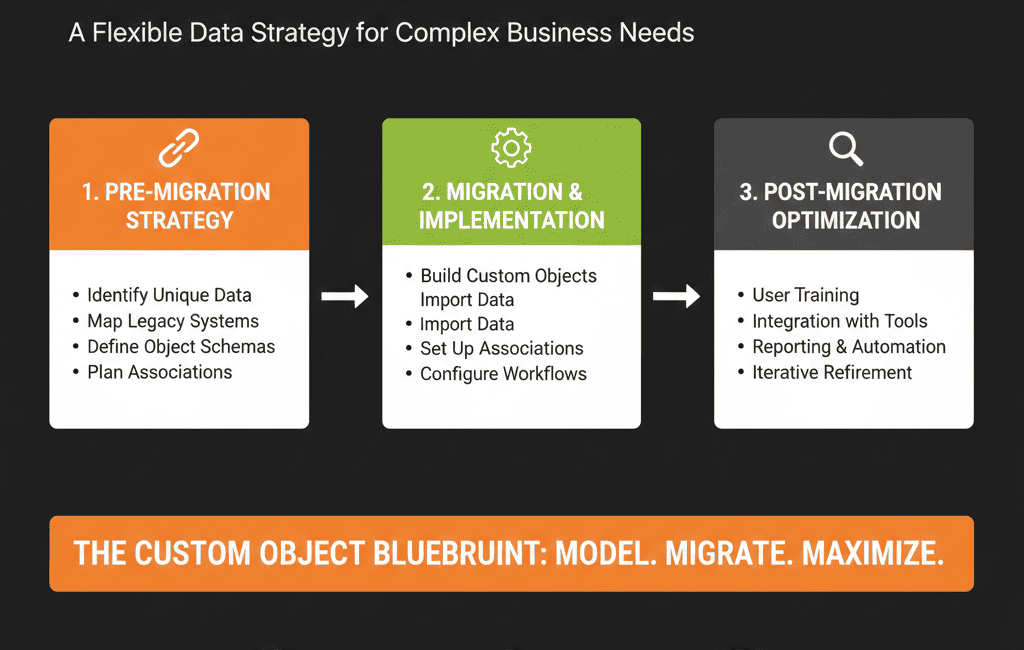
Step 6 – Make Custom Objects Visible and Usable (Not Just “There”)
A custom object is useless if:
- Nobody can find it.
- It doesn’t appear in views, workflows, or reports.
- It lives only in admin menus.
To make custom objects part of daily work:
Add them to relevant record sidebars
Show associated custom object records on Company, Contact, and Deal layouts.
Use them in workflows
Trigger workflows when custom object records are:
- Created (e.g., new subscription).
- Moving stages (e.g., contract approaching renewal).
Build simple reports and dashboards
E.g., active subscriptions by status and owner.
Projects by stage and account.
Train teams explicitly
- What this custom object is.
- Where to see it.
- What actions they should take based on it.
You want teams to feel, “Ah, this is how we track X now,” not “What’s this extra tab?”
Step 7 – Avoid Common Custom Object Traps After Migration
Post‑migration, the most common pitfalls around custom objects are:
Using custom objects where a few properties would do
Example: creating a “Product” custom object when a few product properties on Deals or line items would work.
Letting every tool create its own object
Integration vendors proposing their own objects for convenience (e.g., “Email Event”, “Webinar Session”) without a clear internal owner or use case.
No reporting or governance
Custom objects exist, but:
- Nobody knows how many records they contain.
- No dashboards depend on them.
- No one owns their evolution.
To avoid this:
- Maintain a simple object catalog: each object’s purpose, owner, and key reports.
- Reject new custom objects unless there’s a documented use case and owner.
- Periodically review: Are we still using this object? Can we simplify it or fold it into standard objects?
Pulling It Together: Custom Objects as an Upgrade, Not a Liability
Custom objects in HubSpot are powerful.
During or after a migration, they can:
- Model your real business entities more accurately.
- Unlock better reporting (e.g., true ARR, active engagements).
- Cleanly integrate with billing, product, or delivery systems.
But they only help if you:
- Choose them for real, high‑value entities.
- Design them around use cases and lifecycles.
- Migrate and associate data deliberately.
- Make them visible and actionable for your teams.
Done right, custom objects become one of the strongest reasons your HubSpot setup feels “built around us” instead of “we just moved CRMs.”
Want Help Deciding How (and Whether) to Use Custom Objects in Your Migration?
If you’re planning or in the middle of a HubSpot migration and you’re not sure how to handle custom objects, this is exactly where we can help.
Our HubSpot Portal Health Check and Migration & ROI Plan are designed to:
- Audit your current data model and custom entities.
- Recommend which ones should become HubSpot custom objects (and which should not).
- Design and sequence your migration so custom objects make your system cleaner—not more complicated.