

If Your Data Model Is Fuzzy, Integrations Will Multiply the Mess
Most teams rush to “connect everything” to HubSpot.
They say things like:
- “We’ll plug in billing, product, and support later.”
- “Let’s just get the data flowing; we can standardize fields after.”
- “Zapier can handle the gaps for now.”
When you connect tools to a fuzzy data model, you don’t get better visibility. You get:
- Conflicting values for the same contact or account.
- Duplicates driven by slightly different identifiers.
- Integrations that silently overwrite critical fields.
Integrations should plug into a clear HubSpot data model, not define it on the fly. In this article, we’ll walk through the minimum data model you need in HubSpot before you start wiring in billing, product, or other external tools—so you get a real system of record instead of integration spaghetti.
Step 1 – Decide What HubSpot Is the System of Record For
Before you define objects and properties, you need a simple answer: what exactly is HubSpot the “source of truth” for?
Typical pattern that works well:
- HubSpot is system of record for: Contacts, Companies, Deals, Tickets, and GTM engagement data.
- External tools are system of record for: billing, invoices, product usage, detailed financials, and internal delivery data.
If this isn’t explicit, every integration will try to own core fields (like owner, lifecycle, or customer status), and your data will drift.
Questions to answer internally
- Where should Sales/Marketing/CS go to see the current state of a customer or prospect?
- Which system decides when someone is a Customer vs a Prospect?
- Which system owns lifecycle stage, owner/team, and segmentation (ICP tier, vertical, region)?
Write this down. Your data model in HubSpot should align to those decisions, not fight them.
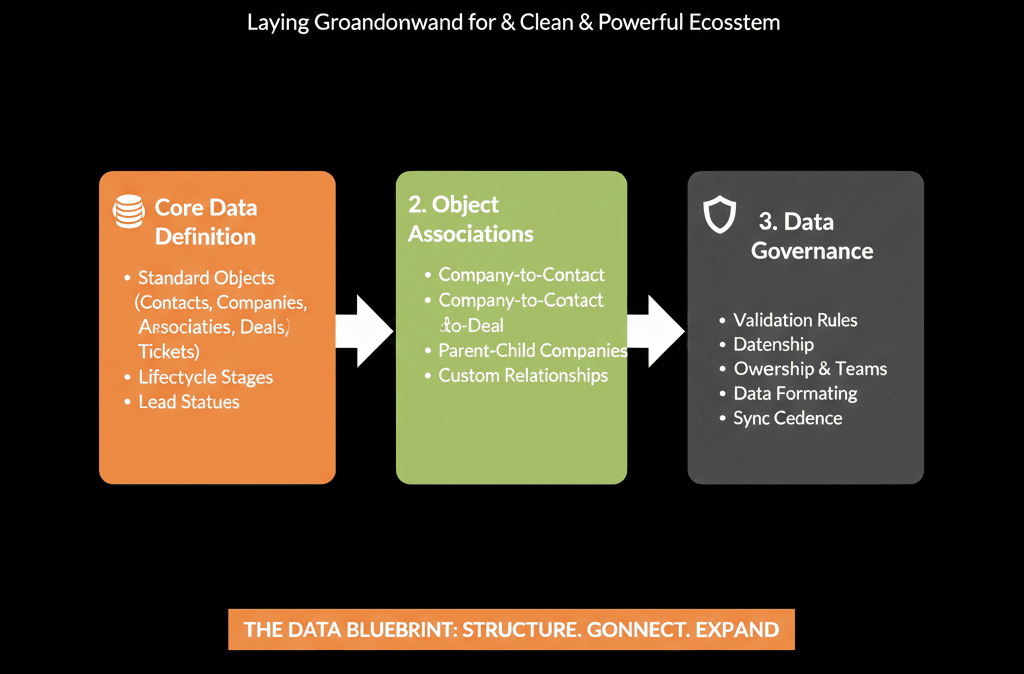
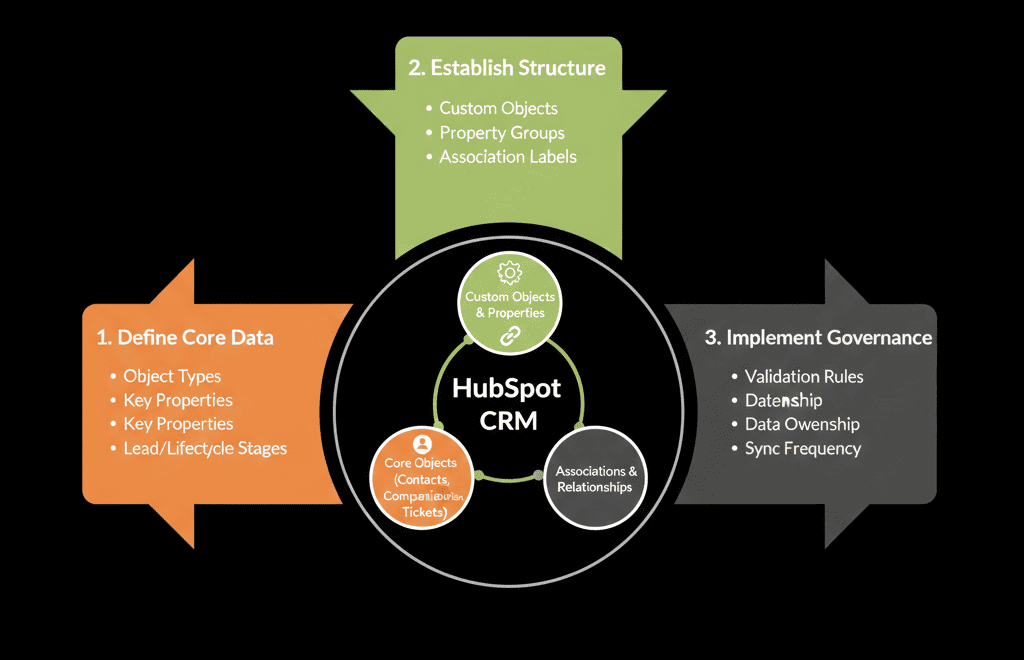
Step 2 – Lock In Your Core Objects and Their Roles
HubSpot gives you flexible objects. Without a data model, that flexibility turns into chaos.
At minimum, define the role of:
- Contacts: represent individual people, hold engagement history.
- Companies: represent accounts/organizations, anchor account ownership.
- Deals: represent commercial opportunities (stage, value, close date, motion).
- Tickets (or CS object): represent post‑sale issues/requests/implementation items.
- Custom objects (only if needed): for recurring entities like subscriptions/projects/contracts you can’t model with native objects.
For each object, answer: what it represents, who owns it internally, and which external tools may need to read/write to it.
Step 3 – Define a Minimum Integration‑Ready Property Set Per Object
You don’t need hundreds of properties. You do need a small, well‑defined set that every integration can rely on.
Contacts – key properties
- Identity: Email, first name, last name.
- Relationship: Job title, persona/role type.
- Status: Lifecycle stage, Lead status.
- Ownership: Contact owner, team/territory.
Companies – key properties
- Identity: Company name, domain.
- Profile: Industry/vertical, size band, region/country.
- Status: Lifecycle stage, customer health/risk (if you track).
- Ownership: Account owner, CS owner.
Deals – key properties
- Commercials: Amount, currency, close date.
- Process: Pipeline + stage, Deal type / motion (New, Expansion, Renewal).
- Context: Primary product/service, Source.
Tickets / CS objects – key properties
- Status: Ticket status/stage, priority.
- Type: Implementation, support, QBR, etc.
Get these right first. External tools can attach additional fields, but they should never have to guess basic identity, ownership, or status.
Step 4 – Standardize IDs and Associations So Tools Find the Same Records
Most cross‑tool chaos comes from inconsistent identifiers and associations.
How to make that possible
- Use email + domain consistently as matching identifiers where appropriate.
- Enforce core associations: key contacts associated to companies; every deal associated to a primary company and at least one contact.
- Store external system IDs in dedicated properties (billing_customer_id, product_user_id) so integrations match instead of creating “shadow duplicates”.
If you haven’t formalized associations, you can also use association labels (e.g., “Primary company”, “Billing contact”, “Decision maker”) so segments, workflows, and reports filter against the right relationship type instead of “any association”.
Step 5 – Clarify Ownership and Lifecycle Rules Before Syncing Anything
If external tools can change owners or lifecycle stages without rules, your data will drift the moment you connect them.
Ownership rules
- Contacts/companies: HubSpot owns owner fields; external tools should not overwrite owners.
- Deals: owners follow your sales org; no external tool reassigns without explicit logic.
Lifecycle rules
- Contacts/companies: lifecycle moves controlled in HubSpot (forms, workflows, sales actions); external tools can trigger workflows but shouldn’t directly overwrite lifecycle.
- Deals: stage changes driven by sales actions; external events may create renewal/expansion deals with clear logic.
Document these rules and configure integrations to respect them.
Step 6 – Build Integration‑Ready Segmentation (Without Going Wild)
Before connecting tools, define a small set of key segments as HubSpot lists or properties:
- ICP tier (Tier 1/2/3).
- Lifecycle band (Prospect, Opportunity, Customer, Churned).
- Product/service interest.
- Region/language.
- Health or engagement score (keep it simple initially).
Then decide which segments external tools need, and expose them intentionally (as synced properties/lists/events) instead of letting downstream systems guess.
Step 7 – Put Minimal Governance in Place Before Turning Integrations On
You don’t need a giant data governance committee, but you do need a few non‑negotiables:
- A property naming standard to prevent “random field sprawl”.
- A “no new object without a use case” rule, with owner + lifecycle + reporting defined.
- A simple change process for core properties/associations checked against integration mappings.
Pulling It Together: Build the House Before Wiring the Electricity
Connecting tools to a fuzzy HubSpot portal is like wiring a house before you’ve finished the walls—it “works” at first, but every future change becomes risky.
The right sequence is:
- Decide what HubSpot is the source of truth for.
- Define core objects + roles (Contacts, Companies, Deals, Tickets, key custom objects).
- Lock a small integration‑ready property + association set.
- Clarify ownership/lifecycle/segmentation rules.
- Only then connect external tools with documented mappings and conflict rules.
Do this, and HubSpot becomes the stable heart of your stack—every integration adds value instead of adding chaos.
Want Help Designing a HubSpot Data Model Before You Integrate?
If you’re about to connect billing, product, support, or outbound tools into HubSpot—and your portal doesn’t yet have a clear data model—this is exactly where we can help.
Our HubSpot Portal Health Check and Migration & ROI Plan are designed to:
- Audit your current HubSpot objects, properties, and associations.
- Design a lean, integration‑ready data model aligned to your business.
- Define simple governance and integration rules so external tools plug into a stable system of record.