

If You Only Analyze Pipeline After the Quarter, You’re Too Late
Most teams look at pipeline in two ways:
- High‑level totals for leadership.
- Deal lists for reps.
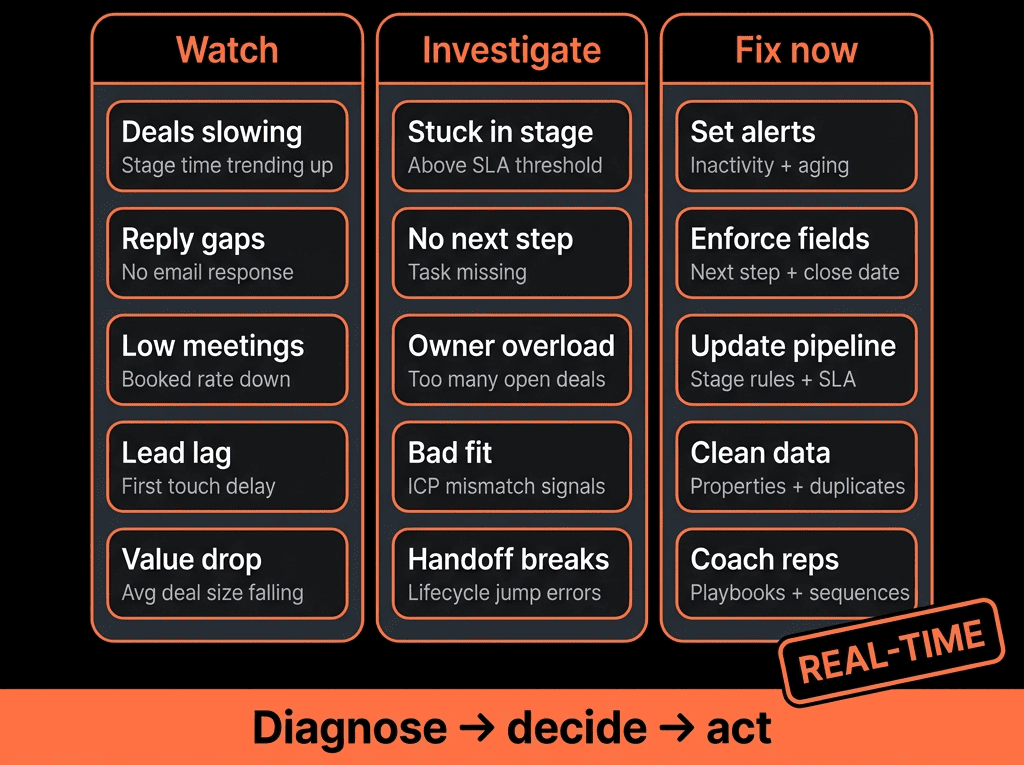
What’s missing is a real‑time diagnosis of where and why deals are stuck:
- Stages where cycle times spike.
- Reps or segments where deals stall.
- Deals with no activity or next step.
HubSpot tracks enough data to show you all of this—if you configure it intentionally.
In this article, we’ll walk through how to use HubSpot to diagnose pipeline blockages in real time, so you can intervene before it’s too late.
Step 1 – Define What a “Pipeline Blockage” Looks Like
A blockage is not just “a big deal that hasn’t closed yet.”
Typical signs of a blockage:
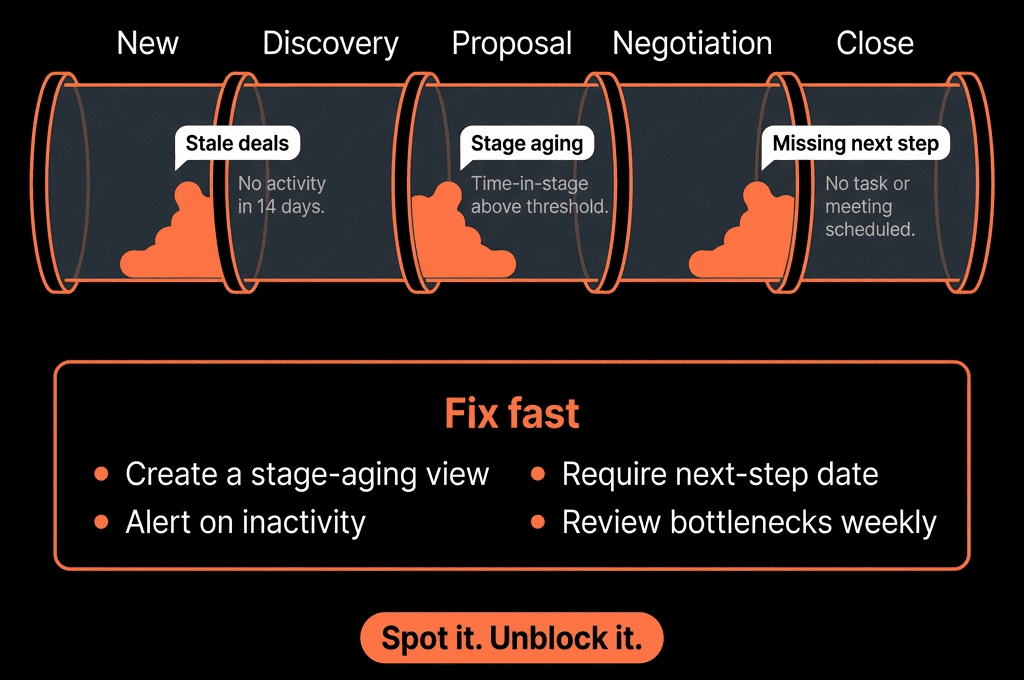
- Deals lingering in a stage far longer than your normal cycle.
- Many deals piling up in a particular stage across reps.
- Deals with no recent activity or unclear next steps.
- Frequent regression between stages (e.g., Negotiation ↔ Proposal).
You want HubSpot to help answer:
- Where are deals getting stuck?
- For which reps, segments, or products?
- Are they truly alive—or should they be closed or re‑qualified?
Step 2 – Capture the Data Needed to See Blockages
HubSpot already stores most of what you need, but you must make sure it’s consistently populated.
Key data points per Deal:
- Pipeline and Deal stage.
- Amount, Close date, Owner.
- Date properties (HubSpot tracks internal entered stage dates per stage).
- Activities: calls, emails, meetings, notes.
- A simple “next step” field (optional but powerful).
Check your portal for:
- Missing or inconsistent close dates.
- Deals in stages they shouldn’t be.
- Sparse activity history on “important” deals.
If these inputs are a mess, start by improving data hygiene and validation before deeper diagnostics.
Step 3 – Use Stage Aging to Identify Stuck Stages
Stage aging is your primary lens into blockages.
In HubSpot:
Use deal reports based on:
- “Time in stage” / “Date entered stage” properties.
Build views like:
- Average days in stage per stage.
- Median days in stage (less skewed by outliers).
- Count of deals in each stage with time in stage > X (e.g., 30, 60 days).
Pay attention to:
- Stages where aging is significantly higher than others.
- Stages where many deals exceed normal cycle time.
These are prime candidates for deeper inspection.
Step 4 – Build Views for Reps and Managers to See Stuck Deals
Real‑time diagnosis should be visible to reps and managers—not just buried in reports.
Example deal views:
“My deals stuck 30+ days in stage”
Filter:
- Owner = Me.
- Current stage = any.
- Time in current stage ≥ 30 days.
“High‑value deals with no activity in 14 days”
Filter:
- Amount ≥ threshold (e.g., $X).
- Last activity date > 14 days ago.
“Deals closing this month with no scheduled next step”
Filter:
- Close date in this month.
- Next step property empty OR no future meeting scheduled.
These views help managers run effective 1:1s and pipeline reviews focused on blockages, not just totals.
Step 5 – Add Dashboards That Show Blockages at a Glance
For RevOps and leadership, dashboards provide pattern visibility.
Key reports:
Stage Aging Heatmap
- Bar/column chart: average or median days in each stage.
- Segment by: pipeline, segment, or region.
Volume of Stalled Deals by Stage
- Count of deals in each stage with “time in stage > threshold.”
Stalled Deals by Owner/Segment
- Table or bar chart: # of stalled deals per rep, segment, or product line.
Movement vs Stagnation
- % of deals moved forward per week vs # aging out.
These views shift focus from “How big is our pipeline?” to “How healthy is our pipeline?”
Step 6 – Use Workflows and Alerts to Flag Emerging Blockages
Don’t rely only on periodic reviews; let HubSpot proactively flag issues.
Workflows for alerts:
Aging deals alert
Enrollment:
- Deals where time in stage ≥ X days.
- Stage is not Closed Won/Lost.
Actions:
- Create a task for the owner: “Review and update or close this stalled deal.”
- Optionally notify manager if high value.
No‑activity deals alert
Enrollment:
- Deals with activity date > N days AND upcoming meetings = none.
Actions:
- Create task: “Log next step or schedule activity.”
Close date risk alert
Enrollment:
- Deals with close date in next 7–14 days AND no recent or upcoming activity.
Actions:
- Ping owner and manager to confirm close date or adjust stage.
These workflows nudge the team to act before a blockage becomes a missed quarter.
Step 7 – Tie Blockages Back to Root Causes (Using HubSpot Data)
Once you know where deals are stuck, use HubSpot to dig into why.
Look at:
Activity patterns
- Are stalled deals lacking discovery notes?
- Are there few or no stakeholder emails logged?
Deal properties
- Are stalled deals missing key fields (use case, budget, decision date)?
- Are certain products or segments over‑represented among stalled deals?
Playbook usage
- If you use call notes or playbooks, are they being used on healthy vs stalled deals?
Use these insights to adjust:
- Stage definitions and exit criteria.
- Required fields for moving between stages.
- Sales training and enablement content.
Step 8 – Align Marketing and CS Around Pipeline Blockages
Pipeline blockages are not just a Sales issue.
Use insights from HubSpot to:
With Marketing:
- Identify if certain lead sources produce more stalled deals at early stages (bad fit or poor expectation setting).
- Adjust MQL criteria and messaging.
With CS:
- For late‑stage expansions/renewals, see if CS engagement patterns correlate with smoother or stalled deals.
- Adjust CS plays accordingly.
This turns pipeline diagnostics into cross‑functional improvements—not just Sales pressure.
Step 9 – Add Guardrails to Prevent Blockages from Hiding
Finally, enforce behaviors that keep blockages visible.
Guardrails:
- Stage‑based required fields: ensure reps can’t move to Proposal/Negotiation without key info.
- Validation on close dates: workflows that flag deals with outdated close dates that keep slipping.
- “Clean‑up” rhythms: monthly/quarterly routines where reps close out dead deals and managers review stuck deals.
With these, your HubSpot pipeline remains a working tool, not a graveyard.
Pulling It Together: From Static Pipeline to Living Diagnostic
Using HubSpot to diagnose pipeline blockages in real time means:
- Capturing the right data: stages, aging, activity, and ownership.
- Surfacing blockages via views and dashboards.
- Triggering alerts when deals stall or lose momentum.
- Using insights to refine process, coaching, and GTM strategy.
Done right, your pipeline stops being just a number—and becomes a living diagnostic of your revenue engine.
Want Help Turning Your HubSpot Pipeline into a Real‑Time Diagnostic Tool?
If your current HubSpot pipeline reports show totals but not where and why deals are stuck, this is where we can help.
Our HubSpot Portal Health Check and Migration & ROI Plan are designed to:
- Audit your current pipeline configuration and data quality.
- Design stage aging, views, workflows, and dashboards tailored to your motion.
- Give you a roadmap to turn HubSpot into a real‑time pipeline diagnostic system.