

Your Integrations Are “Working”—They’re Just Breaking Your Data
Most teams celebrate when tools are “integrated” with HubSpot:
- “We hooked it up with Zapier.”
- “The app is connected, data is flowing.”
- “Product, billing, and support are all talking to HubSpot now.”
Then, slowly, the symptoms appear:
- Owners randomly change on key accounts.
- Lifecycle stages jump backwards.
- Properties get overwritten with weird values.
- Duplicates appear from nowhere.
The problem isn’t just dirty data.
It’s polluted data—changed by integrations you don’t fully control.
In this article, we’ll walk through how to:
- Diagnose which integrations are polluting HubSpot.
- Fix the configuration and ownership of data flows.
- Clean up the mess that’s already in your portal.
So HubSpot returns to being a single source of truth, not a dumping ground.
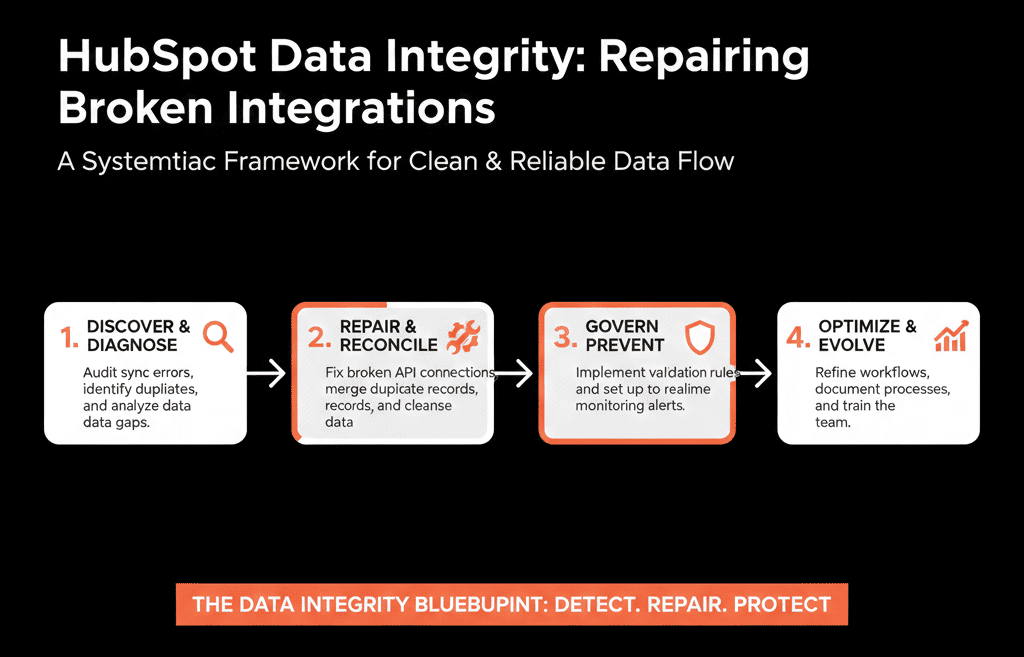
Step 1 – Recognize the Symptoms of Integration‑Driven Pollution
Before you touch any settings, confirm that integrations are part of the problem (not just user behavior).
Common signs include:
- Owners and key fields “mysteriously” changing without user edits.
- Lifecycle stages reverting (e.g., Customers suddenly back to Lead).
- Properties filled with unreadable or irrelevant values from external systems.
- Duplicates created with slightly different data (e.g., same email, different source).
- Timeline cluttered with noisy events that drown out real sales/service activity.
Ask your teams:
- “Where do you see HubSpot data that doesn’t match reality?”
- “Which tools seem to ‘undo’ your work or overwrite your updates?”
You’re building a hypothesis: some integration is behaving like a rogue admin.
Step 2 – Map All Live Integrations and What They Touch
You can’t fix what you can’t see.
Create a simple integration inventory:
- All apps connected to HubSpot (from the App Marketplace and custom integrations).
- Any Zapier/Make/Operations Hub custom automations.
- Webhooks and API‑based integrations from internal tools.
For each integration, answer:
- What is its purpose?
- Which objects does it touch? (Contacts, Companies, Deals, Tickets, custom objects).
- Which properties does it read/write?
- How often does it run? (Real‑time, scheduled, batch).
This gives you a map of potential polluters.
Step 3 – Identify the “Bad Actors” by Tracing Property Histories
Now, find out which integrations are actually causing the damage.
Use HubSpot’s property history and record timelines:
- Pick a few problematic fields (e.g., lifecycle_stage, hubspot_owner_id, key segmentation fields).
- Open property history on records where values changed unexpectedly.
In HubSpot, you can view historical property values on a record (including the change source and timestamp) by opening the record and using the property “Details” view or Actions → View property history.
Look for patterns:
- Edit source shows specific integrations users (e.g., “Integration User”, “Zapier”, “Custom API user”).
- Field changes happen at odd times (e.g., every night at midnight).
- The same property gets overwritten repeatedly from an external source.
Document:
- Which integration or integration user is responsible for problematic changes.
- Which properties they’re overwriting and how often.
This is your short list of faulty or mis‑configured integrations.
Step 4 – Decide Data Ownership: Who Is Allowed to Change What?
Most integration pollution is a governance problem, not just a technical one.
You need clear decisions on:
- Which system is the source of truth for each major field.
- Which systems are allowed to write to that field.
Examples:
Contact & company ownership
- Source of truth: HubSpot.
- External tools: read‑only; cannot overwrite owners.
Lifecycle stage
- Source of truth: HubSpot workflows + sales actions.
- Product/billing tools: can trigger workflows that propose changes, but don’t write directly.
Billing status / MRR
- Source of truth: finance/billing system.
- HubSpot: read‑only or sync‑down.
Product usage metrics
- Source of truth: product database/CDP.
- HubSpot: receives summarized metrics for segmentation and scoring.
Write these rules down. Every integration should then be adjusted to respect them.
Step 5 – Reconfigure or Replace Mis‑Behaving Integrations
Now that you know the rules and the offenders, fix the actual connections.
For each problematic integration:
Check configuration options
In many HubSpot data sync apps, field mappings control which properties sync, the sync direction, and how conflicts are handled.
Change aggressive writes to read‑only or one‑way where appropriate
- Example: set lifecycle and owner to “HubSpot only”.
- Allow external tools to update non‑critical engagement or usage fields.
Consolidate redundant automations
- Replace multiple Zaps/Make scenarios with fewer, better‑documented automations.
- Or use one robust integration instead of several half‑integrations.
Turn off or sunset unused integrations
- If a tool no longer plays a critical role, disconnect it rather than leaving it half‑connected.
Your goal is to ensure no external system can silently wreck your core CRM data.
Step 6 – Clean Up the Existing Pollution (Prioritized, Not Perfect)
Fixing integrations stops new damage. Now you need to clean up what’s already broken.
Prioritize clean‑up by impact:
Ownership and lifecycle
- Identify records where owners are clearly wrong (e.g., assigned to an inactive user or generic integration user).
- Identify records where lifecycle stage makes no sense (e.g., Customers as Leads).
- Fix in bulk where possible: reassign owners using clear rules; reset lifecycle via workflows driven by deal history/status.
Critical segmentation fields
- Standardize values for fields that drive routing/scoring (region, ICP tier, industry).
- Remove or normalize junk values created by integrations.
Duplicates
- Use HubSpot’s deduplication tooling to review and merge duplicate contacts/companies, and use merge rules intentionally because unmerging cannot be done.
- When merging, decide which system’s data takes precedence property‑by‑property.
You don’t need to fix everything overnight. Start where it will unblock routing, reporting, and daily work.
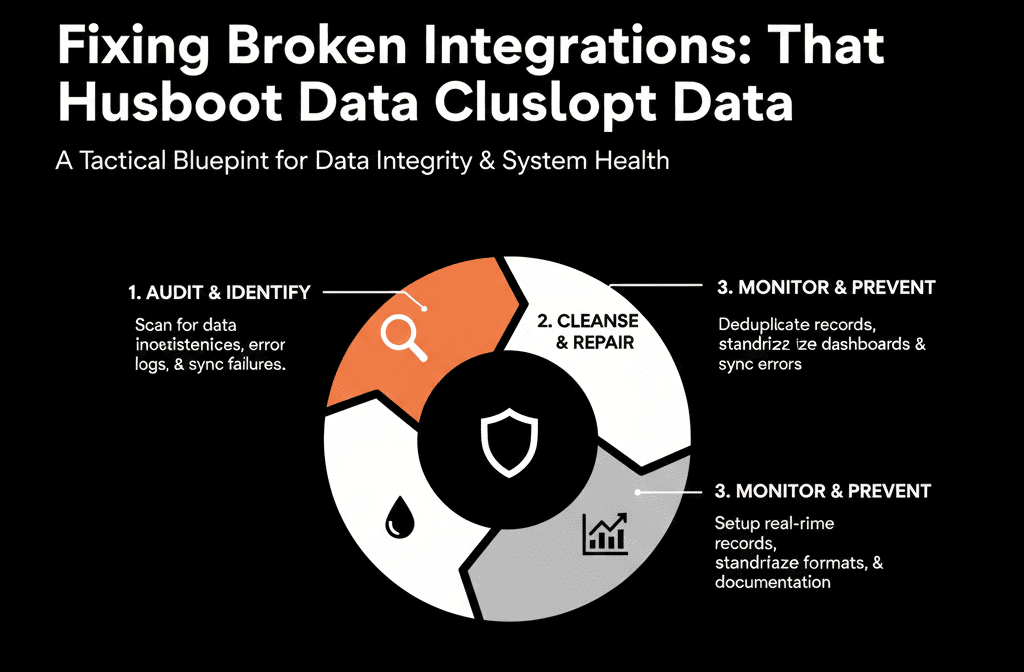
Step 7 – Reduce Timeline Noise and Event Spam
Even with correct field values, some integrations flood the timeline with noise:
- “User viewed page X in app 37 times.”
- “Low‑value events logged as separate engagements.”
This makes it hard for Sales and CS to see what matters.
To fix this:
- Turn off or limit logging of low‑value events.
- Group or summarize events where possible (e.g., “Active user (7 sessions in last 7 days)” instead of 7 discrete events).
- Use custom properties or scores to represent important behaviors, not every click.
Your aim is a readable timeline where key actions stand out.
Step 8 – Implement Integration Governance Going Forward
You’ve fixed today’s issues; now prevent tomorrow’s.
Put a lightweight governance process in place:
Before any new tool is connected to HubSpot:
- Answer: what problem does it solve, which objects/properties will it touch, and what is the source of truth for those properties?
- Document integration rules in a simple internal doc.
Assign an “integration owner” (often RevOps/Ops) to:
- Approve new integrations.
- Configure field mappings and sync directions.
- Review logs and impact periodically.
Maintain an integration + property map:
- Which systems can write to which key properties.
- Under what conditions.
This doesn’t have to be heavy‑weight. It just needs to exist.
Step 9 – Monitor Key Fields and Metrics Regularly
Finally, set up simple monitoring so you know if integrations start misbehaving again.
Monthly or quarterly, check:
- Field change patterns for owner, lifecycle, region/segment/ICP tier.
- Duplicates created in the last period.
- Error logs or sync errors from major integrations.
Create a small “data health” dashboard:
- # of records missing key fields.
- # of newly created contacts/companies per integration.
- Lifecycle distribution over time.
If something spikes or drifts unexpectedly, investigate the integrations touching those areas first.
Pulling It Together: Make Integrations Serve HubSpot, Not the Other Way Around
Integrations should:
- Add context (billing, product, support) to HubSpot.
- Trigger smarter routing and engagement.
- Improve reporting and decision‑making.
They should not:
- Randomly change your owners or lifecycles.
- Dump raw event noise into timelines.
- Create more work for your GTM teams.
The fix is a mix of visibility (what’s connected and what it touches), governance (who owns which fields and flows), targeted clean‑up, and better configuration.
Once you do this, HubSpot goes back to being a clean system of record—and your integrations become trusted data sources, not silent saboteurs.
Want Help Untangling Broken Integrations in Your HubSpot Portal?
If your HubSpot data feels “off” and you suspect integrations are part of the problem, this is exactly where we can help.
Our HubSpot Portal Health Check and Migration & ROI Plan are designed to:
- Audit your current integrations, data flows, and property changes.
- Identify which tools and configs are polluting your data.
- Propose a clean integration and data governance model—plus a practical clean‑up plan.