

When You Can’t Trust Lead Source, You Can’t Trust Your Marketing
If you’re not confident in where your leads and deals really come from, you’re flying blind:
- Budget decisions become guesswork.
- High-performing channels don’t get credit.
- Underperforming channels survive too long.
- Leadership stops trusting HubSpot reports.
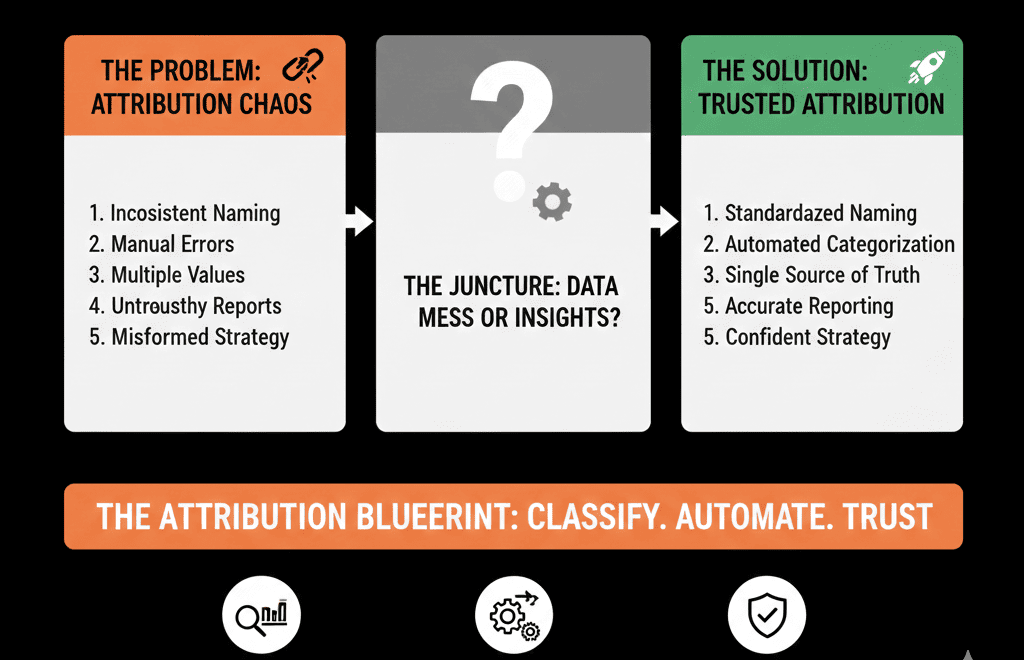
In almost every HubSpot audit we run, lead source chaos is a major issue:
- Multiple “source” fields with different values.
- Overwritten original source data.
- Manual edits by reps or imports.
- Integrations writing their own version of truth.
This article explains how we untangle lead source in HubSpot and rebuild attribution you can actually trust.
Step 1 – Decide What “Source of Truth” Means for You
HubSpot comes with standard fields like:
- Original source
- Original source drill-down 1 / 2
- Latest source (and related fields)
Many portals also add:
- Custom Lead source properties (sometimes multiple versions).
- UTM-based fields from forms or integrations.
Before fixing anything, we ask:
- Which field will be the official “source of truth” for how this contact first found us?
- Which fields are allowed to change over time and which are not?
- Which fields are used in reporting today (and should they be)?
Our usual pattern:
- Use HubSpot’s Original source (and drill-downs) as the technical source of truth for first-touch origin.
- Use a custom, human-readable Lead source field for reporting and segmentation (mapped logically from the system fields).
- Use UTM fields and campaigns to enrich, not replace, origin.
You may make different choices—but you must pick one definition and stick to it.
HubSpot’s Original and Latest traffic source properties (and drill-downs) are standard traffic source properties that HubSpot sets automatically to classify how a contact first/most recently interacted with your website.
Step 2 – Audit Your Existing “Source” Fields
Next, we inventory everything that currently acts like a “source” field:
HubSpot defaults:
- Original source
- Latest source
- First page seen, First referring site, etc.
Custom fields:
- Lead Source
- Lead_Source
- Primary Source
- Anything with “source” in the name.
For each, we check:
- How many records have this field populated?
- What the top 20 values look like (and how messy they are).
- Whether any workflows or integrations are updating it.
We’re often greeted by values like:
- “Google” / “google” / “Paid Search” / “AdWords” / “Google Ads”
- “Webinar” / “Zoom” / “Event” / “Online Event”
- “Manual” / “Salesforce Import” / “Upload” / “Unknown”
This tells us:
- Where chaos is coming from (manual work vs integrations vs old workflows).
- Which fields we can safely deprecate.
- How much historical cleanup is realistic.
Step 3 – Protect Original Source from Being Corrupted
One of the biggest mistakes is letting Original source be overwritten.
We look for:
- Workflows that set or update Original source or its drill-down fields.
- Integrations mapping their own “source” to HubSpot Original source.
- Manual edits by users.
Original source should answer one question: How did this contact first enter our ecosystem?
It should not be:
- Changed when they click a new campaign later.
- Reset when a list is imported.
- Manually edited unless to correct a clear error.
Our approach:
- Stop all non-system updates to Original source and its drill-down fields.
- If corrections are needed, handle them in a controlled, one-time cleanup project—not in ongoing workflows.
- Use separate custom fields for human-friendly reporting (see next step).
HubSpot’s traffic source drill-down properties are automatically set and cannot be updated manually; if you change a record’s traffic source, the drill-down properties will be cleared, which is why protecting these system fields matters. [web:1448]
Step 4 – Create a Clean, Human-Readable Lead Source Field
Most leadership teams don’t want to see ORGANIC_SEARCH and PAID_SOCIAL codes.
They want:
- Paid Search
- Paid Social
- Organic Search
- Direct / Brand
- Referral / Partner
- Outbound
- Event / Webinar
- Other / Unknown
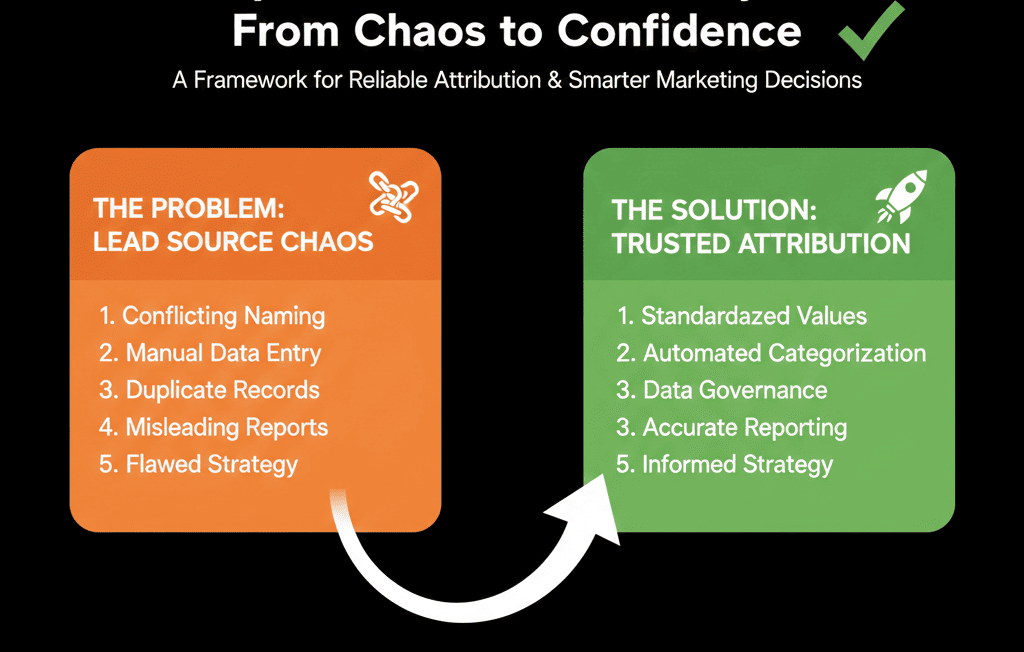
We usually create (or repurpose) a single custom property like Lead source (Normalized) and:
- Define a short, controlled list of options (10–15 max).
- Document what each means (e.g., “Outbound” = any lead created from prospecting, not through a form).
Then we build a workflow (or set of workflows) to:
- Read from Original source and UTM data.
- Map them into a normalized lead source value.
Example mappings:
- Original source = ORGANIC_SEARCH → Lead source (Normalized) = Organic Search
- Original source = PAID_SEARCH → Lead source (Normalized) = Paid Search
- Original source = OFFLINE and created by SDR → Lead source (Normalized) = Outbound
- Original source = REFERRALS → Lead source (Normalized) = Referral/Partner
Over time, this becomes the main field you use in:
- Dashboards
- Funnels
- Segmentation views
- Budget and channel analyses
Step 5 – Fix Integrations and Imports That Pollute Source
Integrations and imports are common culprits.
We review:
- CRM integrations (past Salesforce/Pipedrive, current tools)
- Marketing tools (webinar platforms, event tools, ad platforms)
- Manual import processes
We ask:
- Is this tool mapping its own “Lead source” into HubSpot’s Original source?
- Is it creating or overwriting custom Lead source properties?
- Do imports include random source values from spreadsheets?
To fix:
- Update integration mappings so external “source” fields map into temporary or helper fields, not into Original source.
- Adjust import templates so “Source” columns map into your normalized lead source logic (or staging fields used by workflows).
- Educate the team: “Do not directly edit Original source; use the approved fields/process.”
Step 6 – Decide How You’ll Handle Multi-Touch Attribution
First-touch source alone isn’t enough for many B2B teams.
You might need to see:
- How leads first discovered you (origin).
- Which touch actually created or influenced the opportunity (opportunity source).
- Which campaigns influenced revenue overall (multi-touch).
Within HubSpot, we usually:
- Keep Original source for first-touch.
- Use deals and associated campaigns for opportunity-level attribution.
- Use HubSpot’s attribution reports (Marketing Hub Enterprise) or a structured campaign model for multi-touch where needed.
The key is to be intentional:
- Don’t try to fit all attribution into one field.
- Define what each metric means: “Pipeline by lead source” vs “Pipeline by opportunity source” vs “Pipeline by influenced campaign.”
HubSpot attribution reports include contact create attribution, and deal create/revenue attribution (Marketing Hub Enterprise only), and you can choose attribution models for crediting interactions.
HubSpot also provides campaign attribution reports inside the campaigns tool for contacts created, deals created, or revenue, with model selection; note that attribution reports may differ from other campaign performance data, and attribution reports don’t include data from static lists or workflows.
Step 7 – Clean Historical Data Where It Actually Matters
You don’t need to fix every old record.
We focus historical cleanup on:
- Contacts associated with customers and open deals.
- Contacts created in the last 6–12 months.
- Any segments heavily used for budget decisions.
Approach:
- Group messy source values into buckets (e.g., all variants of “google/ppc/adwords” → Paid Search).
- Run one-time workflows or scripts to update your normalized lead source property based on those buckets.
- Leave long-tail historical noise alone if fixing it offers no decision-making value.
Result: Your active and revenue-relevant data becomes trustworthy without boiling the ocean.
Step 8 – Rebuild Source-Based Dashboards and KPIs
With your new structure in place, you can rebuild reporting around:
Leads by normalized lead source
- Volume trends per quarter/month.
- Quality indicators (MQL, SQL, Opportunity conversion).
Pipeline and revenue by normalized lead source
- Opportunities created by source.
- Closed-won revenue by source.
- Win rate and deal size by source.
Cost and ROI by channel (if you track spend)
- Map ad spend or channel costs to your normalized sources.
- Calculate cost per MQL, SQL, and Opportunity.
- Identify channels to scale up or cut.
This is where you regain confidence to have serious budget conversations:
- “Should we add more to paid search?”
- “Are webinars worth the effort?”
- “How important are partner referrals compared to outbound?”
Step 9 – Lock In Governance So Source Doesn’t Break Again
Finally, we put guardrails in place so your lead source structure doesn’t drift:
- Restrict who can change source-related properties.
- Maintain a simple data dictionary that defines each source and how it’s set.
- Review source distributions quarterly:
- Look for unexplained spikes in “Other/Unknown.”
- Check for new, unapproved values creeping into custom fields.
We also encourage running a light HubSpot Health Check on key properties (including source fields) every few months to catch early signs of drift.
What You Can Do in the Next 30 Days
To start fixing lead source chaos in HubSpot this month:
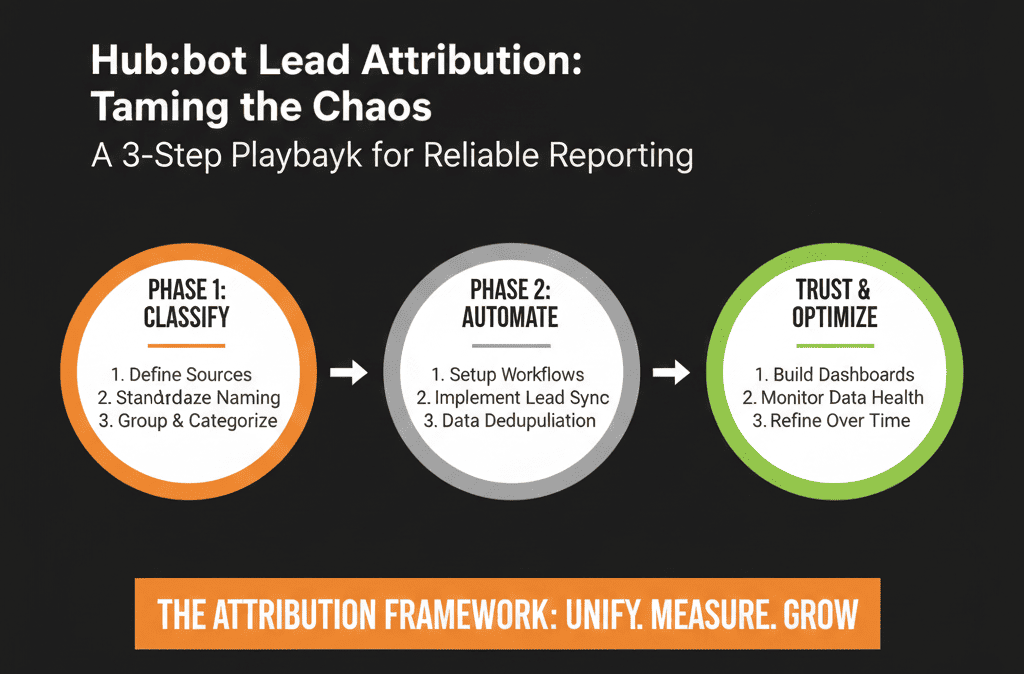
- Identify all fields that act as “source” and pick one primary for first-touch origin.
- Decide on a single normalized lead source property with a short, clean picklist.
- Stop workflows/integrations from overwriting Original source.
- Build mapping workflows from system fields + UTMs → normalized lead source.
- Clean up historical data for customers and active pipeline only.
- Rebuild 2–3 key dashboards around the new source definitions.
You don’t need perfect attribution overnight. You need a trusted structure you can explain and improve.
Want Help Turning Your Lead Source Mess into a Source of Insight?
If your HubSpot reports say one thing, your ad platforms say another, and finance has a third version of truth, the problem isn’t your channels—it’s your lead source architecture.
Our team uses a structured HubSpot Portal Health Check / HubSpot Audit to:
- Audit and rationalize all your source and attribution fields.
- Protect Original source and design a normalized lead source model.
- Clean up the most important segments and rebuild reporting around them.