

Construction & Trades Don’t Need Fancy CRM. They Need Control.
If you run a construction or trade business (GC, HVAC, electrical, plumbing, roofing, etc.), your world looks like:
- Leads from phone calls, website, walk-ins, referrals.
- Site visits and estimates.
- Quotes and change orders.
- Jobs that move through stages with field crews.
- Service/maintenance work with repeat customers.
Most contractors we see:
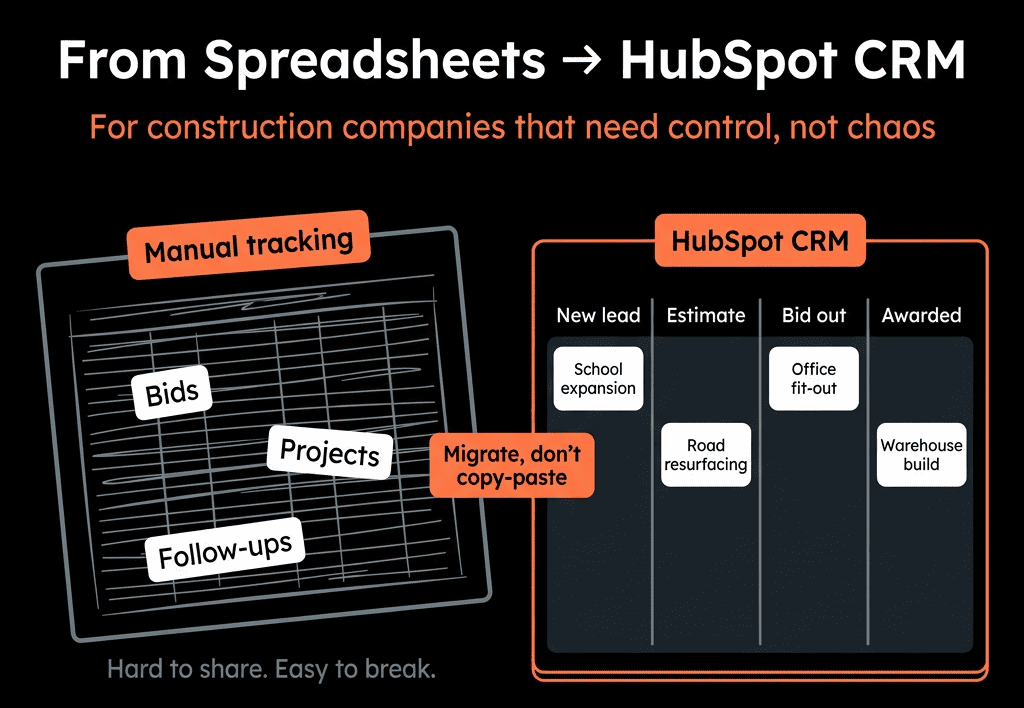
- Use spreadsheets, paper, or WhatsApp for tracking.
- Try a CRM, but the team never really adopts it.
- Have no single place to see what’s in the pipeline or who owns what.
HubSpot can be a simple control center if it’s set up with your real-world workflows in mind.
This article covers HubSpot use cases tailored to construction and trade contractors.
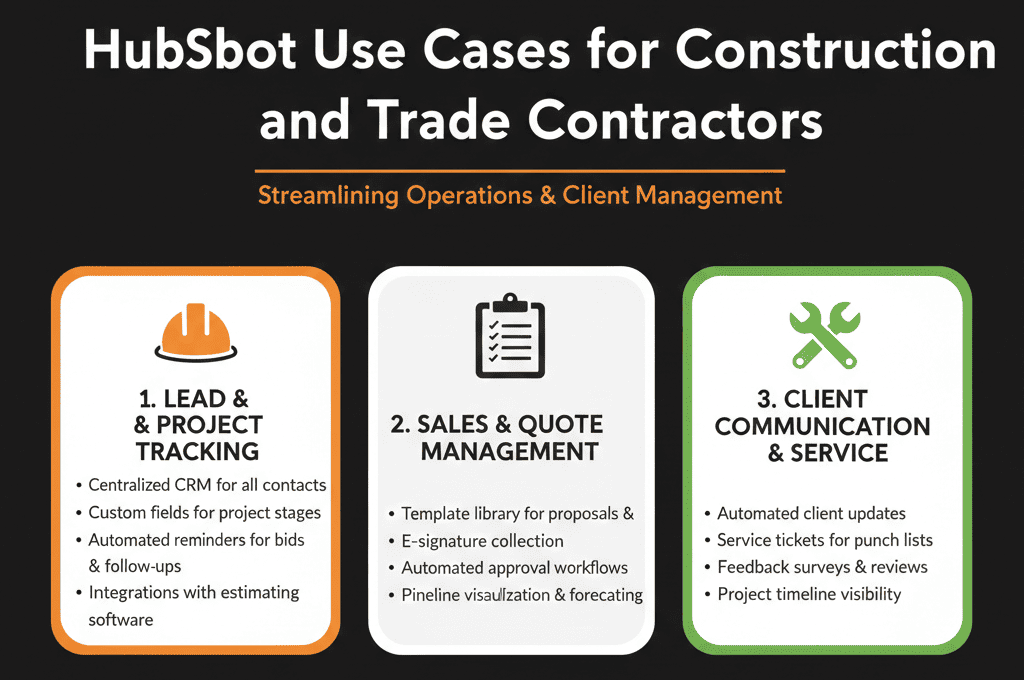
Use Case 1 – Centralizing Leads From Phone, Website, and Walk-Ins
Problem
Leads come from:
- Phone calls.
- Website forms.
- Social/ads.
- Walk-ins and referrals.
But:
- Details are written on paper, lost in email, or stay on one person’s phone.
- Follow-up is inconsistent.
- No one can see the full picture of incoming work.
How to use HubSpot
Set up simple capture points:
- Website: contact/quote request forms connecting into HubSpot.
- Phone: office/admin logs calls into HubSpot with a quick Contact + Deal.
- Walk-ins/referrals: basic intake form in HubSpot for front desk/office.
Standardize lead fields:
For Contacts:
- Name
- Phone/email
- How they heard about you (Source)
For Deals (jobs/opportunities):
- Job type (e.g., residential, commercial; HVAC, electrical, roofing)
- Location (city/area)
- Estimated value band (rough at first)
- Urgency (Emergency / Soon / Planned)
Create these as simple, consistent properties (especially dropdown/select fields for Job type and Urgency).
Use views to stay on top of new leads:
- “New leads – last 7 days”
- “Uncontacted leads” (no activity yet)
- “No estimate sent yet”
Outcome:
- Every lead is in one system.
- Anyone can see what’s new and who owns follow-up.
Use Case 2 – Job Pipelines That Match How You Actually Work
Problem
Construction and trades jobs go through clear stages:
Inquiry → Site visit → Estimate/Design → Proposal → Contract → Scheduling → In progress → Completed.
But many teams track this:
- In spreadsheets.
- On whiteboards.
- In people’s heads.
How to use HubSpot
Design a job pipeline in HubSpot Deals (custom stages that match your flow).
Example stages:
- New Lead / Inquiry
- Needs Site Visit
- Site Visit Completed
- Estimate/Takeoff in Progress
- Proposal Sent
- Negotiation / Waiting on Approval
- Contract Signed / Job Won
- Job Scheduled
- Job In Progress
- Job Completed
- Closed Lost
Define what each stage means:
- Entry criteria (e.g., “Site Visit Completed” = someone visited and captured notes).
- Exit criteria (e.g., “Proposal Sent” = estimate sent to decision maker).
Make responsibilities clear:
- Office/admin moves deals from New → Needs Site Visit.
- Estimator or PM handles Site Visit → Proposal.
- Owner/manager handles Negotiation → Contract.
Use tasks and reminders:
- Needs Site Visit → create a task for field/estimator.
- Proposal Sent → create follow-up reminders after a few days.
Outcome:
- Job pipeline lives in HubSpot, not on a wall.
- Everyone sees what stage each job is in and what’s next.
Use Case 3 – Quote and Estimate Tracking Inside HubSpot
Problem
Quotes get:
- Sent from email, Word, or separate quoting tools.
- Saved locally or not at all.
- Forgotten when it’s time to follow up.
How to use HubSpot
Attach quotes to deals:
- Upload PDFs or link to external quoting software from the Deal record.
Store key numbers as Deal properties:
- Quote amount
- Date sent
- Version (if there are changes)
Track follow-up:
- Create a property for Quote status (Sent / Revised / Accepted / Rejected).
- Use workflows or simple task templates to create follow-up tasks X days after sending.
- Notify owners when quotes are viewed (if using integrated tools).
Report on quoting:
- Deals in “Proposal Sent” by age (how long quotes sit).
- Quote win rate (accepted vs rejected).
- Revenue by job type from accepted quotes.
Outcome:
- No more “Did we ever follow up on that big quote?” questions.
- Better insight into pricing and win rates.
Use Case 4 – Field Ops Coordination: Site Visits, Scheduling, and Progress
Problem
A lot of work happens in the field:
- Site inspections.
- Measurements.
- On-site customer conversations.
Without structure:
- Appointments get missed.
- Information stays on paper or on a tech’s phone.
- Office staff has a fuzzy view of what’s happening.
How to use HubSpot
Schedule and log site visits:
- Use Meetings or tasks linked to Deals.
- Capture date/time, who is going on-site, and notes/photos (attachments).
Use workflows or pipeline automations for stage transitions:
- After “Site Visit Completed,” create a task for estimator and move the deal to “Estimate/Takeoff in Progress.”
Track job scheduling and progress:
- Scheduled date.
- Crew assigned.
- Status (Not Started / In Progress / On Hold / Completed).
Simple field reporting via mobile:
- Field staff update deal status and add notes/photos via the HubSpot mobile app.
Outcome:
- Office and field stay synced on what’s scheduled and what’s done.
- Less back-and-forth calls just to check status.
Use Case 5 – Service & Maintenance Work With Repeat Customers
Problem
Many construction/trade businesses:
- Have ongoing service/maintenance contracts.
- Do recurrent jobs for the same clients.
- Depend on recurring revenue.
But:
- Service work is tracked separately from the main CRM.
- Opportunities for upsell, contract renewal, or larger projects are missed.
How to use HubSpot
Use Tickets or a second pipeline for service jobs:
- For ad hoc service calls and small jobs, use the Tickets object with a simple pipeline (New → Scheduled → In Progress → Completed).
- For recurring contracts, use a dedicated Service/Maintenance pipeline in Deals.
Link service work to the main account:
- Associate tickets and service deals with the Company and Contacts to keep history together.
- Track history of projects, service calls, and warranties/maintenance agreements.
Trigger renewal and upsell reminders:
- Create tasks when maintenance contracts near expiry.
- Flag accounts when service frequency suggests bigger work is needed.
Outcome:
- A full history of client work in one place.
- Easier to renew contracts and propose upgrades.
Use Case 6 – Revenue Forecasting and Backlog Visibility
Problem
Owners and managers need to know:
- How much work is booked.
- How much is likely to close.
- What’s coming 30/60/90 days out.
Spreadsheets make this fragile and time-consuming.
How to use HubSpot
Use deal Amount and Close date consistently:
- For job pipelines, Amount = estimated job value.
- Close date = expected contract sign date or job start.
Use stage probabilities or simple categories:
- Early stages: low probability; later stages: higher probability.
- Or simple forecast categories like Pipeline / Commit, based on your stage definitions.
Build backlog and forecast dashboards:
- Pipeline by stage for this month, next month, and next 90 days.
- Total pipeline value by job type, region, and crew/capacity considerations.
Outcome:
- Clear picture of how much is in the backlog.
- Better crew allocation decisions.
- Clarity on whether you need more sales or more staffing.
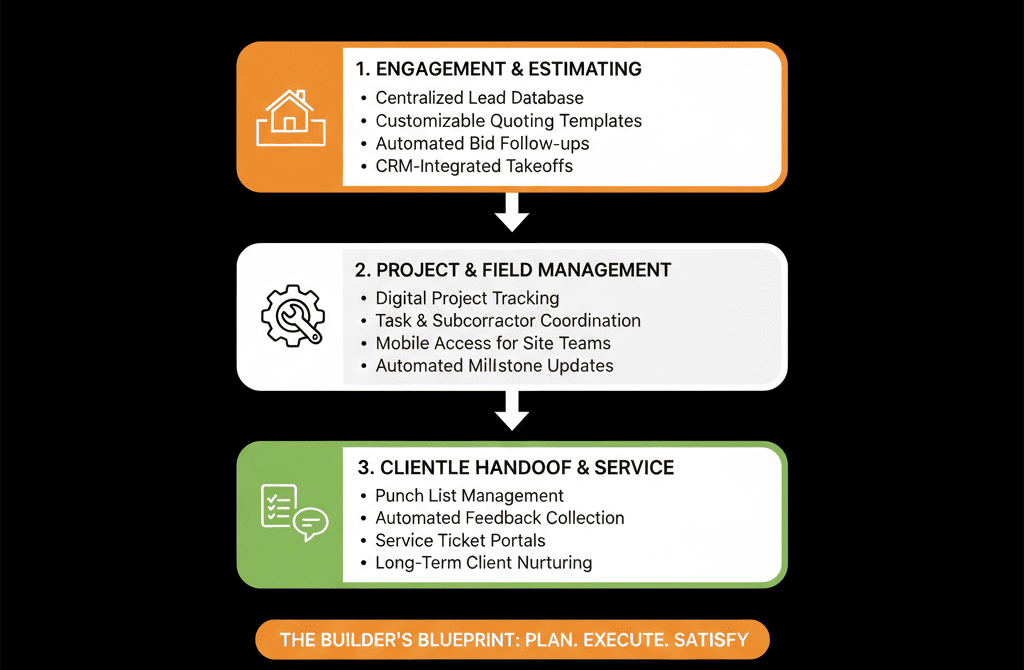
What You Can Do in the Next 30–60 Days
If you’re a construction or trade contractor wanting to bring order with HubSpot:
- Start with one simple job pipeline that reflects your real steps.
- Make sure all new leads (phone, web, walk-ins) are logged into HubSpot with Contact + basic job record (Deal).
- Add 2–3 key Deal fields: job type, location, estimated size/priority. [web:85]
- Set up “New Leads” and “Jobs by Stage” views for owner/foreman/office.
- Once that’s in place, layer on quote tracking, site visit tasks, and a simple backlog/forecast dashboard.
You don’t need every advanced feature to see big benefits.
You just need a clear, shared system that matches how your jobs actually flow.
Want a HubSpot Audit Tailored to Construction & Trades?
Most off-the-shelf CRM advice doesn’t work for construction and trade contractors:
- Your leads, jobs, and field operations are different from SaaS or eCommerce.
- You need something your office and crews will actually use.
Our HubSpot Portal Health Check / HubSpot Audit can be tailored to:
- Map your real-world job stages and handoffs.
- Design a simple HubSpot setup for leads, jobs, and service work.
- Build a 60–90 day plan to get out of spreadsheets and into a clean, usable portal.