

Your Migration Needs More Than a Field Mapping Sheet
Most HubSpot migrations produce a spreadsheet called “field mapping”.
It usually has:
- Source field names.
- Target field names.
- A few notes on type (text, number, dropdown).
What it does not capture:
- What each field actually means.
- Who owns it.
- When it should be used (and when it should not).
- Which fields are being deprecated.
Without that, your new HubSpot portal starts accumulating:
- Duplicate properties for the same concept.
- Conflicting definitions of core terms (MQL, ICP, Customer).
- Confusion over which properties reports and workflows should trust.
A simple, well‑maintained data dictionary fixes this. In this article, we’ll walk through how to create a HubSpot data dictionary during migration planning—so your new portal doesn’t start life on the path to property chaos.
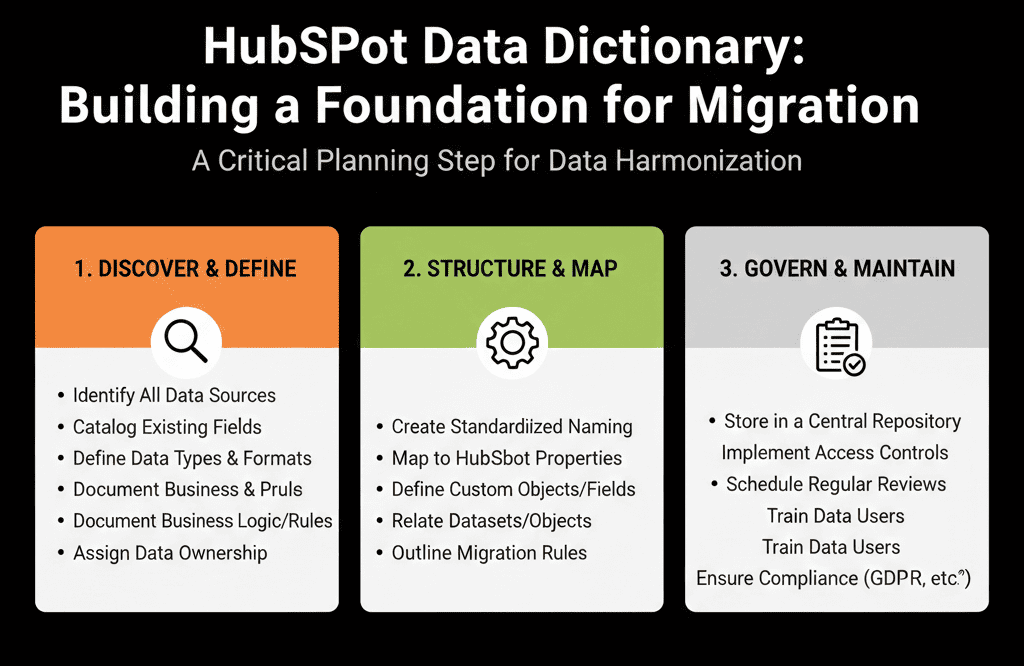
Step 1 – Decide What Your Data Dictionary Is (and Is Not)
Your data dictionary is not:
- A full ERD (entity‑relationship diagram) for engineers only.
- An internal‑use‑only spreadsheet nobody reads.
It is:
A shared reference for RevOps, Marketing, Sales, CS, and Product that explains:
- What objects and key properties exist in HubSpot.
- What they mean.
- How and when they should be used.
- Who owns them.
For migration planning, your first version should focus on:
- Core objects: Contacts, Companies, Deals, Tickets, and any custom objects you plan to use.
- Critical properties you rely on for segmentation, routing, scoring, reporting, and compliance (e.g., consent, lifecycle, legal basis).
Think of it as the user‑friendly manual for your data model.
Step 2 – Inventory Existing Fields Across Systems Before Mapping
Before you define your new dictionary, you need to know what exists today.
From your current CRM(s) and key sheets/tools, export:
Field/property lists for:
- Contacts.
- Accounts/Companies.
- Leads/Opportunities/Deals.
- Cases/Tickets.
- Any custom objects or key tables.
For each field, capture at least:
- Name.
- Type (text, number, boolean, picklist, etc.).
- Example values.
- Where it’s used (forms, reports, workflows).
Group fields by theme:
- Identity & contact info (email, phone, etc.).
- Ownership & territory.
- Lifecycle & status.
- Segmentation (industry, size, ICP, vertical).
- Product/use‑case‑specific fields.
This gives you the raw material to decide what your future HubSpot property set should be.
Step 3 – Define Naming Conventions and Property Ownership Up Front
Naming chaos is one of the fastest ways a portal becomes unmanageable.
As part of your data dictionary, decide:
Naming conventions
How you name properties by object and purpose, e.g.:
- Contact – Persona, Company – ICP Tier, Deal – Motion type.
Prefixes or suffixes for:
- Integration‑owned fields (e.g., Billing – MRR, Product – Usage score).
- Legacy fields (e.g., LEGACY – ... for temporary properties).
Ownership
For each property, specify:
- Business owner (Marketing Ops, Sales Ops, CS Ops, Finance, etc.).
- Technical owner (RevOps, admin, architect).
Governance rules
No new global properties without:
- Business justification.
- Defined owner.
- Definition in the data dictionary.
These decisions go into the front of the dictionary as “house rules”.
Step 4 – Document Core Objects and Their Purpose
For each HubSpot object you’ll use, include a simple section in the dictionary.
For example:
Contacts
- Represents: individual people (prospects, customers, partners, etc.).
- Owned by: Sales & Marketing, with RevOps as data owner.
- Key uses: lead management, communication, scoring, personalization.
Companies
- Represents: accounts/organizations we sell to or support.
- Owned by: Sales & CS, with RevOps as data owner.
- Key uses: account management, segmentation, revenue reporting.
Deals
- Represents: commercial opportunities (new business, expansions, renewals).
- Owned by: Sales.
- Key uses: pipeline management, forecasting, performance reporting.
Tickets
- Represents: support or success interactions needing resolution.
- Owned by: CS/Support.
- Key uses: SLA tracking, CS metrics, customer health.
Custom objects (if any)
- E.g., “Subscriptions”, “Projects”, “Contracts”.
- Document: what they are, why they exist, and how they link to other objects.
This helps non‑technical stakeholders understand the structure of HubSpot.
Step 5 – Build the First Version of Your Property Dictionary
Now create the heart of the document: a table of key properties with clear definitions.
For each property you care about (start with ~50–150, not every field), capture:
- Technical name (as in HubSpot).
- Friendly label.
- Object (Contact, Company, Deal, etc.).
- Type (text, number, dropdown, date, etc.).
- Definition (what it means in plain language).
- Example values.
- Source of truth (how it’s populated): user input, form, integration, workflow, calculated.
- Usage: used in segmentation, routing/automation, reporting.
- Owner: business & technical.
- Status: Active, legacy (to be deprecated), planned.
Example row:
- Technical name: lifecycle_stage
- Label: Lifecycle stage
- Object: Contact & Company
- Type: Dropdown
- Definition: Where this record sits in our customer journey (Subscriber, Lead, MQL, SQL, Opportunity, Customer, Evangelist, Other).
- Example values: Lead, Customer
- Source of truth: Set by workflows based on form submissions, deal creations, and stages.
- Usage: Segmentation, routing, high-level funnel reporting.
- Owner: Marketing Ops (business), RevOps (technical)
- Status: Active
This is the single most valuable part of the dictionary.
Step 6 – Explicitly Mark Legacy and “Do Not Use” Fields
During migration, you’ll inevitably bring in some legacy fields. Your data dictionary should identify them and flag their future.
For any property that will not be part of the long‑term model:
- Mark status as Legacy – to be deprecated.
- Add notes: why it exists, when/how it will be phased out, which new property replaces it (if any).
Optional: use a naming convention in HubSpot like LEGACY – Old field name to discourage new use.
This helps prevent old fields from being reused “just because they exist”—one of the biggest causes of property bloat.
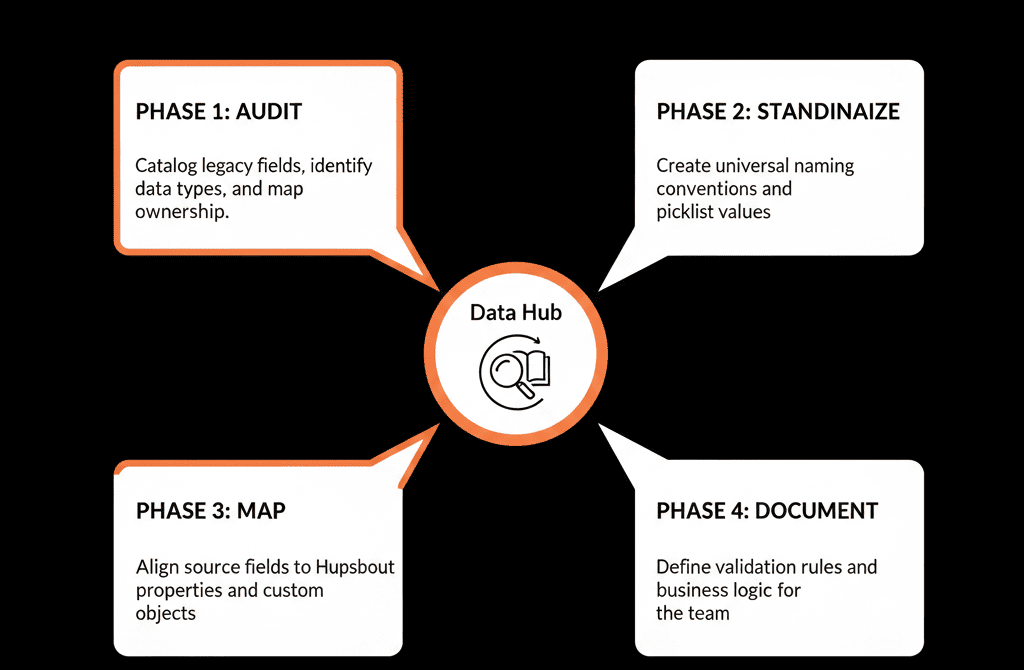
Step 7 – Use the Data Dictionary to Guide Migration Decisions
Once you have a first version, use the dictionary actively in migration planning:
Field mapping
- Map source fields from legacy systems to dictionary‑approved HubSpot properties.
- If a field doesn’t have a match, decide: create a new, defined property (and add it to the dictionary), skip it, or keep it as legacy with a plan to retire.
Workflow design
- Only use dictionary‑defined properties in new workflows.
- If a workflow needs a new property, update the dictionary first.
Reporting / dashboard rebuilding
- Build reports on top of well‑defined properties.
- Document which properties power which key metrics.
This anchors every migration decision to a shared, documented model.
Step 8 – Make the Dictionary Accessible and Owned
A data dictionary nobody sees is a dead dictionary.
Make it:
- Easy to find: host it in Confluence/Notion/Google Sheets/Docs with a clear link.
- Easy to use: filters by object, status, owner, and plain-language definitions.
Assign a data steward or RevOps owner responsible for reviewing/approving new properties, updating definitions, and running periodic clean-ups.
Share widely with Marketing, Sales, CS leadership, Product/Engineering (if they integrate), and agencies/partners who work in your portal.
Your goal: make the dictionary the first stop for any “Can we add a field for…?” request.
Step 9 – Keep It Alive Post‑Migration (Lightweight Governance)
A data dictionary is not a one‑off migration artifact. It’s a living governance tool.
Post‑migration, schedule light‑touch reviews:
- Every quarter: review new properties created, tag legacy/unused fields for cleanup, update definitions where processes changed.
- Every 6–12 months: align with leadership on new reporting/segmentation needs and confirm the dictionary still matches reality.
Simple rules to reinforce:
- No new “core” properties without being added to the dictionary.
- Reports should reference dictionary properties, not ad‑hoc one‑offs.
This keeps your HubSpot portal from drifting into the very chaos you were trying to escape.
Pulling It Together: Your Insurance Policy Against Portal Chaos
A HubSpot data dictionary created during migration planning forces you to agree on definitions before data moves, reduces duplicate properties and shadow fields, and gives every team a shared language for segmentation, routing, and reporting.
You don’t need a huge, enterprise‑grade system. You need a clear inventory of key properties, simple written definitions and ownership, and a basic governance habit to keep it current.
That alone can be the difference between a clean, trusted HubSpot portal and another CRM everyone complains about 12 months after go‑live.
Want Help Designing Your HubSpot Data Model and Dictionary Before Migration?
If you’re planning a HubSpot migration and worried about repeating old property chaos, this is exactly where we can help.
Our HubSpot Portal Health Check and Migration & ROI Plan are designed to:
- Audit your existing fields and usage.
- Propose a lean, scalable HubSpot data model.
- Build an initial data dictionary and governance approach you can maintain