

Forecasting Is a Process Problem First, a Tool Problem Second
Most teams blame the tool when forecasts miss.
In reality, the issues are usually:
- Vague stages.
- Inconsistent amounts and dates.
- Reps guessing probabilities.
- No link between forecast and behavior.
HubSpot can run a solid forecast if you:
- Model your pipelines correctly.
- Capture a small set of reliable inputs.
- Enforce discipline with workflows and reviews.
- Use the right forecast views and dashboards.
We’ll walk through each piece.
Step 1 – Design Pipelines for Forecasting, Not Just Tracking
Forecasting starts with pipeline design.
You need:
Clear, mutually exclusive pipelines
Typical B2B setup:
- New Business
- Renewals
- Expansion/Upsell
Each can be forecasted separately and then rolled up.
Customer-centric deal stages
Stages should reflect customer commitments, not internal activities. For example (New Business):
- Qualified
- Solution Fit Confirmed
- Decision Process Mapped
- Business Case Approved
- Verbal Commit
- Closed Won / Closed Lost
For each stage, document:
- Entry criteria.
- Exit criteria.
- Required fields.
This gives forecasting a stable, predictable backbone.
Step 2 – Lock in Core Forecast Inputs on Deals
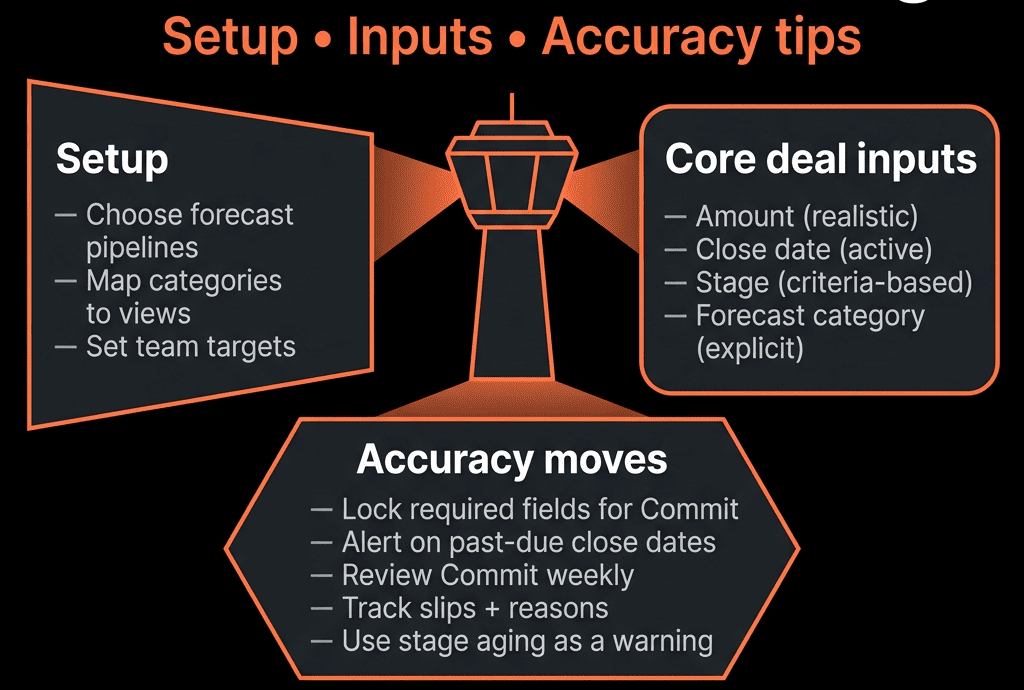
Forecast quality depends on 4 core inputs:
Amount
- Amount should reflect realistic expected contract value.
- For recurring revenue, use Amount + Term or custom fields (ARR, MRR) if needed.
Close date
- The period you expect the revenue to close in.
- This must be actively managed, not “default end of month”.
Stage
- True buying stage, based on agreed criteria.
- No moving to later stages just to look good.
Forecast category
- A dedicated property, separate from stage:
- Pipeline – early, possible.
- Best case – plausible, but risk unknown.
- Commit – you’re explicitly calling that it will close.
- Omitted – not in this period’s forecast.
Add standard deal properties:
- Forecast category (Dropdown).
- Deal type (New / Renewal / Expansion).
- Optionally, ARR / MRR if subscription model.
Reps and managers should update these weekly at minimum.
Step 3 – Configure HubSpot’s Forecast Settings Properly
In HubSpot’s Sales > Forecast settings:
- Choose which pipelines contribute to overall forecast.
- Map forecast categories (Pipeline/Best/Commit/Omitted).
- Assign targets/quotas per rep, team, and time period.
This powers:
- Out-of-the-box forecast views.
- Progress against goal reports.
Make sure:
- Every rep is assigned to the right team.
- Each rep has realistic, documented targets by month/quarter.
Without targets, “forecast” becomes just “pipeline total”.
Step 4 – Create Guardrails With Workflows
Workflows keep your inputs clean and current.
4.1 Close date discipline
Deal-based workflow:
If Close date is in the past AND Deal stage is not Closed Won/Lost:
- Notify owner to update close date or close the deal.
- Optionally create a task: “Update close date or close out [Deal]”.
4.2 Min requirements for Commit
Deal-based workflow:
Enrollment: Forecast category = Commit.
Check: Are required properties filled? For example:
- Decision maker identified = Yes.
- Next step date known.
- Decision process mapped stage or beyond.
If not:
Internal alert to rep and manager:
“You’ve set [Deal] as Commit but key criteria are missing. Update to maintain Commit status.”
4.3 Stage-specific probability (if you use it)
You can maintain a read-only Stage probability property via workflow:
On stage change, set probability (e.g., Qualified = 20%, Business Case Approved = 70%).
Use this for pipeline weighting views, but don’t let reps manually adjust it; keep it standardized.
These guardrails reduce “happy ears” and stale dates.
Step 5 – Build Forecast Views for Reps and Managers
Use HubSpot’s Forecast tool plus saved deal views.
5.1 Rep-level views
For each rep:
Saved views:
My deals – This month forecast
Filters: Owner = Me, Close date in this month, Stage not Closed, Forecast category ≠ Omitted.
My Commit – This month
Filters: Owner = Me, Forecast category = Commit, Close date this month.
My Best case – This month
Best case deals to potentially pull in.
Columns to show:
- Stage.
- Amount.
- Close date.
- Forecast category.
- Next step + Next step date.
Reps should work from these views during pipeline reviews.
5.2 Manager-level views
For managers:
Views by team with filters:
Team = [Team name].
Close date this month/quarter.
Forecast category in [Commit/Best/Pipeline].
Use these in weekly forecast calls to inspect:
- Slipping close dates.
- Weak Commit deals.
- Gaps vs target.
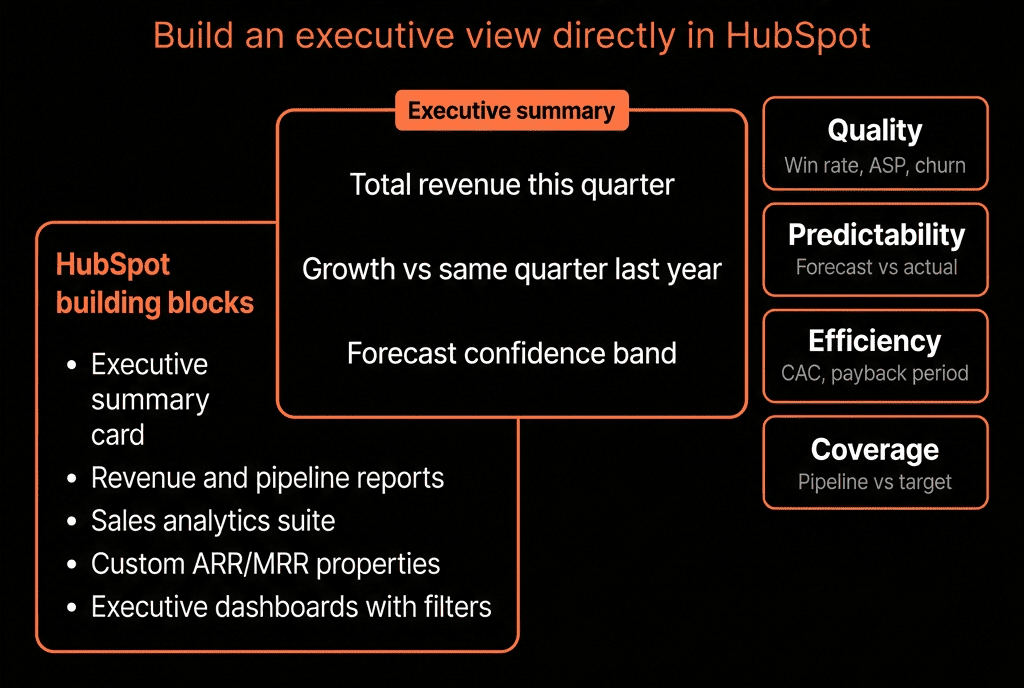
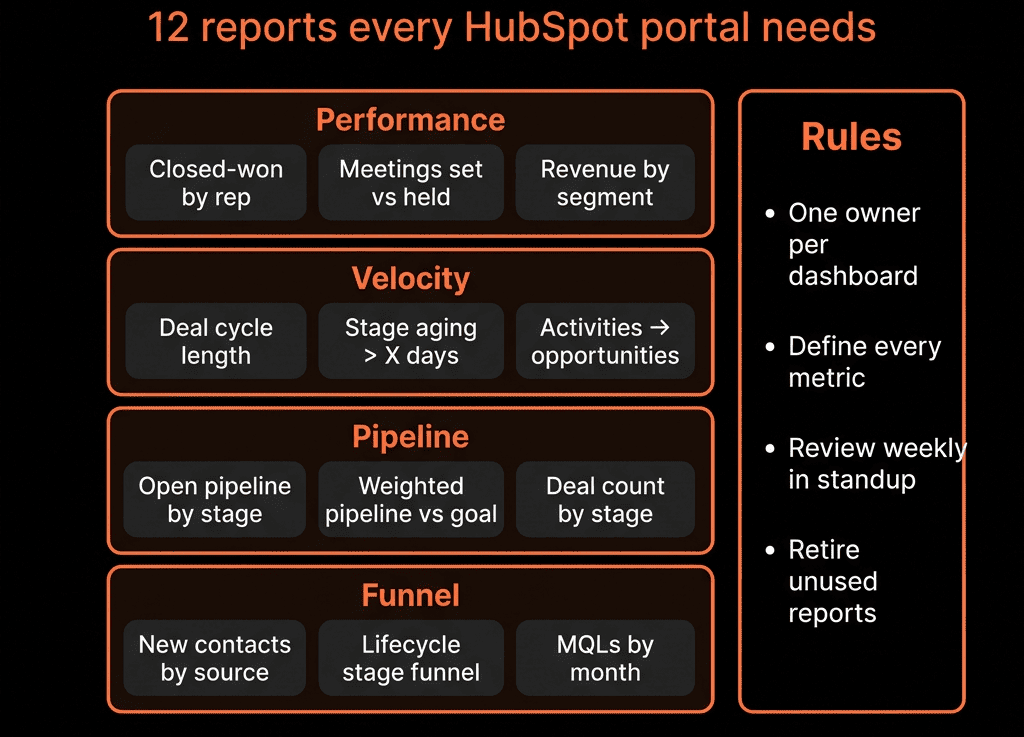
Step 6 – Build Forecast & Accuracy Dashboards
Dashboards give leadership the bigger picture.
Core reports:
Forecast vs Target (by category)
Stacked bar or line:
Commit, Best case, Pipeline vs goal per month/quarter.
Forecasted vs Actual Closed Won
Custom reports comparing:
Sum of Amount (Commit deals with Close date in period) vs
Sum of Amount (Closed Won deals in that period).
Coverage ratio
Total pipeline in period / target (e.g., 3x, 4x).
By team and segment.
Aging analysis
Deals in current period with time in stage.
Identify old, over-weighted deals.
Rep forecast accuracy
For each rep:
Commit at start of month vs actual Closed Won.
Over a few quarters, this becomes your accuracy training data.
Step 7 – Process: Cadence for Forecasting in HubSpot
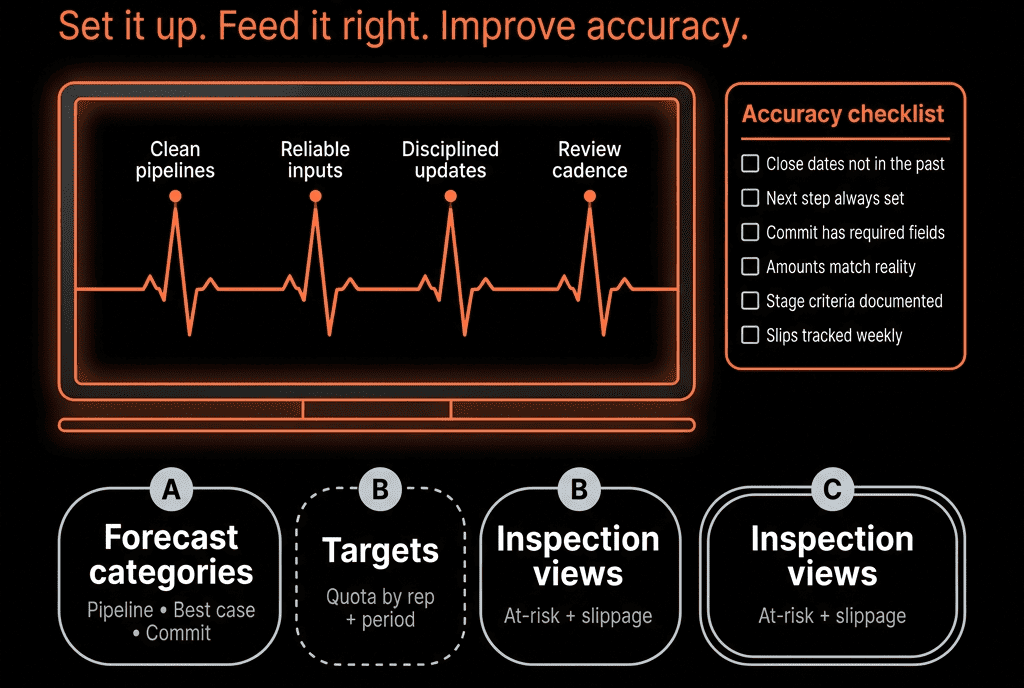
Tooling only works if the cadence is clear.
We recommend:
Daily (rep):
- Update close dates, stages, and next steps for active deals.
Weekly (team):
- Forecast call using HubSpot forecast view.
- Walk Commit list deal-by-deal.
- Challenge Best case and Pipeline that are unrealistic.
Monthly/Quarterly (leadership):
- Compare forecast vs actual from last period.
- Tune stage definitions and forecast criteria based on real data.
Stick to HubSpot views in the meeting.
If you need a spreadsheet, either your setup or discipline is off.
Step 8 – Accuracy Tips From Real Portals
Some patterns we see that improve accuracy:
Separate Commit from Stage
- Don’t treat “Late stage = Commit”.
- Use explicit Commit calls, even for late-stage deals.
Ban “end-of-month default” Close dates
- Always set close dates to expected decision dates.
- Adjust as you learn more.
Track forecast changes over time
- At least manually, note:
- Which deals were in Commit and got pushed or lost.
- Use that history to refine your rules.
Constraint Commit with rules
No Commit if:
- No decision maker identified.
- Next step is not scheduled.
- You’ve never spoken to a signer.
Use historical win rates per stage to sanity-check
- If historically 30% of Business Case Approved wins, and you’re calling 80% of them Commit, something is off.
Step 9 – When HubSpot Alone Isn’t Enough
For most B2B teams, HubSpot is enough to get:
- Reliable short-term forecast (this + next month/quarter).
- Accurate coverage ratios and pipeline quality views.
You might need external tools if:
- You’re running complex multi-product, multi-region forecasting with many dependencies.
- You need advanced statistical or scenario modeling.
- You’re aggregating data from multiple CRMs.
Even then, HubSpot remains your system of record and primary inspection layer.
Turning HubSpot Into a Forecast Engine, Not Just a Deal List
With the right setup:
- Pipelines mirror true buying stages.
- Deals carry trustworthy amounts, dates, and forecast categories.
- Workflows enforce hygiene and criteria.
- Forecast views and dashboards give you real-time visibility.
- Cadence turns this into a habit, not a scramble.
That’s when HubSpot forecasts move from “hopeful guesses” to reliable inputs for hiring, budgets, and strategy.
Want a Forecasting Blueprint Tailored to Your HubSpot?
If your current forecast lives in spreadsheets and back-channel Slack messages, we can help.
Through our HubSpot Portal Health Check and Migration & ROI Plan, we:
- Review your pipelines, stages, and deal properties.
- Design a forecasting model that matches how you actually sell.
- Implement the required properties, workflows, views, and dashboards.
- Coach your managers on running forecast calls directly from HubSpot.
- So your revenue forecasts stop being a monthly fire drill—and start being a dependable part of how you run the business.