

Too Many Super Admins Is Not a Sign of Trust – It’s a Risk
In most messy HubSpot portals we audit, one thing stands out: half the team has Super Admin access.
It usually happens because:
- “We needed to move fast.”
- “Someone couldn’t do something, so we just gave them more access.”
- “We never went back and cleaned it up.”
The problem:
- One wrong click can break workflows, pipelines, or reports.
- Fields, properties, and lists multiply with no governance.
- Security and compliance risks quietly increase.
At the same time, locking everything down too hard can stall sales and marketing.
This article shows how we run a HubSpot user permissions audit that protects the system without slowing down the team.
HubSpot notes that Super Admin access is distinct from “all permissions,” Super Admin permission sets are not modifiable, and only a Super Admin can make another user a Super Admin—so minimizing Super Admins is a structural safety control, not just a preference.
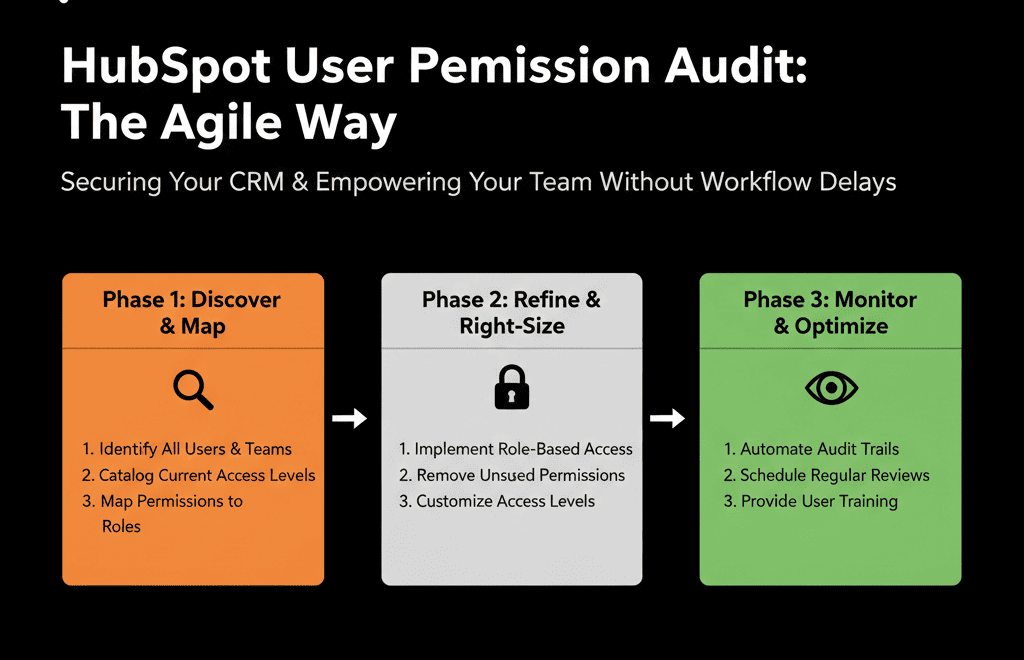
Step 1 – Start With Roles, Not Individuals
Before editing any user, we define roles:
- What should a Sales Rep be able to do?
- What should a Sales Manager be able to do?
- What should Marketing Ops be able to do?
- What should RevOps / Admins be able to do?
- Are there any external partners or agencies that need access?
We’re looking at functions, not names.
Typical functional roles:
- Sales Rep / SDR / AE
- Sales Manager
- Marketing Specialist
- Marketing Ops
- Customer Success / Support
- RevOps / HubSpot Admin
- Executive / Leadership (view-only in most areas)
- Agency / Partner
Once we’re clear on roles, we can review actual users against that blueprint.
Step 2 – Pull a Snapshot of Current Users and Access
Next, we:
- Export or list all active users.
- Note their current roles and permissions (including who is a Super Admin).
- Flag users who:
- Haven’t logged in for months.
- No longer work at the company.
- Have unexpected access (e.g., marketers with full Sales settings; reps with marketing admin rights).
We’re aiming for a clean view:
- How many users do we really have?
- Which teams are over-privileged?
- Are there any obvious security gaps (former employees, generic accounts, etc.)?
Quick wins often appear here:
- Deactivate users who left.
- Remove generic shared logins.
- Reduce Super Admins to a handful of truly responsible people.
Step 3 – Decide What “Admin” Actually Means in Your Company
HubSpot offers powerful settings under Super Admin, including:
- Creating/deleting properties, pipelines, and objects.
- Managing users and permissions.
- Integrations and connected apps.
- Account-wide configuration.
We ask:
- How many true administrators do you need?
- For most mid-market B2B portals, the answer is 1–3.
- Who in your org has both the technical skill and business context to be accountable?
We then:
- Create a clear RevOps / HubSpot Admin role.
- Map Super Admin only to those who fill it.
- Ensure there is at least one backup in case of absence—but not much more than that.
This is the foundation of a safe permission model.
Step 4 – Design Practical Permission Sets Per Role
Now we match capabilities to roles.
For Sales Reps (SDR / AE)
They typically need to:
- View and edit their own contacts, companies, deals, and tasks.
- View shared team records (depending on your model).
- Use sequences, templates, and playbooks.
- Create simple lists or views for their day-to-day work.
They typically should not:
- Change pipelines or stage definitions.
- Create or delete global properties.
- Modify global workflows.
- Change other users’ records or admin settings.
For Sales Managers
They usually need:
- Read access to all team records.
- The ability to edit deals across their team.
- Access to management dashboards and reports.
But still not full global configuration admin rights.
For Marketing Specialists
They need to:
- Create and manage campaigns, emails, landing pages, and forms.
- Build lists and basic workflows for campaigns.
They might not need:
- Rights to change core CRM properties or pipelines.
- Access to all sales records beyond what’s needed for segmentation.
For Marketing Ops / RevOps
They need the most flexibility short of full Super Admin:
- Manage key workflows (lifecycle, routing, SLAs).
- Configure properties, pipelines (under governance).
- Access all objects and reports.
This group is usually the core HubSpot configuration team.
For Executives
They usually need:
- Read-only or limited edit access.
- Full access to dashboards and reporting.
They don’t need the ability to change system settings or workflows.
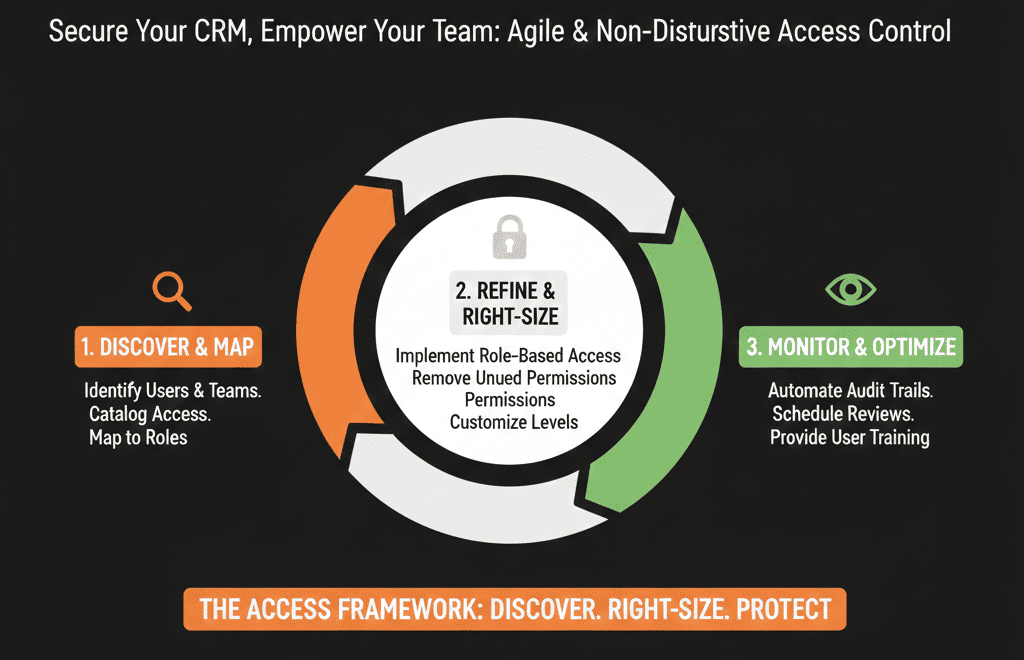
Step 5 – Audit High-Risk Permissions First
To avoid slowing down the team, we don’t start by tightening everything.
We start with high-risk permissions:
- Super Admin
- Workflow editing
- Property creation and deletion
- Pipeline and stage configuration
- Data export
We answer:
- Who can currently create or delete properties?
- Who can edit or publish workflows?
- Who can export all contacts or deals?
- Who can install or manage integrations?
We then:
- Restrict these capabilities to a small, well-defined group (RevOps/Admins).
- Keep others focused on their functional work (selling, marketing, support).
You immediately reduce risk without touching normal day-to-day actions like building lists or logging deals.
Step 6 – Tweak Permissions in Iterations, Not a Big Bang
To avoid breaking workflows for teams:
- Adjust one role at a time (e.g., tighten Marketing permissions first, then Sales).
- Communicate clearly: explain what is changing, why, and who to contact if they hit a blocker.
- Monitor impact for 1–2 weeks: are people blocked from legitimate tasks, are there unexpected side effects?
- Adjust based on feedback: grant specific extra permissions as exceptions rather than expanding roles broadly.
This way, you increase safety without freezing productivity.
Step 7 – Establish a Simple “Permission Request” Process
To keep things clean long-term, we introduce a lightweight permission and change request process:
- A single point of contact (RevOps / HubSpot Admin).
- A simple form or ticket type: what do you need to do, is this one-time or ongoing, which records/teams does it involve, why can’t it be handled with current access?
- Clear response expectations: some requests resolved by performing the action for them, some by temporarily granting additional rights, some by expanding role definition where it makes sense.
This strikes a balance: users don’t feel stuck, admins maintain control, and changes become visible and documented.
Step 8 – Review Permissions Regularly, Not Just Once
A one-time audit helps. But teams change, roles change, and portals evolve.
We recommend a permissions review:
- Every 6–12 months, or
- Any time there is a major org change (new sales team, new region, new agency).
In that review, check:
- Users who haven’t logged in for 60–90 days → deactivate or adjust.
- Temporary extra permissions granted → expire or review.
- New admins appearing where they shouldn’t → fix.
HubSpot lets Super Admins view a user’s permissions history (including what permission changed, whether it was added/removed, who updated it, and the date), and export the last 90 days—making periodic permission reviews auditable instead of manual guesswork.
This can be part of a broader HubSpot Health Check, alongside data hygiene, workflow sanity, pipeline architecture, and reporting.
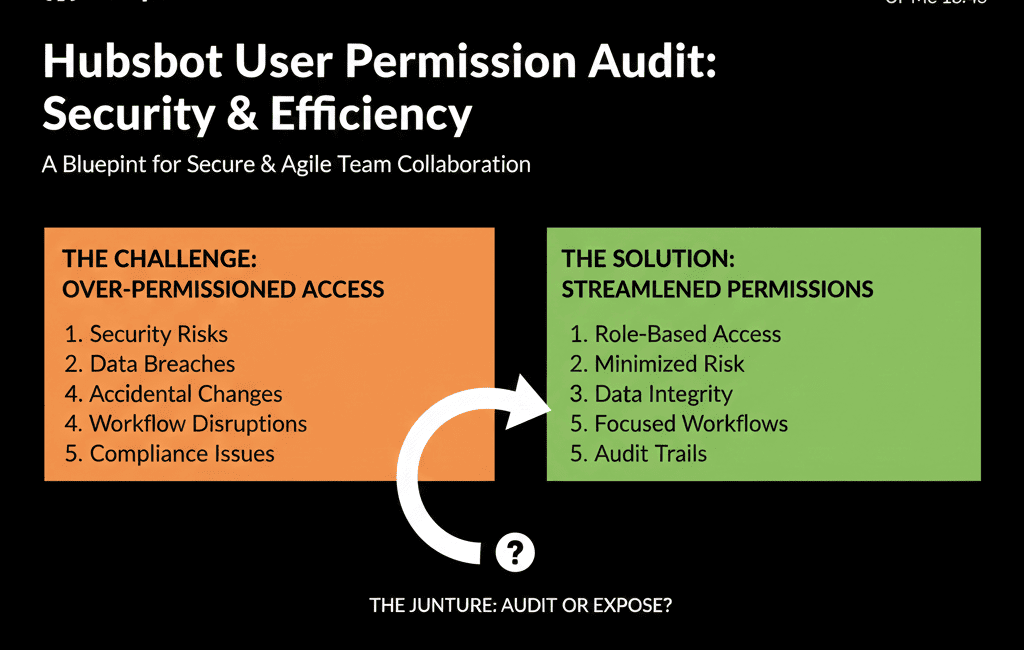
What You Can Safely Do in the Next 30 Days
Without disrupting your teams, you can:
- Export a current user and permissions list.
- Identify and reduce the number of Super Admins to the minimum viable group.
- Deactivate former employees and unused accounts.
- Define a simple set of roles (Sales Rep, Sales Manager, Marketing, Ops, Exec, Agency).
- Tighten only the highest-risk permissions (workflows, properties, pipelines, exports) in line with those roles.
- Announce a standard process for permission or change requests.
If you also need to protect specific high-risk fields (like Deal Amount, Lifecycle Stage, Lead Source), HubSpot supports property-level view/edit controls so only the right roles can edit those properties while still allowing everyone else to do their job.
Want an External Review of Your HubSpot Permissions and Governance?
If you suspect your HubSpot instance has too many admins, too much risk around workflows and properties, and no clear ownership of configuration, a focused external look can help you fix it without upsetting the teams who rely on HubSpot every day.
As part of our HubSpot Portal Health Check / HubSpot Audit, we:
- Review your user list, roles, and effective permissions.
- Identify security and governance risks (especially around admins, workflows, and exports).
- Propose a practical, role-based permission model that doesn’t slow down sales, marketing, or CS.