

Property History: The Most Underused Diagnostic Tool in HubSpot
Most teams look at the current value of a field in HubSpot and stop there.
But the real story is hidden in the property history:
- When did this value change?
- Who or what changed it?
- How many times did it change?
- Was that change manual or automated?
We use property history on almost every HubSpot audit because it reveals:
- Broken processes.
- Conflicting workflows.
- Manual workarounds.
- Where your data stopped telling the truth.
This article shows how we use HubSpot’s property history to diagnose issues fast—without guessing or chasing anecdotes.
HubSpot allows you to view a record’s property history for a single property (via the property’s Details panel) or for all properties (via Actions → View property history), including timestamps and the source of each change.
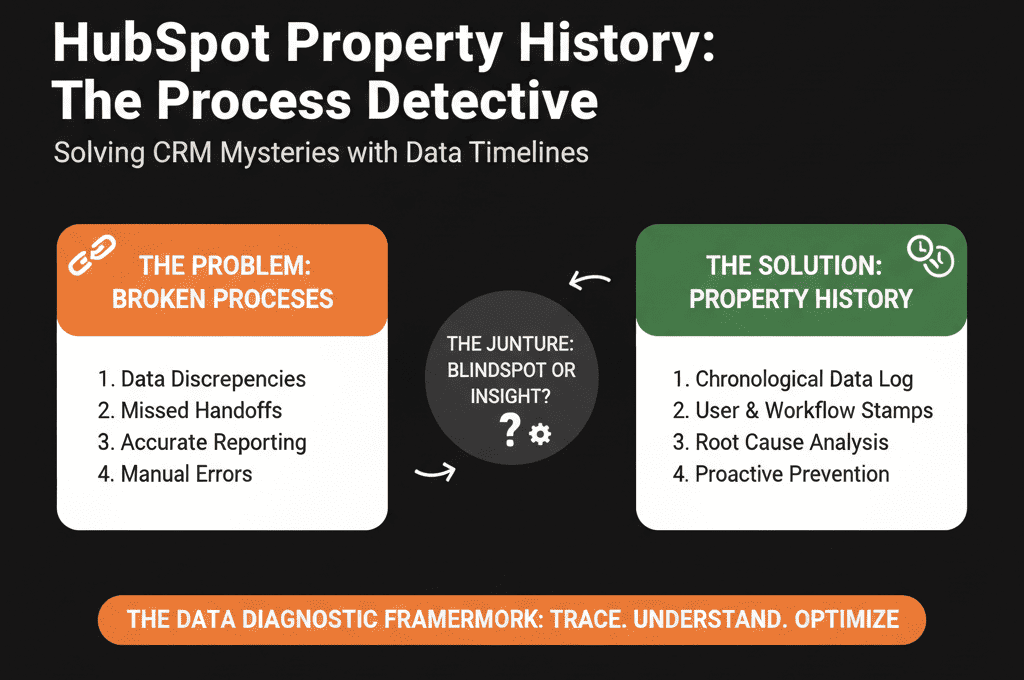
Step 1 – Choose the Right Properties to Investigate
You don’t need to check everything.
We start with a small set of high-impact properties that drive reporting and process:
- Lifecycle stage
- Lead status
- Deal stage
- Deal amount
- Close date
- Owner (contact, company, deal)
- Original source / Lead source
- Any custom fields used for routing, qualification, or segmentation (e.g., region, ICP fit, product line)
These properties sit at the intersection of data and process. If their history looks messy, your processes are messy.
Step 2 – Look for Chaos in Lifecycle Stage History
We start with a handful of sample contacts and look at the Lifecycle stage history:
We ask:
- How many times has lifecycle changed per record?
- In what direction?
- Lead → MQL → SQL → Opportunity → Customer (healthy)
- Customer → Lead → Subscriber (red flag)
- MQL → Lead → MQL → SQL (back-and-forth noise)
- Who is changing it?
- Users (manual edits)
- Workflows (automation)
- Integrations (external systems)
What chaos looks like:
- Lifecycle stages bouncing backwards for no good reason.
- Multiple workflows fighting over the value.
- Sales reps “fixing” lifecycle manually because reporting doesn’t match reality.
What this tells us:
Your funnel reporting is unreliable, because the core funnel field is unstable.
Either the lifecycle logic is unclear, or too many systems/workflows can overwrite it.
Recommended fix pattern:
Redesign lifecycle rules:
- Only specific events move lifecycle forward.
- Very few situations allow backwards movement.
Limit which workflows can update lifecycle.
Stop allowing manual edits except where truly necessary.
HubSpot property history shows the change source (e.g., a user, a workflow, or another tool), which is what makes lifecycle “workflow fights” visible without guessing.
Step 3 – Follow Lead Status Changes to See How Reps Actually Work
Next, we examine Lead status (or your equivalent qualification field).
We look for:
- Does Lead status move in a logical flow (New → In Progress → Qualified/Unqualified)?
- How often do reps skip steps or jump straight to “SQL” or “Qualified”?
- How often does status change without any logged activity?
Red flags we find often:
- Dozens of records marked “Qualified” or “Bad Timing” with zero calls/emails logged.
- Reps using Lead status purely for their own task management, not as a consistent funnel signal.
- Workflows auto-changing Lead status without the underlying behavior to justify it.
What this tells us:
- Your MQL/SQL metrics are inflated or meaningless.
- You may be rewarding “status changes” instead of real follow-up.
Recommended fix pattern:
- Define what each Lead status means, in plain language.
- Use workflows to enforce minimal criteria for status changes (e.g., at least one completed call or email before “Bad Fit”).
- Train reps on how Lead status ties to reporting and lead recycling.
Step 4 – Inspect Deal Stage and Close Date History for Forecast Risk
For deals, we focus on:
- Deal stage history
- Close date history
- Amount history
We pull a sample of deals (especially late-stage and recently closed) and inspect:
Deal stage history
We check:
- Did the deal move through most stages in sequence?
- Were there sudden jumps (e.g., Discovery → Negotiation → Closed Lost in one day)?
- Are deals frequently pulled back into earlier stages?
This reveals:
- Whether your stages reflect reality or just admin clean-up.
- Whether reps are backdating updates to make reports look cleaner.
- Where deals commonly stall.
Close date history
We look at:
- How many times was close date pushed out?
- Was close date set realistically at creation or always at end of the month/quarter?
- Are there patterns like “always set to the last day of the month”?
This shows:
- How honest your forecasting and pipeline really are.
- Whether close dates are used as a planning tool or as a checkbox.
Recommended fix pattern:
- Introduce rules for when and how close date can be updated.
- Use property history to coach reps: Show deals where close dates moved repeatedly with no new activity.
- Align pipeline stages and exit criteria so “Commit” or final stages require realistic close dates.
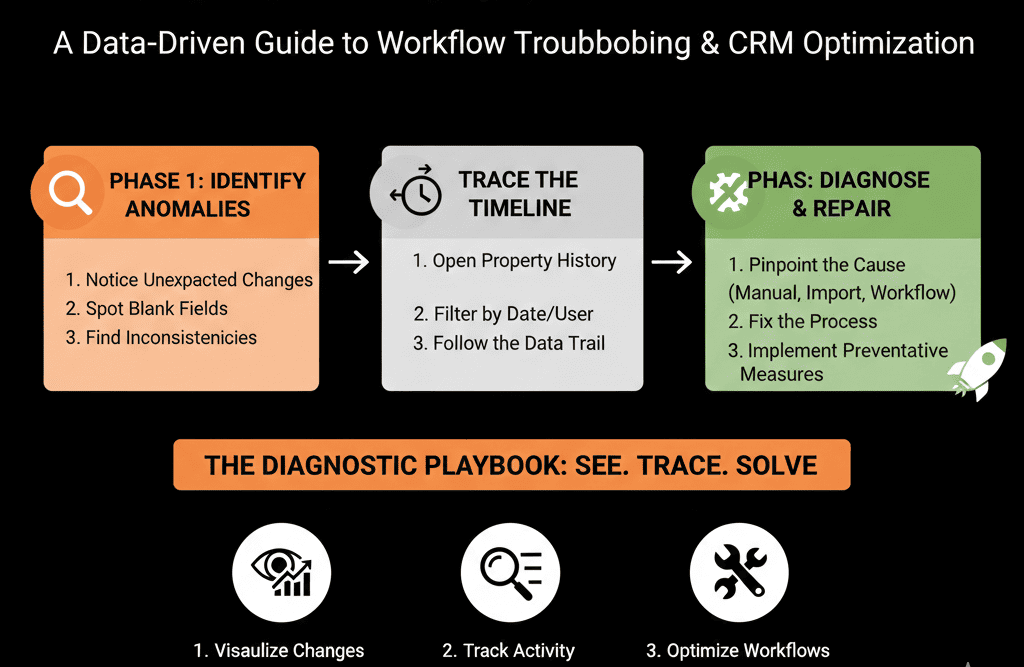
Step 5 – Check Owner History for Handoffs and Territory Problems
We look at Owner history on contacts, companies, and deals:
- How often does ownership change?
- Are there patterns (e.g., mass changes at quarter-end)?
- Does ownership change without any context or process notes?
Typical issues:
- Leads bouncing between reps with no clear routing rules.
- Accounts reassigned frequently, creating confusion and dropped ball follow-up.
- Territory changes made from spreadsheets without proper documentation.
What this tells us:
- Whether your lead routing and territory management process exists or is ad hoc.
- Whether you’re silently losing context every time owners change.
Recommended fix pattern:
- Clarify and document ownership rules.
- Lock down who can change owner and under what conditions.
- Use workflows for routine reassignment and document the logic.
Step 6 – Use Property History to Catch Broken Workflows
Property history also reveals automation gone wrong.
We look for patterns like:
- The same property being updated several times within a few seconds or minutes.
- A field flipping between two values repeatedly over a short period.
- Changes always triggered by a specific workflow or integration user.
Examples:
- Lifecycle stage flipping between MQL and SQL every time a form is submitted.
- Lead status being reset whenever a record meets some broad list criteria.
- Owner being set by two different workflows with overlapping conditions.
This usually means multiple workflows are:
- Firing on the same trigger.
- Using overly broad enrollment criteria.
- Missing “if already X, do nothing” logic.
Recommended fix pattern:
- Map out all workflows touching that property.
- Decide which one is the source of truth for that field.
- Add constraints (enrollment criteria, if/then branches) or consolidate logic.
HubSpot’s “change sources” terminology is what lets you see whether an update came from a specific workflow, a user, an integration, or another tool—so you can pinpoint the actual cause of flips and rapid updates.
Step 7 – Spot Manual Workarounds and Training Gaps
Sometimes the problem isn’t automation—it’s habits.
Property history shows:
- Users manually overwriting fields that should be automated.
- People using fields for unintended purposes (e.g., “Notes” stuffed into a dropdown field).
- Last-minute mass edits right before reporting deadlines.
When we see many manual changes to fields that should be governed, we don’t just blame users. We ask:
- Did we design the process poorly?
- Is the UI confusing or slow?
- Are we forcing reps into workarounds because the system doesn’t match reality?
Recommended fix pattern:
- Adjust the process or automation so the system supports how people actually work.
- Lock down fields that should not be manually edited.
- Add training that explains why certain properties matter and how they get used in reports.
Step 8 – Use Property History as a Coaching Tool, Not Just a Forensics Tool
Property history isn’t just for audits. We use it for ongoing coaching:
- Show reps how their pipeline hygiene looks over time (e.g., constant stage hopping, last-minute updates).
- Show marketing how lifecycle and lead source changes impact funnel reporting.
- Show RevOps how workflow changes affected key fields.
When teams see the story behind their data changes, they understand why governance, process, and architecture matter.
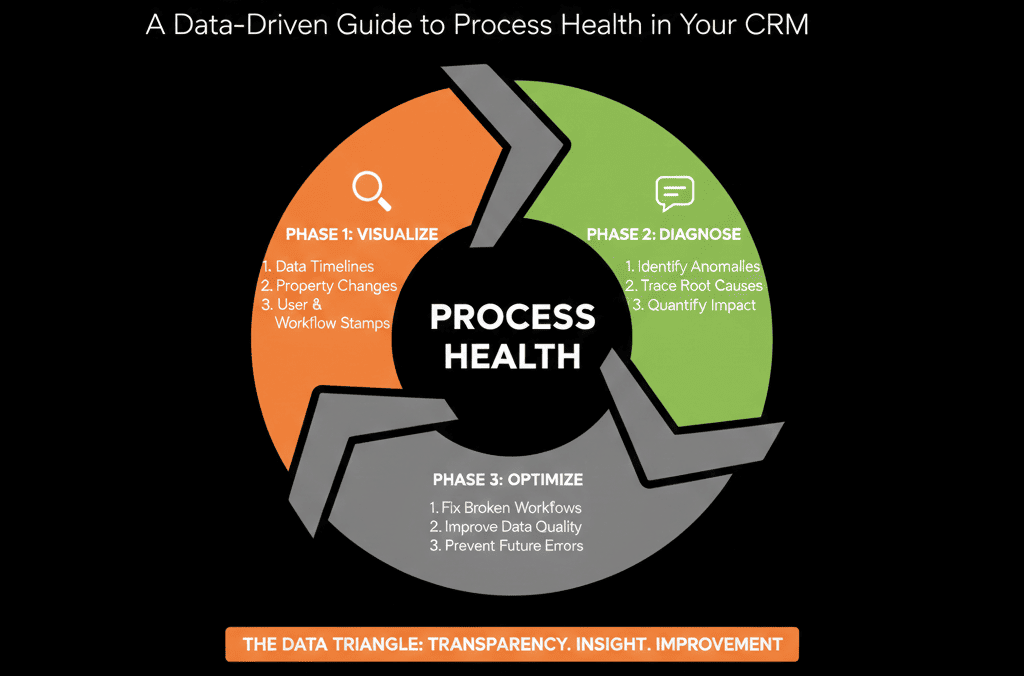
How to Start Using Property History in Your Own Portal (Next 7 Days)
You don’t need a full overhaul to get value from this.
In the next week, you can:
- Pick 3–5 high-impact properties (Lifecycle stage, Lead status, Deal stage, Close date, Owner).
- Pull 10–20 example records from each area (recent deals, recent MQLs, recent customers).
- Review property history and answer:
- Do changes look intentional and logical?
- Are there patterns of chaos?
If you need to analyze changes across many records (not just one record at a time), HubSpot supports exporting a property’s history, including change sources; note that HubSpot also limits how many revisions are saved per property based on object type (e.g., contact properties store up to 45 revisions).
Are workflows or specific users causing odd