

You Can’t Manually Clean Your Way to a Healthy CRM
Most teams know their HubSpot data isn’t perfect:
- Countries, industries, and job titles are inconsistent.
- Owners and lifecycles drift out of sync.
- Key fields go missing, breaking reports and routing.
The default response is manual clean‑up projects:
- Monthly CSV exports and bulk edits.
- One‑off dedupe sessions.
- “We’ll fix this in the next big clean‑up.”
That approach doesn’t scale.
You need a systematic way to prevent and correct issues as they appear.
HubSpot workflows, used thoughtfully, can:
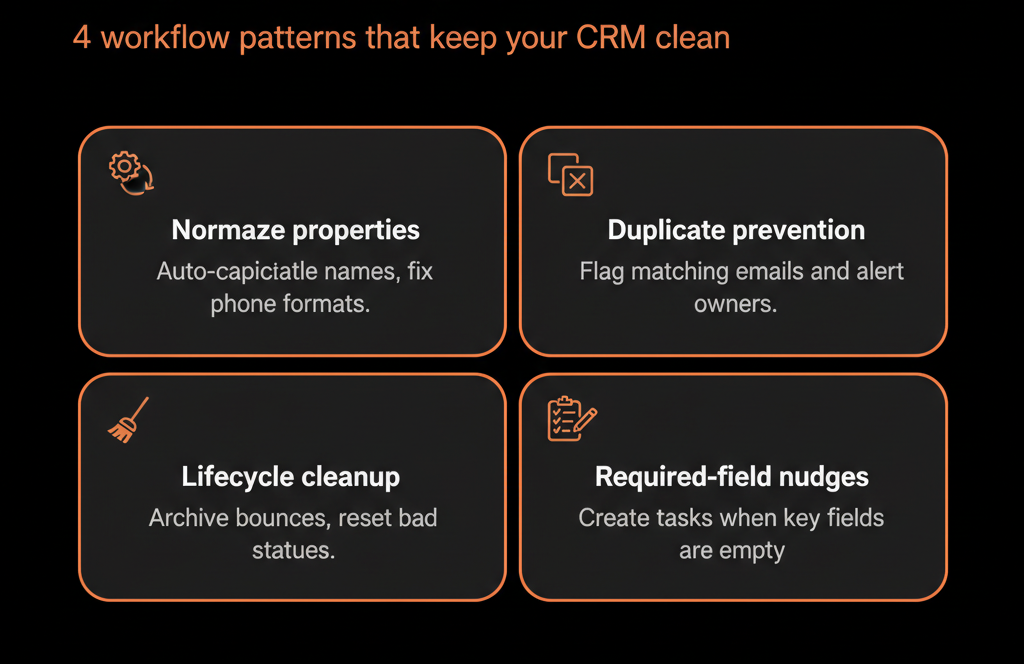
- Normalize values.
- Fill in gaps.
- Flag and fix suspicious records.
- Keep core properties aligned over time.
In this article, we’ll show you how to use workflows to automatically improve data quality in HubSpot—without creating a tangle of automation that’s worse than the problem.
Step 1 – Decide Which Data Problems Are Worth Automating
Workflows are powerful, but they’re not the answer to every issue.
Focus automation on fields that:
- Are frequently used in routing, segmentation, or scoring (e.g., country, region, ICP tier).
- Are needed for core reports (e.g., industry, lifecycle, deal stage, owner).
- Are regularly populated incorrectly or inconsistently.
Typical high‑value targets:
- Country and state/region normalization.
- Industry and vertical standardization.
- Lifecycle alignment between Contacts and Companies.
- Owner alignment across Contacts, Companies, and Deals.
- Lead source classification.
If a data issue would break routing, scoring, or leadership dashboards, it’s a candidate for workflow automation.
Step 2 – Use Workflows to Normalize Common Text Variations
One of the easiest and highest‑impact uses of workflows is normalizing values.
Example: Standardizing Country Names
Problem: Values like “US”, “USA”, “U.S.”, “United States of America” for the same country.
Solution: Create a Contact‑based and/or Company‑based workflow:
- Enrollment triggers: Country is any of the messy variations.
- Actions: Set Country to your canonical value, e.g., “United States”.
Repeat for: “United Kingdom” (UK/GB/Great Britain). “United Arab Emirates” (UAE/U.A.E.).
Example: Standardizing Industry
Problem: Free‑text industries like “SaaS”, “Software as a Service”, “Software company”.
Solution: Use workflows to:
- If Industry contains “SaaS” or “Software” → set Industry to “SaaS / Software”.
Do this iteratively for your top 10–20 messy values.
You’re teaching HubSpot to auto‑correct your most common data entry or integration issues. If you have a Data Hub Professional or Enterprise subscription, you can also utilize the "Format data" workflow action to automatically fix text formatting, such as capitalizing names or calculating property values .
Step 3 – Use Workflows to Fill in Missing but Derivable Fields
Some data can be inferred or copied from other objects. Workflows can keep these in sync. Since HubSpot doesn't automatically sync properties between associated records natively, using workflows to automatically copy values from one property to another is highly effective for maintaining data flow.
Example: Syncing Country from Company to Contact
Scenario: Company records usually have cleaner country data than Contacts.
Workflow: Type: Contact‑based.
- Enrollment: Contacts associated to a Company where Contact Country is unknown and Company Country is known.
- Actions: Copy Company Country → Contact Country.
Example: Syncing Owner from Company to Contact
Scenario: You want all contacts at a company to inherit the account owner.
Workflow: Type: Contact‑based.
- Enrollment: Contact Owner is unknown AND associated Company Owner is known.
- Actions: Copy Company Owner → Contact Owner.
Similar patterns work for:
- Region or territory.
- ICP tier.
- Account‑level segmentation.
Step 4 – Keep Lifecycle and Stage Logic Consistent
Data quality is not just about values; it’s about logical progression.
Example: Aligning Contact Lifecycle with Deals
Goal: Contacts with active opportunities should not be stuck at “Lead” or “Subscriber”.
Workflow: Type: Contact‑based.
- Enrollment: Contact is associated with at least one open Deal in a specific pipeline.
- Actions: If lifecycle_stage is earlier than “Opportunity” → set to “Opportunity”.
Example: Prevent Lifecycle Regression
Goal: Avoid accidentally setting a Customer back to Lead via manual edits or integrations.
Workflow: Type: Contact‑based.
- Enrollment: Whenever lifecycle_stage changes.
- Branch: If previous value was “Customer” and new value is earlier → Set lifecycle_stage back to “Customer”. Optionally create a task for RevOps to review.
This keeps your funnel and cohort analyses from being corrupted by random regressions.
Step 5 – Use Workflows to Flag and Route “Suspicious” Records
Not everything can be auto‑fixed. Some issues need human review.
Example: Flagging High‑Value Deals with Missing Data
Scenario: Deals > $50k should always have a close date and a primary contact.
Workflow: Type: Deal‑based.
- Enrollment: Amount ≥ 50,000 AND (Close date unknown OR no associated primary contact).
- Actions: Create a task for the deal owner: “Fix missing fields for high‑value deal.” Optionally notify a manager or RevOps via email/Slack.
Example: Flagging Contacts Without Emails
Scenario: You imported or created lots of contacts without email addresses, but you need them for communication and dedupe.
Workflow: Type: Contact‑based.
- Enrollment: Email unknown AND record created in the last X days.
- Actions: Assign to an owner or Ops queue. Create a task to research and update contact details.
These “data quality queues” prevent silent accumulation of unfixable records.
Step 6 – Automate Basic Enrichment with Internal Logic
Even without a paid enrichment tool, you can enrich data using your own rules.
Examples:
Simple ICP tiering
Criteria: Company size, industry, region, tech stack, etc.
Workflow: Company‑based.
- If conditions match Tier 1 → set ICP tier = “Tier 1”.
- Else if match Tier 2 → set ICP tier = “Tier 2”.
Region derivation from country
Workflow:
- If Country in [US, Canada] → Region = “North America”.
- If in [UK, Germany, France…] → “EMEA”.
- Etc.
Product interest mapping from form responses
Workflow:
- If form submission answers indicate interest in Product A → set Primary product interest = “Product A”.
These workflows convert scattered data into structured segmentation your GTM teams can use.
Step 7 – Guard Against Workflows That Create More Mess
Poorly designed workflows can worsen data quality.
Avoid:
- Circular updates: Workflows that trigger each other in loops.
- Overwriting user decisions: E.g., a workflow that resets owner or lifecycle based on old rules.
- “Set and forget” workflows nobody understands after six months.
Best practices:
- Name workflows clearly by purpose: DATA QUALITY – Normalize Country, DATA QUALITY – Sync Owner from Company.
- Add descriptions documenting: What it does, when it should run, who owns it.
- Test on a small segment first.
- Use re‑enrollment conditions carefully to avoid infinite loops.
Treat data quality workflows as part of your governance, not just “more automation.”
Step 8 – Monitor the Impact of Data Quality Workflows
You should be able to answer: “Are these workflows actually improving our data?”
Track simple metrics before and after implementation:
- % of records with standardized country/industry values.
- % of Contacts/Companies with owners.
- % of deals with amount and close date populated.
- Distribution of lifecycle stages and deal stages (are they more coherent now?).
Also check workflow performance reports:
- How many enrollments per workflow.
- Error rates or unexpected behavior.
Adjust rules as needed based on real results and user feedback.
Step 9 – Use a “Data Quality Workspace” Mindset
To keep things manageable, group your efforts and workflows conceptually:
Create a simple internal “Data Quality Workspace” that includes:
- A list of all data quality workflows (with owners and purposes).
- Key properties they affect and the desired standards.
- Dashboards showing improvement over time.
This helps:
- New Ops/RevOps team members understand the current system.
- Leadership see that data quality is improving, not just being “worked on.”
Pulling It Together: Let HubSpot Do the Boring Data Work For You
Manual clean‑ups will always exist, but they shouldn’t be your primary strategy.
When you use workflows to automatically improve data quality, you:
- Reduce repetitive clean‑up work.
- Make core fields far more reliable.
- Enable better routing, segmentation, scoring, and reporting.
The approach:
- Identify high‑impact fields and common error patterns.
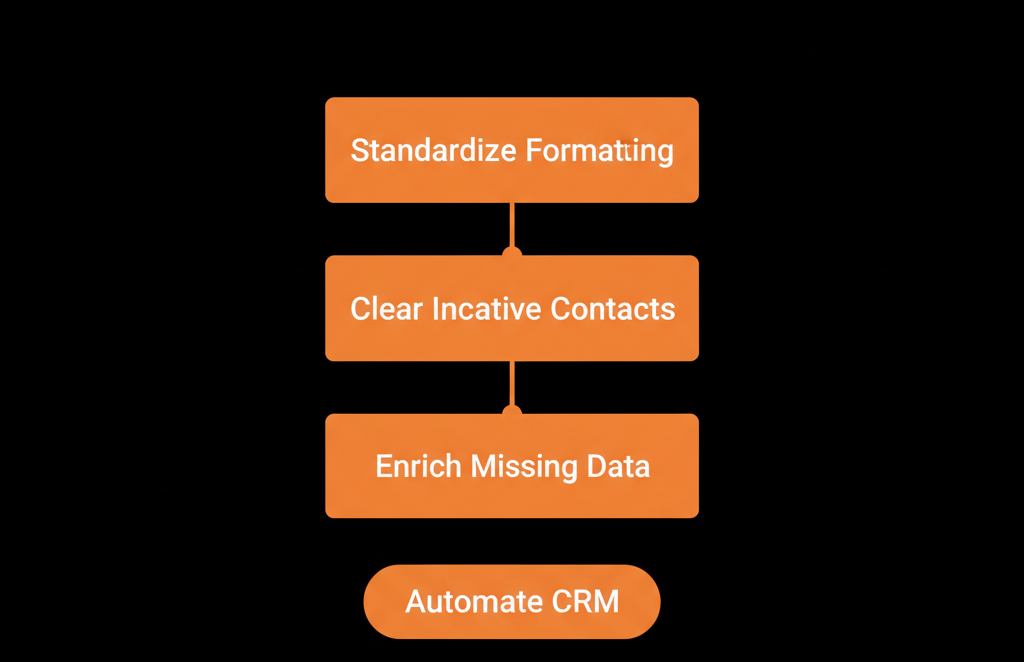
- Normalize and enrich with carefully designed workflows.
- Fill gaps and flag suspicious records for human review.
- Monitor impact, refine rules, and keep automation understandable.
Done right, HubSpot becomes a self‑healing system—catching and correcting many data issues before they ever hit your dashboards.
Want Help Designing Data Quality Workflows for Your HubSpot Portal?
If your HubSpot instance is full of messy values and you’re not sure how to automate the fix, this is exactly where we can help.
Our HubSpot Portal Health Check and Migration & ROI Plan are designed to:
- Audit your current data quality issues and their root causes.
- Design a focused set of workflows to normalize, enrich, and protect key fields.
- Build a simple data quality operating model your team can own.