

Your Pipeline Is Either a Forecast Tool or a To‑Do List
Most HubSpot pipelines are built from the team’s perspective:
- Demo booked.
- Proposal sent.
- Contract sent.
Those are activities.
They don’t tell leadership:
- How close is this to closing?
- What commitment has the customer actually made?
- How reliable is this revenue?
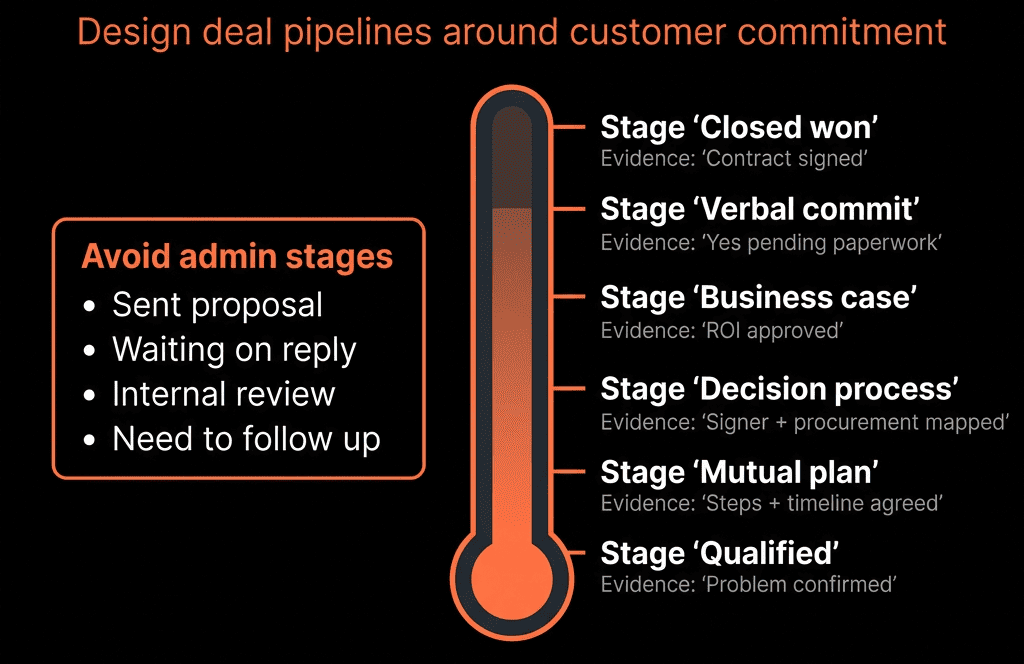
A good pipeline is a map of buyer decisions and commitments, not a log of what reps did.
Here’s how we redesign HubSpot pipelines so stages mirror real revenue stages.
Step 1 – Separate Pipelines by Revenue Motion, Not By Department
First, make sure you’re using the right number of pipelines.
Typical RevOps-friendly split:
- New Business – first-time deals.
- Renewals – existing contracts renewing.
- Expansion/Upsell – additional products or teams.
Avoid:
- One mega-pipeline trying to handle everything.
- Dozens of pipelines by rep or region.
Each pipeline should represent a distinct revenue motion with its own stages and definitions.
Step 2 – Define Stages Around Customer Commitments
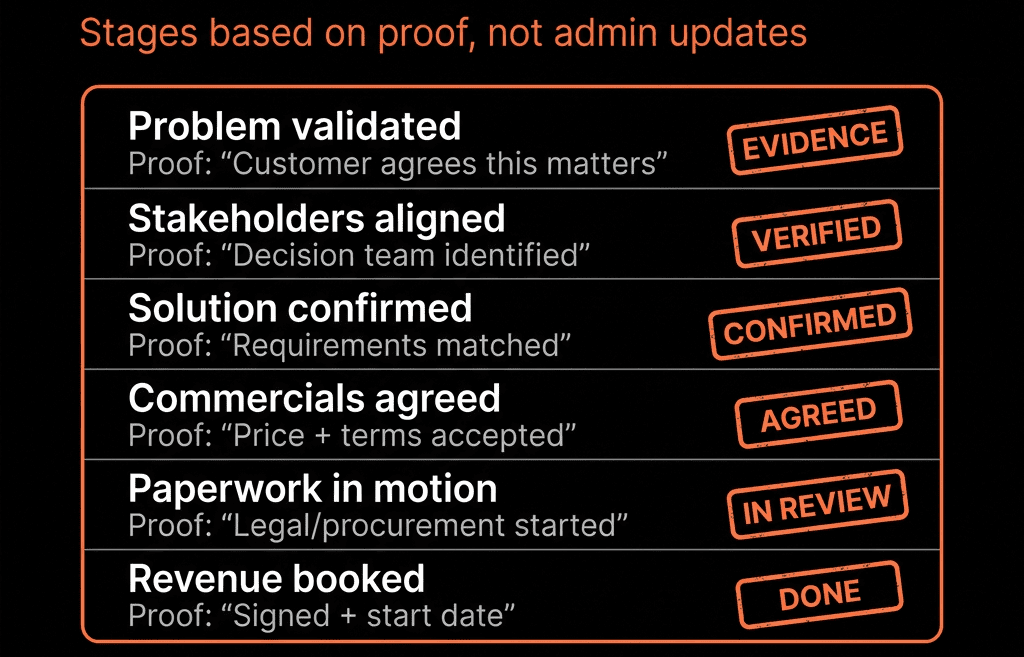
Then redesign stages around what the buyer has done or agreed, not what you’ve sent.
For New Business, a solid baseline might look like:
Qualification
- We’ve confirmed there’s a real problem and a potential fit.
- Customer has agreed to explore.
Problem & Impact Agreed
- We and the prospect agree on the problem, impact, and urgency.
- Clear “why now”.
Solution Fit Confirmed
- Prospect agrees our approach can solve the problem.
- Key use cases validated (often after a demo).
Decision Process Mapped
- We know who decides, how, and by when.
- Stakeholders and steps documented.
Business Case Approved
- Economic buyer agrees the value case is strong.
- Commercial structure roughly accepted.
Verbal Commit
- Prospect has verbally agreed to proceed on specific terms.
- Contract is in legal/procurement.
Closed Won / Closed Lost
- Final commercial outcome.
Rename to fit your language, but keep the customer-commitment logic.
Step 3 – Document Entry and Exit Criteria for Each Stage
A stage is only useful if everyone uses it the same way.
For every stage, define:
- Entry criteria – “We can only move into this stage if…”
- Exit criteria – “We can only move out if…”
Example – Decision Process Mapped:
Entry:
- Discovery and solution fit completed.
- At least one stakeholder confirmed interest.
Required to move out:
- Decision maker identified = Yes.
- Number of stakeholders filled.
- Decision process notes contain steps and timing.
Write this into your RevOps playbook and train on it.
Deals should not move based on “gut feel” or calendar events.
Step 4 – Add Deal Properties That Describe Deal Health, Not Admin
To make stages meaningful in reports, you need supporting properties.
Common ones we add:
- Primary pain / use case (Dropdown).
- Decision maker identified (Yes/No).
- Champion identified (Yes/No).
- Number of stakeholders (Number).
- Buying stage risk (Low/Medium/High).
- Next step (Text).
- Next step date (Date).
- Competitive situation (Greenfield / Vendor replacement / Competitive eval).
Then:
- Attach specific properties to certain stages as required fields.
Example: Can’t move to Business Case Approved unless Budget status and Decision date are filled.
Now each stage has quantifiable quality signals.
Step 5 – Use Workflows to Enforce Stage Discipline and Hygiene
Automate guardrails so the pipeline reflects reality.
Prevent “skipping” stages
- Alerts when a deal jumps from early to very late stages without hitting middle stages.
- Managers can review and correct.
Flag missing required fields
- When a deal enters Stage X and critical fields are blank → internal notification + task.
Handle stale deals
- If no activity in a stage for X days:
- Task for owner to update stage or next step.
- Optionally move to a “Stale / On Hold” stage after repeated inaction.
Auto-sync lifecycle
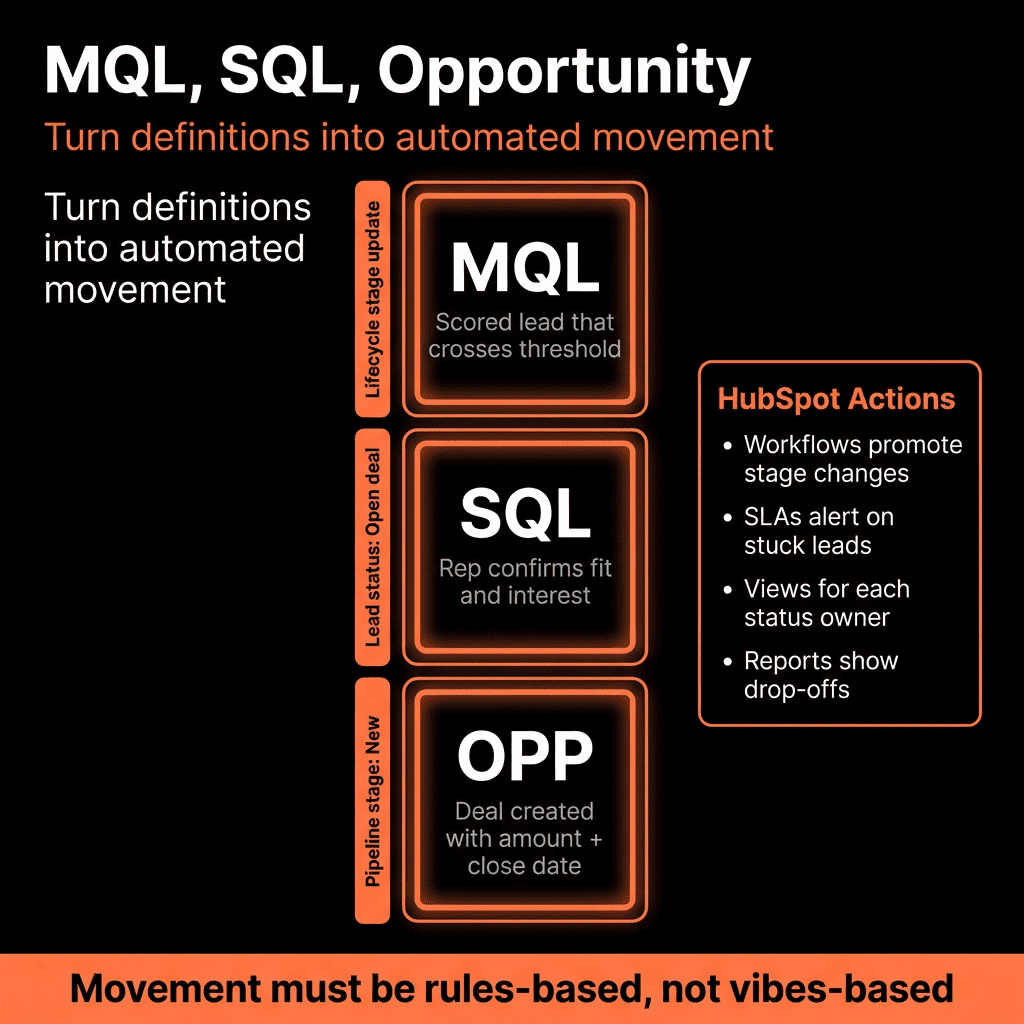
- When first deal is created, push contact lifecycle to SQL/Opportunity.
- When deal is Closed Won, move contact/company to Customer.
This keeps the pipeline from filling with “zombie” deals.
Step 6 – Create Separate Pipelines for Renewals and Expansion (With Their Own Logic)
Renewals and expansions follow different realities than new business.
Renewal pipeline
Stages might look like:
- Renewal Identified – renewal deal exists; date and value set.
- Engagement Started – renewal conversation underway.
- Terms Discussed – commercial options reviewed.
- Internal Review – customer reviewing, procurement/legal in progress.
- Renewed / Renewal Lost.
Key properties:
- Renewal risk (Low/Medium/High).
- Churn risk reason.
- Renewal outcome (Renewed, Downgraded, Churned).
Expansion pipeline
Stages might mirror new business, but:
- ICP and fit often known.
- Focus more on usage triggers and multi-threading across teams.
Using separate pipelines avoids mixing new logo risk with existing revenue risk in one view.
Step 7 – Align Pipeline Stages With Forecast Categories
Good pipelines make forecasting easier.
Add a Forecast category property (Pipeline, Best Case, Commit, Omitted).
Define how it relates to stages:
- Early stages → mostly Pipeline.
- Middle stages → Pipeline or Best Case depending on quality signals.
- Late stages with clear criteria met → Commit.
Use workflows and manager reviews to:
- Disallow Commit on early-stage deals.
- Enforce Commit requirements (Decision maker identified, etc.).
Now stage + forecast category together describe both where the deal is and how confident you are.
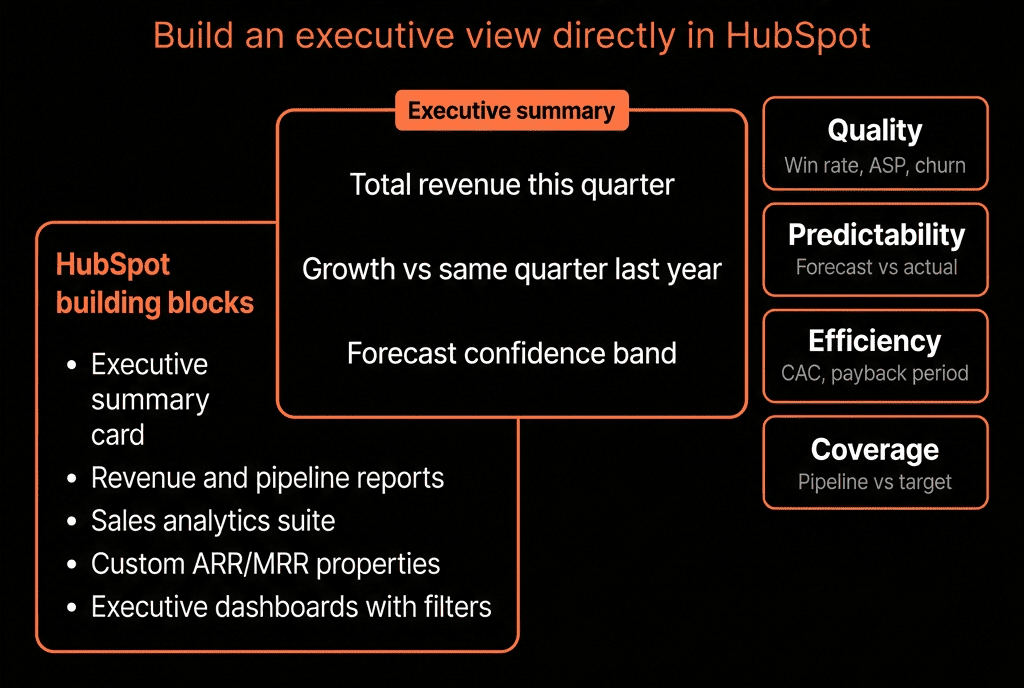
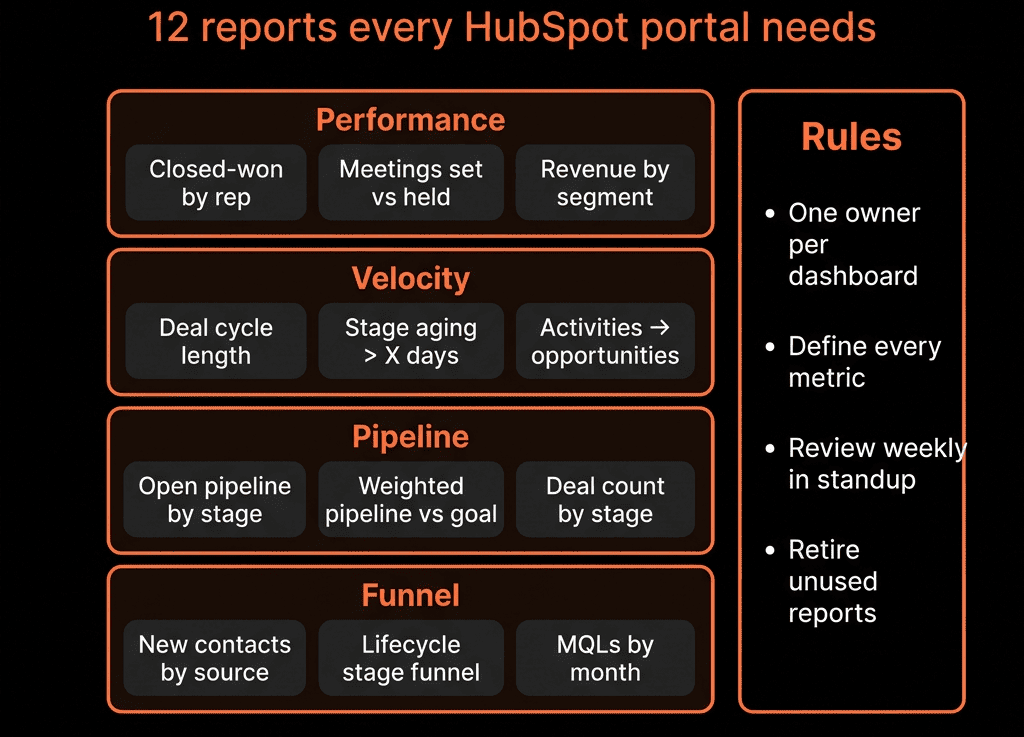
Step 8 – Build Dashboards That Show Revenue Stages, Not Activity Stages
Once your pipeline is rebuilt, update reporting.
Key views:
Stage-to-stage conversion
- See where deals die most often.
- Check conversion by segment, owner, source.
Win rate by stage reached
- “If a deal reaches Business Case Approved, what % Close Won?”
- Helps refine stage criteria.
Time in stage
- Bottlenecks by stage.
- Used to spot stuck deals that reps leave in “late” stages for too long.
Pipeline by stage vs target
- For each stage: amount vs expected coverage for this/next period.
These dashboards turn your pipeline into a diagnostic tool, not just a Kanban board.
Step 9 – Train Reps and Managers to Use Pipelines as a Shared Language
The best pipeline design fails if people don’t adopt it.
Rollout plan:
- Run a training focused on why you’re changing stages (better forecasting, less chaos, fairer expectations).
- Walk through examples:
- “Here’s a deal. Which stage does it belong in and why?”
- Clearly explain:
- When to create a deal.
- When (and how) to close lost.
- How to update Next step and Next step date every time.
Managers:
Use the new stages in deal reviews:
- “What event happened to justify this move?”
- “Which criteria for the next stage are not yet met?”
Adoption turns the new pipeline into a reliable revenue lens.
Step 10 – Iterate Using Real Data, Not Opinions
After 1–2 quarters, review:
- Stage conversion rates.
- Time in stage.
- Win rates per stage and segment.
Ask:
- Are some stages unnecessary (never used, or indistinguishable)?
- Are some transitions too easy, leading to inflated late-stage pipeline?
- Do we need a “Recycled/On Hold” pattern for deals that pause?
Refine:
- Stage names and criteria.
- Required properties.
- Workflows that enforce behavior.
Your goal: a pipeline where every stage change is a real shift in buyer commitment.
Want Help Rebuilding Pipelines Around Real Revenue Stages?
If your current HubSpot pipeline reads like an internal to‑do list—demo, proposal, contract—we can help redesign it around how your buyers actually buy.
Through our HubSpot Portal Health Check and Implementation Blueprints / Migration & ROI Plan, we:
- Audit your existing pipelines, stages, and reporting.
- Map your real buying journey into a clean, stage-by-stage pipeline design.
- Implement stages, properties, workflows, and dashboards in HubSpot.
- Train your team so the new pipeline becomes a reliable forecast engine, not just admin.
- So when you look at your HubSpot board, you’re seeing revenue reality, not just CRM activity.