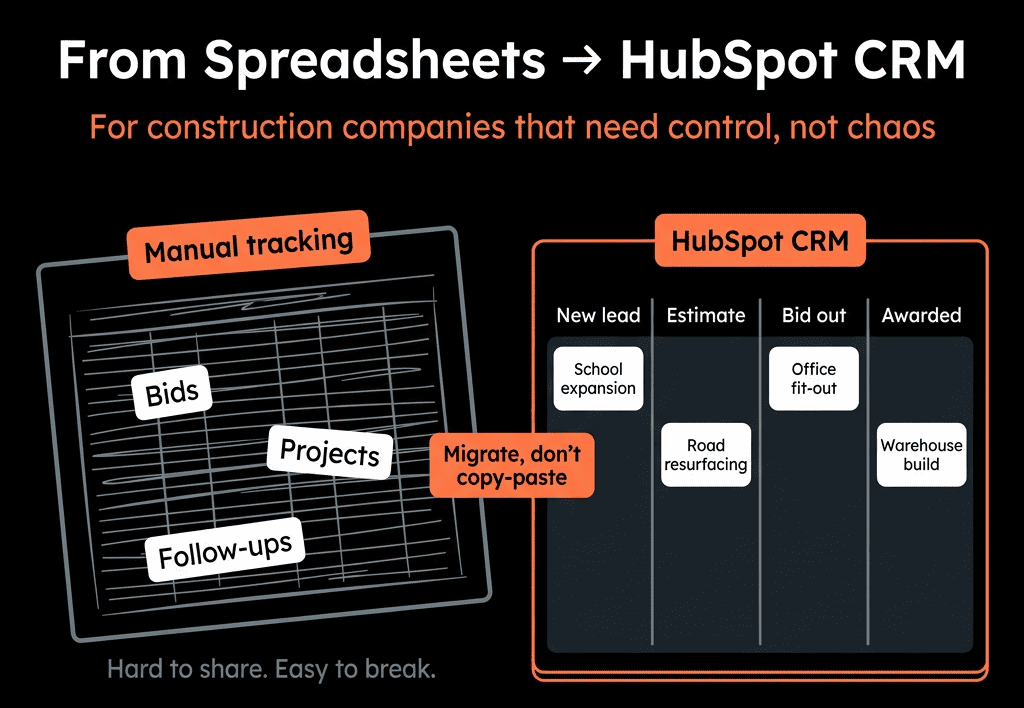


Your Real CRM Is Probably in Spreadsheets
Even if you “have a CRM”, most teams still run critical processes in Excel or Google Sheets:
- Lead lists and prioritization.
- Manual pipeline trackers.
- Onboarding checklists.
- Renewal calendars and revenue projections.
When it’s time to move into HubSpot properly, the instinct is:
- “Let’s just import the sheets as contacts, companies, and deals.”
- “We’ll recreate formulas as we go.”
If you do that, you risk losing the business logic baked into those sheets:
- Who gets worked first and why.
- How stage changes are decided.
- How renewals and expansions are tracked.
In this article, we’ll walk through how to move from spreadsheets to HubSpot in a way that preserves and improves your business logic—instead of flattening it into static data.
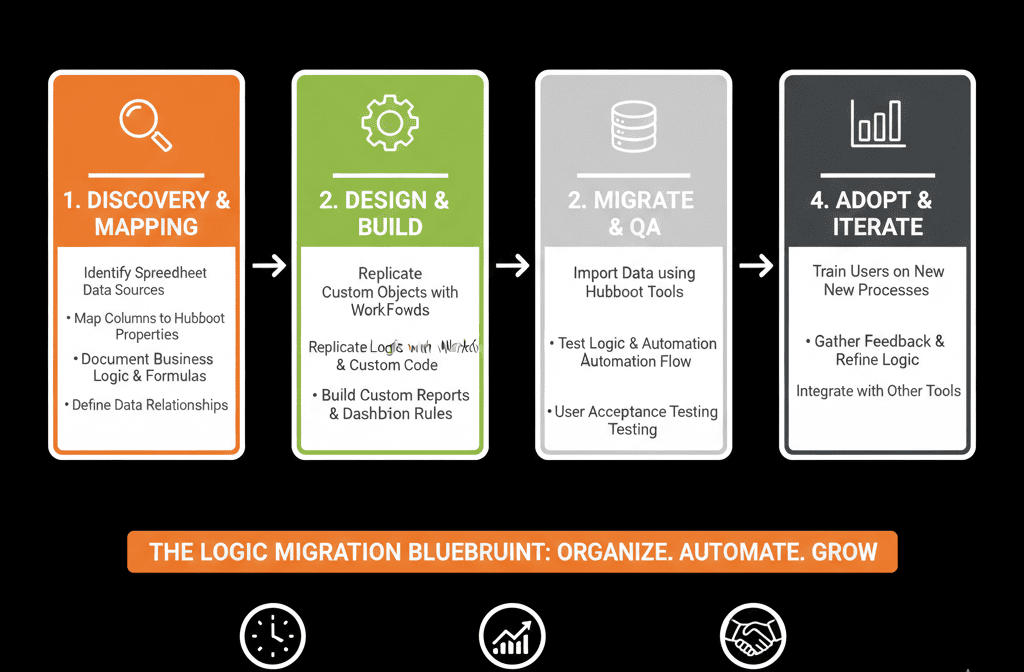
Step 1 – Inventory Your Critical Spreadsheets and What They Actually Do
Not every spreadsheet is equally important. Start by identifying the ones that run the business, not just report on it.
Ask each team (Sales, Marketing, CS, Ops):
- Which sheets do you open every day or week?
- What decisions or actions depend on them?
Common culprits:
- “Master lead list” or “Prospect tracker”.
- “Pipeline tracker” separate from any CRM.
- “Customer list with renewal dates and ARR”.
- “Onboarding checklist” per customer.
- “Partner or reseller trackers”.
For each sheet, note:
- Purpose (one sentence).
- Who owns and updates it.
- What columns/fields are key.
- What formulas or filters people rely on.
This tells you which spreadsheets deserve careful translation into HubSpot—not just a quick CSV import.
Step 2 – Extract the Hidden Business Logic from Formulas and Filters
The real value isn’t in the rows—it’s in the logic that ranks, filters, or classifies them.
Look for:
- Formulas: score calculations (lead score, deal priority), health/risk ratings, renewal/expansion triggers.
- Conditional formatting: color-coded rows (red = urgent, green = safe).
- Filters and views: saved filters people use repeatedly (“My hot leads”, “Renewals this month”).
For each important piece of logic, write down:
- What it’s trying to signal (e.g., “Show me leads that are ICP + engaged in the last 14 days.”).
- Which columns/factors it depends on (e.g., industry, size, last activity date, source).
Your goal is to separate business rules from spreadsheet implementation. Those rules are what you’ll rebuild in HubSpot.
Step 3 – Design a HubSpot Data Model That Can Carry That Logic
Before importing any CSVs, design where your spreadsheet data belongs in HubSpot.
Map spreadsheet concepts to HubSpot objects:
- Leads/prospects → Contacts (and associated Companies).
- Accounts/clients → Companies.
- Opportunities/pipeline → Deals (with pipelines and stages).
- Onboarding steps or projects → Tickets or a custom object (e.g., “Onboarding Project”).
- Renewal dates/recurring revenue → Deals + custom properties, or a custom object for subscriptions/contracts.
For each key spreadsheet column, decide:
- Which object it belongs on (Contact, Company, Deal, Ticket, custom object).
- Whether it becomes a standard property, a custom property, or a derived value in HubSpot (workflows, calculated fields, scoring).
This gives you a target schema so your imports feed into a structured system instead of a flat list.
Step 4 – Rebuild Business Logic Using HubSpot Features (Not Just Static Fields)
Once you know what the logic is and where data lives, rebuild it using HubSpot’s native tools.
Examples:
Lead prioritization and scoring (from a “Lead List” sheet)
- Use Contact/Company properties for ICP criteria (industry, size, region).
- Use HubSpot’s lead scoring tool to build fit/engagement/combined scores from properties and actions, which automatically creates score properties to store values and categories.
- Use active lists to mimic saved filters like “Hot leads” or “ICP + Active last 14 days”.
Pipeline status and deal risk (from a “Pipeline Tracker” sheet)
- Use Deals and stages to track pipeline.
- Use deal properties for risk flags (last activity, competitor present, discount level).
- Use workflows to flag stale deals, set risk levels, or create tasks.
Renewals and expansions (from a “Renewals” sheet)
- Use Deals with close dates/amount plus renewal properties, or a custom object for subscriptions/contracts linked to companies and deals.
- Use workflows to create renewal tasks X days before end date and notify owners when renewals are due.
Onboarding checklists (from “Onboarding” sheets)
- Use Tickets or a custom object for onboarding projects.
- Use tasks and pipelines to represent steps and progress.
- Use workflows to create standard tasks for each new onboarding.
The key is: replicate the intent of the spreadsheet logic, not the exact formula syntax.
Step 5 – Clean and Normalize Spreadsheet Data Before Import
Spreadsheets are flexible; CRMs are not. You’ll need to clean up data so HubSpot can ingest it consistently.
Common clean-up tasks:
- Standardize values for dropdowns (e.g., “United States”, “USA”, “US” → “United States”).
- Fix obvious errors (invalid emails/phones, missing required fields where possible).
- Split overloaded columns (e.g., “Name” → First/Last; “Location” → Country/State/City where needed).
Then:
- Prepare one CSV per object type (Contacts, Companies, Deals, Tickets).
- Ensure clear unique identifiers (email for contacts; domain or name + country for companies; external IDs if needed for future updates).
Clean in the spreadsheet world first; imports will be much smoother.
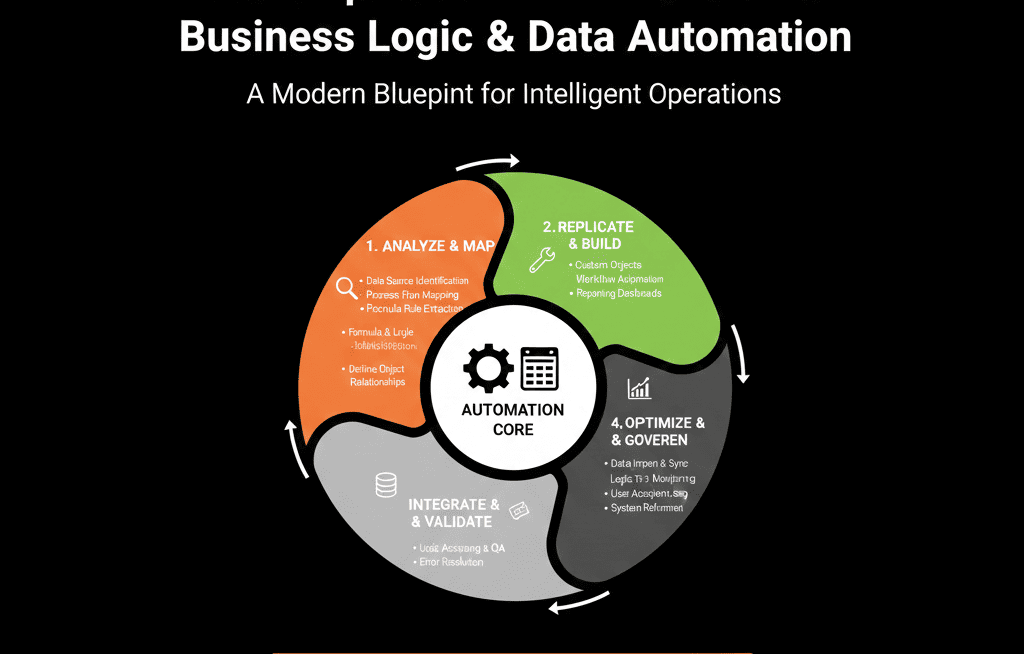
Step 6 – Test Import on a Small Sample and Validate Logic
Before loading your entire spreadsheet universe into HubSpot, test with realistic samples.
For each spreadsheet/domain (leads, pipeline, renewals, onboarding):
- Import 50–200 rows into a test/sandbox environment—or into a clearly marked “test” segment.
Validate:
- Properties are populated correctly.
- Associations (Contact–Company–Deal) look right.
- Views and lists show the same segments your spreadsheet filters did.
- Lead scores or risk scores roughly match expectations.
Sit down with the sheet owners and compare:
- “In our old spreadsheet, these were ‘hot leads’—do we see the same set (or a sensible improvement) in HubSpot?”
- “These renewals were due in X window—does HubSpot correctly show them and create the right tasks?”
If the sample behaves correctly, you’re ready for full import.
Step 7 – Import in Waves, Not in One Giant Dump
To avoid overwhelming the system and your team, import in waves.
Typical approach:
- Wave 1: highest-value or most active records (current opportunities, active customers, near-term renewals).
- Wave 2: broader prospect lists and historical deals.
- Wave 3: older or lower-value history, if you choose to bring it in.
After each wave:
- Check data quality.
- Confirm views and lists match expected segments.
- Fix mapping/logic issues before the next wave.
This staged approach reduces risk and gives teams time to adapt.
Step 8 – Replace Spreadsheet Workflows with HubSpot Processes (and Communicate the Change)
It’s not enough to move data. You also need to retire the old way of working.
For each critical spreadsheet:
- Schedule a date when it becomes read-only or is officially retired.
- Communicate where that work happens in HubSpot now and where archived references live.
- Provide job aids: “Old spreadsheet view → New HubSpot view” and “Old formula → New HubSpot rule/score/list”.
This reduces the temptation to keep “secret” or “backup” sheets on the side.
Step 9 – Train Teams on HubSpot Views, Lists, and Workflows (Their New “Spreadsheets”)
Users liked spreadsheets because they were flexible, filterable, and easy to sort and view.
Show them how to get those benefits—properly—from HubSpot:
- Saved views in object tables (Contacts, Companies, Deals, Tickets).
- Active and static lists/segments for targeting and operational queues. [web:372]
- Dashboards that replicate “summary tabs”.
- Workflows that automatically apply rules they used to manage manually.
Train teams not just on “how to click”, but how the old sheet logic is encoded now and how to request changes through RevOps instead of editing a formula cell.
Pulling It Together: Port the Logic, Not Just the Rows
Moving from spreadsheets to HubSpot is your chance to standardize definitions, automate repeatable rules, and centralize data in a system that scales.
But that only happens if you identify the critical sheets and their logic, design a HubSpot data model/properties that can express that logic, rebuild rules using HubSpot tools (scoring, workflows, lists, pipelines), clean/test/import in waves, and then retire old sheets with training.
Done right, HubSpot becomes “the spreadsheet that runs itself”—with guardrails and reporting your old Excel files never had.
Want Help Moving Off Spreadsheets Without Losing Your Secret Sauce?
If your real CRM is scattered across spreadsheets and you’re worried about losing your hard-won business logic in a move to HubSpot, this is exactly where we can help.
Our HubSpot Portal Health Check and Migration & ROI Plan are designed to:
- Audit your critical sheets and the logic they encode.
- Design a HubSpot data model and automation layer that preserves and improves that logic.
- Plan and execute a clean, staged migration from spreadsheets into a single, trusted HubSpot portal.