

Your CRM Can’t Segment the World If the World Is Spelled 50 Different Ways
Almost every portal we audit has the same problem:
- Country: “US”, “U.S.”, “USA”, “United States”, “America”…
- State: “CA”, “California”, “Calif.”, “CA – California”…
- Industry: free‑text chaos from forms and sales notes.
On the surface, it’s “just messy data”.
Underneath, it breaks:
- Lead routing by territory or region.
- Sales and marketing segmentation.
- Market and performance reporting by geography or vertical.
HubSpot gives you the tools to standardize this.
You need a plan to:
- Design canonical lists.
- Clean existing data.
- Guard against future drift.
In this article, we’ll walk through how to standardize country, state, and industry data in HubSpot without bringing the business to a halt.
Step 1 – Clarify Why These Three Fields Matter So Much
Before doing cleanup, make the business case internally:
Country and State/Region drive:
- Territory and owner assignments.
- SLA and regional routing rules.
- Localized messaging, language, and time‑zone handling.
- Compliance considerations in some markets.
Industry drives:
- ICP definition and segmentation.
- Vertical marketing and ABM programs.
- Win‑rate and ACV analysis by segment.
- Roadmap and packaging decisions.
You’re not cleaning “for hygiene’s sake”. You’re fixing fields that sit at the heart of GTM strategy.
Step 2 – Audit Existing Country, State, and Industry Values
Start with a reality check on how bad it is.
In HubSpot, for both Contacts and Companies:
Export or build reports on:
- Country (and/or IP Country, Billing Country, etc.).
- State/Region.
- Industry (or the main industry property you use).
Look at:
- Unique values and their frequencies.
- E.g., how many distinct country strings do you have?
Obvious mess:
- Misspellings (“Untied States”).
- Inconsistent abbreviations.
- Free‑text noise in industry.
Group values roughly by:
- Clean and standard (e.g., “United States”, “Germany”).
- Mappable (e.g., “US”, “U.S.A.” → “United States”).
- Unknown or junk (“N/A”, “Test”, “Earth”).
This audit gives you a sense of the scale and common patterns.
Step 3 – Decide on Canonical Lists and Formats
You now need to pick a single, consistent way you’ll represent:
Countries
- Typically: full English names (e.g., “United States”, “United Kingdom”, “Germany”).
- Using ISO country naming as a reference.
States/Regions (for key countries)
- For example, for US and Canada: use standard 2‑letter codes (“CA”, “TX”, “ON”, “BC”) or full names—pick one and stick to it.
- For other countries: decide whether you truly need state/province granularity or if country is enough.
Industry
- Avoid free‑text for your main industry field.
- Create a controlled picklist aligned to your ICPs (e.g., SaaS/Software, Financial Services, Manufacturing, Professional Services, Healthcare, Other).
- If needed, add a secondary free‑text field for nuance.
Document these decisions in your data dictionary so everyone knows the standard.
Step 4 – Implement Standardized Properties and Limit Inputs
Next, make sure HubSpot’s properties enforce your choices going forward.
Country
- Use HubSpot’s built‑in Country property or a custom one with dropdown options.
- Set field type to dropdown select and populate with your canonical country list.
State/Region
- For key markets, use a dropdown property with your chosen format (codes or full names).
- For other countries, use free‑text only if necessary, but prefer dropdowns where possible.
Industry
- Convert the primary industry field to a dropdown with your standardized options.
- Optionally add a secondary free‑text field (e.g., “Industry detail”).
HubSpot lets you manage enumeration property options (like dropdown select / multiple checkboxes), including adding/removing options and merging options so records using old variants roll up to your canonical value.
Update:
- Forms: replace free‑text Country/State/Industry with dropdowns using these standardized properties.
- Imports: ensure import templates map to standardized properties.
This prevents new data from adding more chaos.
Step 5 – Build Mapping Rules from Messy to Standardized Values
To fix existing data, define mapping rules from messy values to your canonical ones.
Create a simple mapping table, e.g.:
For Country
- “US”, “U.S.”, “USA”, “U.S.A.” → “United States”
- “UK”, “U.K.”, “GB”, “Great Britain” → “United Kingdom”
- “UAE”, “U.A.E.” → “United Arab Emirates”
For State/Region (US example)
- “California”, “Calif.” → “CA” (if you standardize on codes)
- “New York State”, “NY State” → “NY”
For Industry
- “SaaS”, “Software as a Service” → “SaaS / Software”
- “Bank”, “Banking”, “Fintech” → “Financial Services”
- Long tail or ambiguous → “Other” + capture detail in secondary field if required
This mapping doc becomes your playbook for bulk cleaning.
Step 6 – Clean Existing Data Using Lists, Workflows, and Bulk Edits
Use a mix of tools to standardize existing values in batches.
Country and State/Region
Approach:
- Create active segments/lists for each messy value or group of values (e.g., Country is any “US variant”), then take action on that group.
- Bulk update the standardized property values in batches (e.g., set Country to “United States”).
For more complex patterns, use workflows to normalize values (e.g., if State is “California” and Country is “United States”, set State to “CA”).
Industry
- Start with high‑volume messy values; build segments that match them; bulk update to standardized options.
- For long‑tail one‑offs: map to “Other” or handle top 20–50 manually depending on volume.
Always:
- Test on a small sample first.
- Document what you changed and why.
Step 7 – Handle Conflicting Values Between Contacts and Companies
Sometimes contact‑level and company‑level data disagree.
- Contact country vs Company country.
- Contact industry vs Company industry.
Decide rules such as:
- “Company is the source of truth for country and industry; contacts inherit for segmentation.”
- Or “Contact can differ from company for certain use cases (remote workers), but company is used for account routing and reporting.”
Then implement workflows to sync standardized values where appropriate, and base account reporting on company‑level geography and industry for consistency.
Step 8 – Put Guardrails in Place to Keep Data Clean
Once you’ve cleaned up, stop the drift.
Guardrails include:
- Limiting who can edit core properties (e.g., restrict Company industry/country edits).
- Using dependent form fields (e.g., show State only when Country = US/Canada).
- Validation logic via workflows: if a property is set to a non‑standard value (often from imports/integrations), auto‑correct or flag it.
Also train teams and update your data dictionary with approved values, definitions, and usage notes.
Step 9 – Monitor Data Health Regularly
Standardization isn’t a one‑time project.
Monthly or quarterly, review:
- % of records with non‑standard values (should trend toward zero).
- New unique values appearing in country/state/industry.
- Impact on routing accuracy, segmentation quality, and reporting.
If you see drift, check new integrations or imports, adjust forms/workflows, and re‑educate teams.
A simple “data health” dashboard with KPIs around these fields can keep issues visible.
Pulling It Together: Small Fields, Big Impact
Standardizing country, state, and industry in HubSpot is not glamorous work.
But it quietly unlocks accurate territory routing, reliable regional/vertical reporting, better personalization, and dashboards leadership can trust.
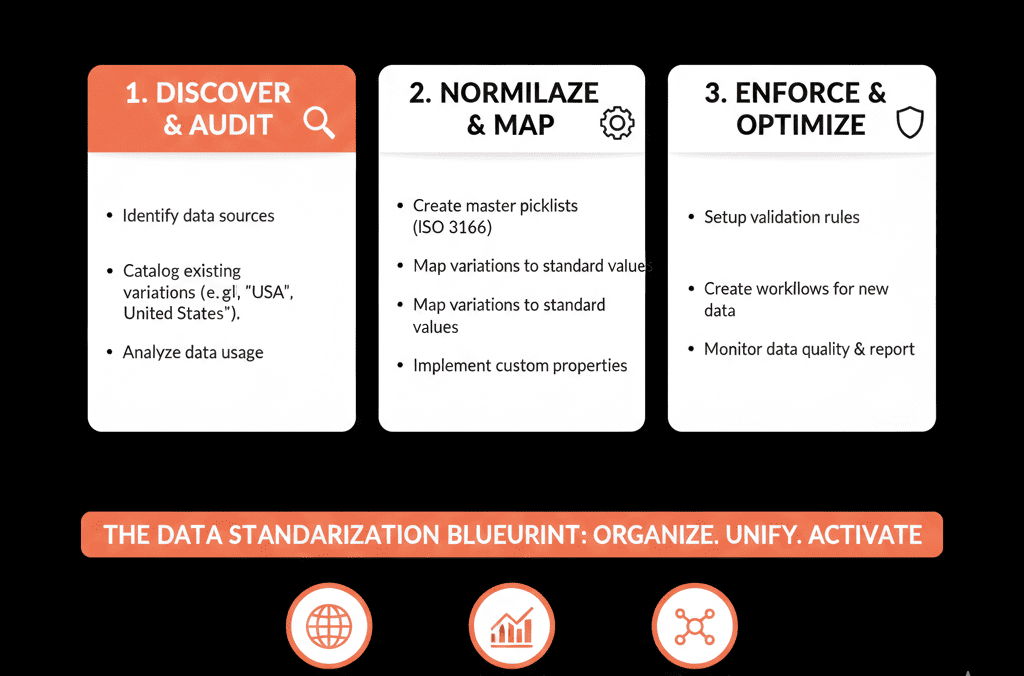
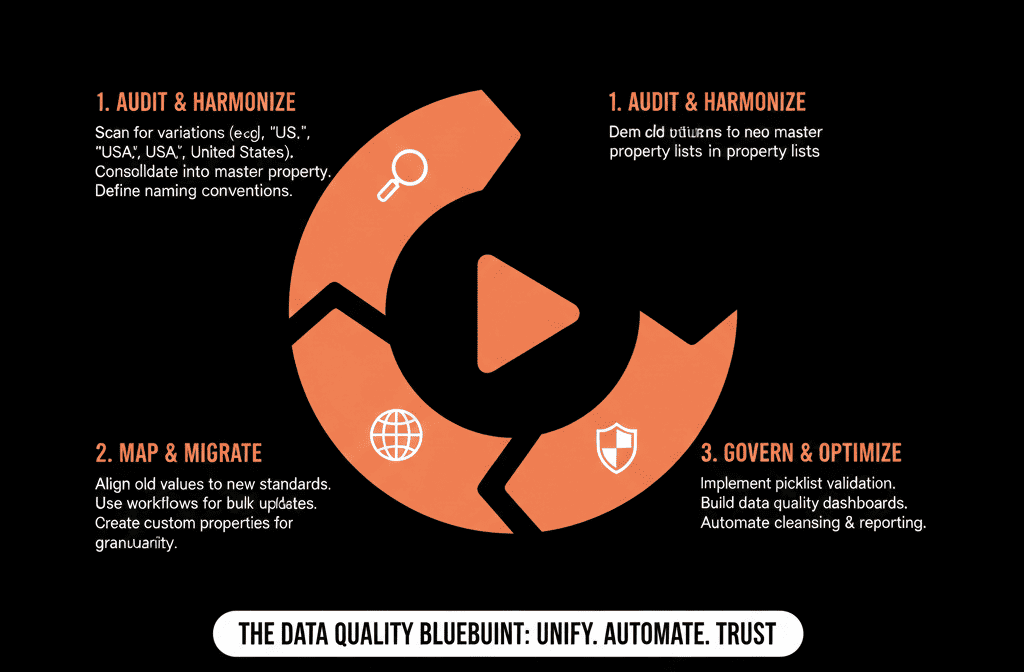
The playbook is straightforward: audit, choose canonical lists, lock down inputs, clean in batches, then add guardrails and monitoring.
Do this once, maintain lightly, and suddenly many other RevOps and marketing tasks become easier.
Want Help Cleaning and Standardizing Core Data in Your HubSpot Portal?
If your HubSpot country, state, and industry fields are a mess—and it’s holding back routing, reporting, and campaigns—this is exactly where we can help.
Our HubSpot Portal Health Check and Migration & ROI Plan are designed to:
- Audit your current data quality and value variants.
- Propose standardized lists and governance for core fields.
- Build a practical clean‑up and prevention plan tailored to your segments and regions.